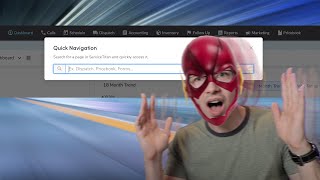
This YouTube release-notes video demonstrates ServiceTitan’s new Quick Navigation feature (Spotlight-like). The presenter shows that pressing the forward-slash (/) anywhere in ServiceTitan opens a search box to quickly jump to pages (example: Materials page in Price Book; Technician Settings). The feature speeds frequent workflows but in this initial release cannot reach every page (e.g., Payroll) and cannot search jobs, projects, or locations yet. The video includes usage tips (click out of any text box before pressing /) and closing/links to other release notes videos.
Questions this video answers
Press the forward-slash (/) key anywhere in ServiceTitan.
Materials page (Price Book) and Technician Settings.
Searching for jobs, projects, and locations; also not all pages (e.g., Payroll) are indexed yet.
Release notes, highlights. Alright, next we have Quick Navigation. Now this one might not seem like much, especially compared to the last two behemoths we just went over, but this is low key. One of my favorite things that's ever been added to Service Titan. So if you're a Mac user, then you're probably familiar with Spotlight. From anywhere on a Mac, you can hit command space on your keyboard and you get this little text box. And from there you can quickly navigate around your computer. So you can like quickly open a program or quickly search for a file. It's extremely convenient. And quick navigation. This is like Spotlight for Service Titan. So by hitting the forward slash key anywhere in Service Titan, you'll get this text box. And from here you can navigate somewhere else. So I'm on the dashboard right now, but let's say I wanted to go to the materials page of my price book. I would just start typing out materials mat and there it is. I would hit enter and then there I am. Now let's say from here I wanted to go to my technician settings again, I would just start typing it out. So tech Settings technicians enter. And just like that, there I am. When you use ServiceTitan for several hours a day, at least five days a week, which if you're watching this video, chances are you probably do, this is a huge convenience and a huge time saver. Now a couple of things to know about this. First is that right now just with this initial release, you can't get to every single page in Service Titan from Quick Navigation. For example, let's say I wanted to go to payroll here. You'll notice I don't get any results, but more and more pages will be added to Quick Nav as time goes on. Another thing to note, I can already see your gears are turning. You're thinking, ah, yeah, but what about searching for jobs? What about searching for projects? Oh, what about searching for locations though? Yes, not in this initial release. It can't do any of that yet. But yes, that's the direction. Also, if you're in a text box, be sure to click out of the text box before hitting forward slash to call up Quick Nav. Because otherwise obviously it'll just type a forward slash.
Hey, thanks so much for watching. Mighty kind of ya. If you want to check out the full release Notes video, here's a link to it right around here. Or if not, here's another video I think you might enjoy. I'm just gonna sit here and stare at you till you pick one. That's right. Go on okay. Interesting choice.