YouTube tutorial transcript where the presenter (Speaker A/Brad Costanzo) demonstrates a lesser-known ChatGPT feature: using the @ symbol inside any chat to invoke recent and pinned Custom GPTs (including others’ GPTs) without switching contexts. The video shows how to pin Custom GPTs to the sidebar via Explore, and suggests multi-GPT workflows (e.g., sequential marketing campaign steps) to speed up tasks.
Chapters
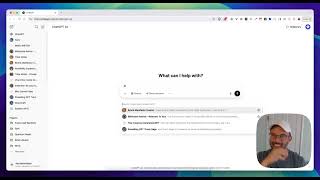
Hey, Brad, here, I've got a fun trick to show you. With ChatGPT, this is something I took for granted. It's been around for a little while, but I was talking to some other clients and they had no idea it existed, so I figured others might not as well. So if you're inside ChatGPT and you click the at symbol, this allows you to access your most recent and your pinned custom GPTs that are over here on the sidebar. Now, why is this useful? So one of the main reasons is because if I'm using a custom GPT like this one I created over here, just billionaire advice relevant to you, if I start to interact with it, I'm interacting in a silo, so I'm only interacting with just GPT. Well, what if I wanted to use some of the other GPTs in this chat as well? Well, until recently that was impossible, but so Chat GPT made it available to. If you're in a chat, all I have to do is type the symbol, type it in here. And now what it's doing is it's accessing one of my GPTs and I can ask it to run those instructions. When I'm done, I just click X and then I grab another one and maybe it is this viral hooks generator. So I could start off with one piece, go to the next, go to the next, go to the next and access all of the GPTs. Now, once more, I mentioned that the only ones you can access, you cannot access every GPT in the library, but you can access your recent ones and the pinned GPTs. This also means you can access the custom GPTs you created, but also the custom GPTs that other people have created. Right. So all you have to do is either use it once or pin it in the sidebar. How do you pin it in the sidebar? Very simple. Come over here to explore and whether it's yours or somebody else's, like, this is mine. Let's just see. I can come down here and just grab. Let's see, Logo creator. For instance, if I click Start and I want to use this, this is not one I created, but if I wanted to use this over and over, I just click the down arrow here and then keep in sidebar and you'll notice it should show up over here somewhere. Logo creator. It's right here. That means I can access this in a normal window. Now, I'm going to get this out of my sidebar, but so if you think through a workflow for this, one of the things you'd be able to do is create a. You know, create a set of custom GPTs. Each one does something linear. Let's say you're planning out a marketing campaign. So the first GPT could be, you know, like, offer ideation. The next one could be, you know, sales copy. The next one be ads. The next one could be social media or whatever. And so each one of them has a designated reason for something else. And then you can just access each one of them, as long as they're in your sidebar, by clicking the AT symbol and working with it. It's gonna save a lot of time. It's a really cool little feature that a lot of people don't know about, so I hope you enjoy it and let me know if you end up using it. Thanks a lot.