How to Use College Soccer Guy AI
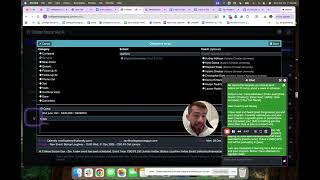
In this tutorial, the presenter walks viewers through the College Soccer AI platform, demonstrating how student‑athletes can upload and label their highlight videos, select target schools from curated lists, and compose genuine outreach emails using built‑in templates and an AI assistant. The video details the workflow for writing and sending emails, adding follow‑up messages, marking incoming coach replies as genuine or generic, and tracking all interactions in a pipeline view. It also shows how to submit videos for editing, search for coaches or schools, and leverage the platform’s robot to generate or refine email content. Throughout, the presenter emphasizes the importance of genuine communication, organized inbox management, and using the AI’s suggestions to improve recruitment outcomes.
Chapters
Hi everyone, I'm so excited to show you some features inside the Call Soccer AI system. So I'm just going to go through each one. Again, you can rewatch this video, pause it. Your coaches will also take you through this, but if you're excited to get started, I just want to show you everything ASAP, super quickly. So this is the page you'll get onto when you log in. Most of you will be itching to send emails right away, so what we want you to do first is we want you to go to this section here where it says videos. When you go to the section named videos, you can add in a video. So we want you to add in the video that we would have provided for you and/or you have. You want to label it, you want to put in the link. You don't have to do the thumbnail, so you can skip that. But if you do have a JPEG file, you can add it, but you don't need to do that. The system will already grab the main file folder. It will give you some options, and you'll be good to go. Now, once you do that, you're going to click on videos, and right here I have my main video. So that's step number 1. Step number 2— excuse me— you're going to go back to the coaches section. Now, we want you to write a lot of genuine emails at the beginning. and the reason we want to do that is because we'll get lots of better responses. So what you're going to do is you're going to press Select All to all the schools you want. To make things easier for you, what we did is we gave you a list of schools. Um, let me show you an example. Who used the system and actually just recently committed San Diego, this is their folder. So you can see exactly what they did. So you got a doc inside of your Google Drive, you got this document says Top Academic. When you go to Top Academic, we put in here Tier 1, Tier 2, and a couple other tips for you on how to keep track of everything. Having said that, what we want you to do is if you go to this system and you go to your major and you click on top academic, these are not every single school in the country. These are the schools we recommend for you. So what we would like you to do is spend time on 30 to 40 schools that are your top choices, either the ones we recommended to you or the ones you already know of. You're gonna press Select All, and again, you can do this for every major. This is not, again, every school with that major. It's every school that we recommend you with that major. So if you click Select All, and because we wanna save you time, and you click Write Genuine, we want you to write something genuine for each of these people. You don't have to do it for everybody. There's so many of them, but again, for your top schools, we would like you to write something genuine, and let me show you why. When eventually you click select all and you click— so you would have written something genuine at this point and make sure you press save. So just go through that real quick. You do this one and you wrote something genuine. You can also do it one at a time. I wrote something genuine for this coach, so that's genuine. So now if I click write email, you're going to put in the subject line that we would have helped you create. Dear hashtag coach hashtag genuine. You're going to write in the temp that we gave you and you can add in the school's name. Make sure you create spaces in between. It'll, it'll just look better when you write the email. Then you're gonna insert your video. There you go. And you can also insert a template. All of these templates are the ones we're gonna talk to you about, but all of these ones are the ones we're gonna use. So I know a lot of you are worried, maybe they're all the same. They're not. They ask you certain ways to make yours different. But before an ID camp, this is what we want you to say. This is very important. So it has all the templates for you. So if you are like itching to send emails, and you want to get started, this has every single type of template you want to send. So in your head, you will— if you'd like, what I'd like you to do is ask the robot and say, you know, what email should I send before an ID count? And this robot will tell you the answer. It takes a couple minutes, so we'll come back to that. It works pretty good, but it's still— I'm trying to make it faster, so just give it a second. Okay, now you have this. Now you know how to send emails, and then you press send. And when you press send, it will automatically go to this. See how this has a green button? That's because it's genuine. So we know it's genuine, and that's fantastic. Okay, so now you know the basics. Now the other things you can do is you can submit your videos for editing by clicking on these, which is super easy. If you want to look up coaches or schools, you know, you just click on coaches and you can search things by school name and coach. And that part I think is pretty self-explanatory. The other thing I want to show you is again, the robot's really good. It can do almost everything. So here I said, here's a template for you. Perfect subject line, perfect email. It has the exact thing that I would have put in the template for you. This is exactly what I tell our coaches to do. Of course, we want to customize it for you, but it even says what specific ID camps are you planning to attend to? Talk to the AI. It's really good and it will learn you, learn about you as you get better. So then you don't even— not to say you don't want our coaches, but let's say you're meeting with our coaches and then you go, you know what, I'm going to try the AI. We have kids who get recruited only using the AI because that's how amazing it is. So please use the AI. It will help you a ton. And this is how you send emails, which is pretty simple. The other thing I need to remind you of is when you write the emails, I'm just going to press Select All, click Write Emails. Make sure you click this button right here, Add Follow-up. If you don't click it, you won't get this feature, which is where the system will remind you of anybody that did not respond to you. So you want that so you can remind it and you just click this Reply button. And then you can respond right there and follow up with them. And guess what? There's a template for that. Let's go to the follow-up. Here we go. Follow-up after genuine communication. Follow-up after a fall game. So click that one. It's been genuine. Boom. And then you add in, of course, the custom stuff that we always want you to do. So I think you're getting the hang of this. Now let me show you one more thing. When you send your emails out, the system will help you keep track of everything you need to keep track of. So genuine connection email and whether or not you got invited to camp. Now, in order for this to work really well, You're gonna go to your inbox. Now, your inbox is your literal inbox. Like, this is my inbox. I got this email today, a little while ago. So let's pretend this was a college coach. Let's say this said Stanford. You're gonna click on the star. You're going to tell us if it's genuine or generic. If you don't know if it was genuine or generic, then what you do is you click on the email, you highlight whatever they said, you copy it, you give it to the robot and say, "Is this genuine or generic?" And it will tell you the answer. It will know if it was genuine or generic. You click the star and let's say the robot says this was a genuine email. You're going to click on genuine. Then you're going to type the name of the school. Let's say Stanford. Um, you click Stanford and then if there's a coach involved, you can add a coach. Then what if the email mentioned a camp, which is very important? So let's say we read this email and it says at the bottom here, um, please come to our camp at, uh, Wednesday at 3 PM. I'm just making that up for right now. You want to click the star. Click genuine, click on Stanford or whoever the school is, click it. Then you need to make a note of the camp. So you're gonna say Wednesday, June 15th. And if you can, make an extra note if you think it was genuine or if you think it was generic. But make a note of that each time you receive an email. And you can also add in any notes like, I love this school, or whatever you wanna say. Click save. Once you click save, What will happen is this message was marked genuine. So then what you do is you go to the genuine section. Sorry, you go to pipeline, and if you click on genuine, it will pop up right here with all the notes that you just took. So here's the school, um, here it is. We have Stanford. That's the one we just saved. Isn't that great? And you can respond if you want to, you know, you can change it if you think it was generic later or genuine later. So now it's in the genuine section. That's really important. Let me explain why. We have genuine, and you can of course put it in any section you want. Remember how we wrote down the date for the camp? So if you look here, here's Stanford, June 15th. So now we know we got invited to this camp. Now if, I'll get to this in a second. So now this is the cool, the next part. So let's say you have a bunch of schools that have been genuine with you. Right, like 20 of them, and you want to update all of them, which we're going to want you to do. You're going to click on all schools, and you're going to send a message just to the ones that you mark genuine. So schools with genuine, or schools that are mass email, or schools that you need to follow up with. So let's say you want to follow up with 10 schools that are all been genuine, right? They're in the genuine section of your pipeline. Click on select genuine. Once you've selected genuine, once you select genuine, Schools with genuine messages, it will automatically select all the schools with genuine messages, and you can click write emails. So again, if you go here to pipeline and you've selected genuine messages, so here genuine, all of these schools are going to get an email because they've been in the genuine section. So if we go back here to coaches and let's say we want to— let's do clear and we're going to start. I only want to email the schools I've already been genuine with, no one else. Click genuine, and these are the 4 schools or 2 schools that in your section you have marked as genuine. So then you will send an email just to them. And guess what? If you click Select All, it will just have the genuine sections. And of course, you can identify if you want to do that. Click Write Email. And when you click Write Email, now what you can do is send an email like you would normally do, but look at the template you would probably use. There's probably a template in there that says genuine follow-up. So if we look for follow-up genuine, Been in contact, cannot attend, follow up after genuine communication. So you're going to click on that one. So now we want you to give them an update with either life or here's a video, or you can also update them about a goal you scored or anything else. And of course, ask the robot. The robot will be able to tell you what to say because it's that good. And of course, you always have access to the team as well. So you can ask us all these questions. Now, this is a lot of information, right? You may not remember everything I just did. So your coach will walk you through it and guide you through each step. But the biggest one that I do want you to keep in mind of is as we're sending emails, this is a really cool new feature now where as long as you keep organized your pipeline, right? And to keep this organized, you're going to go to your inbox and organize every email you've ever received, which is super important. It will pop up in your pipeline. So that way, if you want to, let's say you have a bunch of generic responses, which is pretty normal, you'd go to coaches, Click Clear Section, click Select. Oh, sorry, Clear Section. You're gonna go here, you're gonna go, ah, there's been a lot of coaches that have been generic. I wanna follow up with all of them, right? I'm upset that they haven't responded. I'm gonna click Select All, click, you can write something genuine if you want, but guess what? We have a template for when it's been a generic response. So not heard back from. So you click here, you haven't heard back from, I haven't been able to reach you as yet, right? 'Cause they're writing generic messages. And look what I say. It's this question here, it's really important. If there's a showcase. If there's no showcase, then we have to change it, of course, based off of what you have or have not heard back from. So this one, I hope to be, I've not been able to, politely following up, I'm a striker. So we have not heard back from him, we have not heard back from a showcase. So that's how specific we get. Because it's so specific, you'll have lots of questions. So ask your coach, or better yet, try the robot. The robot's faster than responding than my coaches, right? It's a robot, and it knows everything I know, it's really good. And in a couple weeks, I'm hoping, maybe not a couple weeks, soon, you'll be able to call the robot and it will be my voice and you'll be able to talk to me in my AI clone. Okay, excellent everyone. I will talk to you soon.