#1 Software for Entrepreneurial Operating System is...a SmartSuite Template?
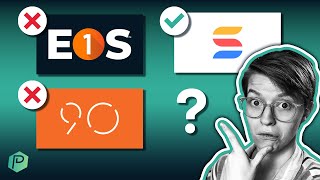
A walkthrough of how to run the Entrepreneurial Operating System using SmartSuite templates instead of separate tools. The video covers VTO, 90-day plans, Level 10 meetings, Rocks, and Scorecards, showing how one platform can handle all the EOS components without friction.
The entrepreneurial operating system, or EOS as it's popularly called, is a way for you to organize how your business operates so that you can define the vision that your team is trying to achieve and get everyone rowing in the same direction. And while this sounds great, and many teams across industries and continents have found EOS to be incredibly helpful, one of the challenges or popular criticisms of EOS is the amount of information and data entry involved in actually bringing EOS to life. Because of all this data entry required to run your level 10 meetings, to track your VTO, to go ahead and ids everything. Because of all that data entry, a lot of folks will just kind of abandon eos, viewing it as something that's too complicated to apply inside their smaller business. To solve this challenge of administrating EOs, there has been a rise of software purpose built to help you keep things organized. These the biggest player up until recently was 90io and then EOS1 this year came out to help you organize all of your EOS festivities. However, in the real world, both of these pieces of software really struggle. In reality, I've seen it myself, having worked with over 1700 teams on implementing their work management systems, and what I find is that with 90io, EOS1, and all of the other comparable tools out there, we end up having this silo effect. We've got our EOS stuff over here which only management looks at, and then we've got our other tools over here that all the team members are looking at and there is no meaningful connection between those two silos of information. So despite the fact that we've got this fancy software helping US administrate EOs, all it does is give us a prettier place to do a ton of manual data entry because everything is so separate. Separate. However, it's my belief that this silo based reality is not doing yourself as an EOS administrator or your team any favors. There's no reason our operating system should be separate from how we're actually operating, right? Specifically today I'm going to talk about the work management software called SmartSuite, who's also the sponsor of today's video, which is basically like a spreadsheet on steroids with a pretty interface and way more features than that, and use this software to build both an EOS implementation area and a task management or normal work area and have it all connected inside of one platform. Because we've already covered the task management and work management features of SmartSuite on some other videos up here. I'm going to be focusing today specifically on the EOS implementation side. Basically the features and functions that allow us to replace something like EOS1 or 90io. As we dig in today, I'm going to encourage you, if you haven't already, to use our affiliate link below this video to actually sign up for a SmartSuite account. You can use their free replan and recreate just about everything I'm going to be showing you on the screen today, so there's no harm in actually digging in and checking it out for yourself. Once you are inside the home area of SmartSuite, you're going to want to go down to add a new solution and choose the template that's called EOS Program. You can find it right here by searching and clicking Use Template. This template is what we're going to be walking through in the remaining sections of this video. And yes, you can access this full template and all of the functionality I'm going to be talking about here, even on a free account of SmartSuite. So really no cost for giving it a shot. Once you have the EOS Program template loaded into your account, you're going to see something that looks sort of like this. And you see I added a few little emojis in here and deleted the resources area. But honestly, I did not edit very much to get to what you see on the screen right here. Just maybe five minutes of clicks. Now that we're here though, I want to talk you through each of these areas to demonstrate how SmartSuite can really work for our EOS implementation. The very first area inside our EOS program area is our Vision and Traction Organizer, or vto. That's right here up at the front. And it's our first app inside this solution. Yes, that's the terminology, in case you're wondering. This Guy solution. This Guy app. When we click on this app, we see the current Vision and Traction Organizer for this imaginary company for this particular year. I can track when exactly I built that vision, and if I click on the record itself itself, I can see the breakdown of all the specific components I included in my Vision and Traction Organizer. In the very top section, I've got a breakdown of my core values as they stand currently. These right here are broken down as sub items in SmartSuite. Basically, they're kind of like subtasks, nested records, that kind of thing. Below core values, we have our core focus area. This is a Smart document field. But all that really means is it's a spot spot for us to do a lot of nice Formatted text with all the formatting options you might be used to inside a Google Doc or Word file. And we can even focus in on this if we want to blank everything else out and just focus on writing out our core focus inside this seemingly endless doc. When we go down below this core focus area we have our marketing strategy which is pre populated with the prompts that we all know and love from inside eos. When we scroll down below that, we see our three year picture where we can give ourselves certain dates and outline what we expect that reality to look like. Each of these document area fields that you see here are set up to have default values with all of the standard EOS prompts. Meaning every time we create a new VTO all of these prompts will be repopulated into it without us having to go and do copy and paste. Ooh, quick reminder, if you are enjoying this video so far, please do like and subscribe. It costs you nothing and it's like a payment for this free video that helps this content show up to other people like you really appreciate it. And with that back to the video below that we have attachments and in summary, this creates our VTO record. As we realize this ambition, we can go ahead and change the status of this or create a new record, a new entry for the next period of time. But that's our VTO area and our very top of our EOS program. To the right of that we have our one year plans because VTO is great, but we probably want to narrow it down to a more concrete reality we which is where the one year and the 90 day apps come in. In the one year plan area, each record here represents a different one year block of planning. So the very first one we have is company wide. So for 2022 the company wide one year plan is as follows. We've got our one year picture, we've got attachments and we've got links out to departmental plans. What are those departmental plans? I'm glad you asked. If we go down into this departmental section which is a category, we have things grouped by over here we are going to go into the marketing plan for this year. Inside here we've got standard fields as you would expect. Like when did we create it? What time period is this for? And then we've got the one year picture for this particular department. And if you notice to the right we have attachment areas where we can add in our focus themes, our budget and cash flow and our roles and responsibilities as attached files if we want. If we prefer not to have anything outside of SmartSuite. We could also set these up using Linked Records. It's a little geeky detail, doesn't really matter here, but just know you've got some options in terms of how you want to visualize these things. For most folks who like to visualize this One Year plan, maybe outside of their task tool, maybe on a whiteboard or even in a meeting where you're just maybe taking pictures of a whiteboard, you could just attach those images here. So that's BTO and one year plan. These are both apps inside of SmartSuite, where the database, these guys, these kind of rows each represent a category of planning. Our third app here is very similar, but rather than talking about One year or overall vision, we're breaking things down into those tactical 90 day plans. However, just like the first two areas in this 90 day plans area, each row represents one planning period. So it's the planning period, the overall container that we're organizing. And we're using some things called Linked Records, which I mentioned earlier, basically connections to connect these out to work that we're actually going to do. Let me show you what that looks like inside of Q1 2022, this 90 day plans area. We start off with the Plan 90 name. Now this is pretty straightforward, right? Q1 2022, nothing crazy there. Next to that we have the status. Where are we at this given 90 day plan? In this case, active. Below that we have scorecard. This is a relationship area and I'll talk more about this later on. But leave it to say this is giving us the active scores of all of the relevant scorecard information for this given quarter. So we can see here renewals were on track, accidents were on track, sales were a little off track. I'll go into more detail on this linking stuff later on, but for now leave it to say this Q1 area is summarizing the scorecard and rocks that you have tracked elsewhere. But that is what the 90 day plans area is. Just like the other two, these are summaries that are summarizing the relationship things that are rippling on down further in the chain. Now, speaking of summaries and so on, let's start talking about tactical stuff because we've done vision, we've done 90 day plans. Let's go on to the L10 or the Level 10 meeting. By far, this is the part of EOS that I find that most people enjoy the most, but also is one of the hardest areas to administrate inside most normal software. Fortunately, though SmartSuite set us up for success and gives us a pre made agenda for level 10 meetings. Again just in that stock template. So what we see here in Level 10 meetings is a record representing each meeting in a given 90 day planning area. And again, if I go inside this meeting, open this record up, I'm given a bunch of information to help me organize the meeting in this particular area. SmartSuite has automatically changed our page setting to give us a side by side column to allow us to see more information at once and really let us focus in on the agenda. As you can see here, this agenda is pre populated with the normal part parts of an EOS level 10 meeting, allowing you to track your parts or even assign out these steps to whoever is facilitating a given piece. On the right side of your page you've got the date and title of each of these level 10 meetings as well as your facilitator for the overall event, note taker and your scoring category. This score piece is usually the hard part to implement in any box software and how it's done in SmartSuite is really nice because we can create this as a ranking and and even then report on this and summarize this based on categories later on using dashboards or calculations. So that's our scores below the agenda and the stuff over here on the right we've got the discussion points and this is where we can actually track what was discussed inside the meeting itself. As you can see, it's also pre populated with some structures to save us some time. And below these discussion areas we have another familiar linked records area called ids. Now you know probably what IDS is by now, identify, discuss and solve. But you may not yet understand. Why does this look the way it does? We've seen this similar layout in several other apps now. And let me take a moment now and explain what the heck this is. What this is is a linked record field. Basically an ability for us to look up data in other areas of SmartSuite and connect it together. So for example, if I were to go up here to the link to record from IDS and give this a click it, it's going to show me a list of all unattached, meaning not connected to this yet issues in my IDS area. I can then choose of any of these issues that myself or my team have logged throughout the given week or month. Let me select the ones I want to have as part of this team meeting. I can click link and it'll pull those pieces of information and connect them almost Like a two way hyperlink to this meeting agenda. What this means in real terms is that we are not in a situation where we're retyping information, where we're manually copying and pasting. Nope, we've got the issue connected directly to the meeting and it's visible from both sides of the equation. Now let me actually save our work here and let me show you what that looks like. We're going to hop, skip and jump over to IDS land so you can see what the opposite side of this relationship looks like. Here in IDS we've got a tracking area for us to track the issues that we have identified. Here you can see we've got on target delivery, a Met issue, a Harry issue, and so on. Each of these issues are something that we can add by adding a new record to this area. So we could have this as a general problem, we can identify what it is, discuss as much as we want, solve as much as we want. And this is creating a new issue. But notice on the right hand side we have that linked record icon again. Here we can choose from the issue itself. When do we want to discuss this? Week one? Week two? Week three? Whatever weeks we have here, we could connect these together to feed into the agenda for the next meeting. That means you don't have to remember, oh, I need to bring that issue up for the next meeting. No, no, no, just submit the issue, connect it while you're doing so and click Save. Of course, while you're at it, make sure you're also assigning yourself as an owner of that issue or whoever is in charge. And make sure you've got your due date and priorities set based on what is appropriate for this problem. Once you click Save, this issue is going to be locked, added to the relevant week and connected back on that agenda. So if we go back to our level 10 meeting, look at our week one agenda and we scroll on down. There we go. We see our general problem we just created showing up dynamically in real time. That's the power of the linking. It's like a supercharged lookup field in Excel and way more powerful and pretty than what your spreadsheets might be able to do. Now, one thing I want to highlight about IDS being inside of SmartSuite here is that SmartSuite itself isn't just for EOS implementation. Because right now I've just been showcasing how similar. Now SmartSuite can replace 90 or EOS One, but it can also do a lot more. So just to highlight some of these things I mean, you could have SmartSuite manage your content marketing, your employee performance, your HR, your help desks, your personal life. And all of these things can happen inside of SmartSuite. And we have a whole bunch of more videos about that up here. But why this is important is because when it comes to tracking issues and making sure they're lined up into your meeting agendas, how convenient is it to have the tool that you're already in every day be the same spot you identify issues for the meeting for the level 10. It's not another step, it's not another place, it's right there where you're already working. I feel like I need to make some kind of joke here about how EOS loves traction, but when it comes to the friction of using their software, it's just ridiculously high. We do not need so much friction in order to make EOS work. We can make the administration of EOS easier and still have EOS work for us. And I think IDS by being right here is a great demonstration of this. We could manually or using automations, fill up this IDS area without having to leave the tool we're already in to get our work done. Now that's my soapbox about friction. So let's move on to the two other areas here, Rocks and Scorecard. These areas, similar to IDS, are databases that we're connecting to throughout our 90 day planning and our Level 10 meetings. Over on Rocksland. If we just go one to the left, we have a log of all of the major rocks in our business or in our organization. These are organized right now by the 90 day plan relationship, meaning whatever they were related to up here, that's the categories. So in this case Q1, 2022 is our category and below that grouping, they are grouped by the type of rock. So are they a company wide rock such as these ones here, or are they departmental rock just for a certain department of the company? The result is that you've got a very calm and non overwhelming view, which is a nice contrast to some of the EOS software out there where it's just really technical and it basically just looks like a glorified spreadsheet in addition to just this default grouping sections. One thing I would suggest implementing here is to utilize a spotlight to make sure that we're highlighting stuff that is falling a little bit behind. So here I want to highlight anything where the status is off track in red, just to draw more attention to that row in our spreadsheet. Our grid view in SmartSuite right here you can see now this is going bright red for anything where this is off track. If things were to fall off track at any moment, it would catch our eye and change to the color red. Almost like conditional formatting in a spreadsheet. If I go inside of these rocks and show you how things are organized here, we see a lot of fields in SmartSuite, of which we could add many, many more if we wanted to. But we have a lot of fields to help us organize the specific components of each of those rocks. What do they mean? When do they need to be done? Who's involved? Who's making sure that they get done? These are the pieces that we can track to make sure that no pieces are left behind. One thing I personally like to do if I'm using an EOS based system is to go a step further and also connect these pieces out, these rocks out to our actual tasks that we're tracking elsewhere. So if you have tasks for how you're going to increase annual recurring revenue, let's add a relationship to that too. And that's not something that's currently in the template, but it's something you can quickly add by clicking on this guy right here, adding a new field, clicking Linked Record. And once we have this open, we're going to link this to wherever we're normally managing our tasks. So for example, if we have a task management area in SmartSuite, we can connect this together seamlessly. This is one of the advantages of having everything in the same software. We can make these kinds of connections and have it be quite automated of okay, what are we doing to increase revenue? Maybe for some reason, birthday cards or taking out the trash, that's just what I have in here. We can make that connection and track the progress of things automatically by linking everything together. No more is it dozens and dozens of silos in different software. It's all connected together using these links, which we can use for automations and emails and all sorts of fun things. Once we have these things networked together and not just relying on our memory to remember how things relate to each other, why this is great beyond just the silos piece is that when I'm in say the take out the trash record here, the task, if I scroll down, I'm always going to be reminded of how this task, this action, relates to the rocks of the company or the overall VTO of the company. In fact, if this was inside my account, I might even drag up this linked record all the way to the top of my task management area. So that way everyone on the team, when they're going in to do their work, the first thing they see is why this task matters, why this task connects to the big picture and where the company is going. That is our second to last area inside this EOS program template. And the last one is Scorecards. Scorecard is kind of like a key metrics tracking spreadsheet, but again built directly into SmartSuite using their grid view once again. And I guess I should say I've been using Grid View a whole lot inside this tour because I'm a little bit of a spreadsheet geek and I like to see things that way. But just know that's not the only way to view this data. You can view it however you prefer to see things. For example, if you like to see your Level 10 meetings on a calendar view, feel free to do that. I'm just sharing things how I prefer to see them. So I apologize if this is too gritty for some of the rest of you, but humor me here. Let's get back to our grid view and we've got our scorecard here. We can track the main metrics we are looking at based on the quarter or the 90 day plan that they are impacting. We can track the current status of each of those metrics and the target number. When I go inside one of these records, you can see the information around this scorecard element. What is the number we're tracking and why? In this particular case, I'm going to rename this to say what is this metric? You can call it whatever you like to call it in your team, but I think title's a little vague. Once I scroll on down, you can see the check ins throughout each moment in time. So we've got week one, week two, week three, week four. We can track where we are at on each week of a given period. We could have one of these for each of the 13 weeks in a quarter. Or we could break things down to instead be per month, if that's our preference. So it could be month one, month two, month three. When we have these numbers added, we've also got a quick reference box that our team members can fill in to say whether or not that number is meeting standards. We could have a formula to calculate this automatically, but I think there's something therapeutic about team members actually tracking this manually to have that forced reflection. And when we have this information in here, we can then go ahead and report on this and summarize this in dashboards later on. Finally, at the very bottom of the scorecard, we have once again another linked record to connect IDS to the scorecard itself. So that's how you can implement the EOS program Inside Score SmartSuite, a work management software where you can actually manage all of your tasks and EOS in the same networked database space thing get all the traction of EOS without the friction of having those dedicated tools that no one wants to log into and no one wants to deal with because they're so clunky and not pleasing to be inside. And just keep in mind what I've showed you today is just the stock template. If you find this interesting and you want to push things further further, I would strongly recommend you push this template to the next level by incorporating things like dashboards inside SmartSuite. Yes, you can track things like project completion, the rocks that are complete, your revenue goals, all of these things inside of dashboards based on the data you've already tracked. I would definitely recommend setting this up. And the second recommended expansion I would suggest for all of you is to create automations inside SmartSuite to report on key information to save stakeholders. So for example, perhaps Every Monday at 8am you want to send an email to the CEO giving them a digest of where all of the rocks stand in this moment of time. Maybe that's too much for you, but maybe not. This would be a great way to utilize SmartSuite's automations to again, make the whole EOS administration stuff less manual by having these kinds of digests, reports and dashboards. So that's how you can organize your EOS structure inside of smart. If this was interesting to you, or if you'd like to see more about how to organize eos inside of SmartSuite, go ahead and drop me a comment below with which element of EOS you're interested in seeing more of. For example, you want to see more about IDS, write IDS below. You want to see more about Level 10, write L10 below. Let me know what you'd like to see so we know what content to produce next. Otherwise, thanks so much for watching. If you haven't already, use our affiliate link below to sign up and explore this template for yourself inside of SmartSuite. Until next time though, thanks for watching and enjoy the process.










