5 Reasons I Quit ClickUp Docs for SOPs
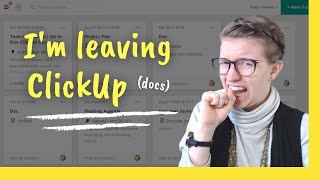
James Clear explains why he switched from ClickUp Docs to ClickUp Tasks for managing SOPs. Tasks offer better organization, clearer permissions, status tracking, safer deletion protection, version history, and relationship features that docs don't provide.
So I have some news to break. I am leaving ClickUp docs behind. But no, I am not leaving ClickUp behind. I am instead moving my work from the wonderful world of ClickUp docs to instead be ClickUp tasks. Okay, so I'm moving from ClickUp docs to ClickUp Tasks for my standard operating procedures or my kind of handbook stuff that you're seeing here. Now, for some of you, this might be a bit of a radical news because you are probably used to me teaching about how you can use ClickUp docs for SOP creation and how they're so wonderful for letting you create centralized records. I mean, honestly, I still do believe that. I still do believe that these are really great tools for SOP creation. However, I am starting to see the perks and advantages of ClickUp's other, you know, main feature, which are the tasks in ClickUp. So, long story short, I have decided to move all of my docs from SOP pages that look something like this. You see these little pages here to instead be individual tasks inside of ClickUp. And throughout the rest of this video, I'm going to break out why exactly I'm doing that. So if you're sitting there thinking, what? Why would I switch from a doc to a task when it's not really a to do? Hopefully I will have some good information for you as we go through each of the reasons for the rest of this video. And as always, as we go through today, if you feel overwhelmed or lost, there are timestamps in the description below and always you can leave a comment if you have any questions, but without further ado, I say let's just dive right in. So here we are inside the Dock repository and ClickUp and as you can see, all of our docs are here. This is a test account, so it's kind of messy, but the fact of the matter is ClickUp docs, they tend to just get a little messy because there aren't folders for docs at this point in time. You can have them in your spaces hierarchy, but when you're actually looking in the overall docs area, they're just kind of all about. And you know, they're all. They're all there. Okay? So when it comes to this organization, one thing that we'll have people do and something that we recommended that our clients do is instead of creating individual docs, create binders. Think of them more like OneNote, where one document, which is this thing up here, actually contains a lot of different topics. And this is one way to build Almost, I don't know, quasi folders inside your ClickUp doc structure just by having nested pages, as you can see here, that help you kind of categorize your work in a way that makes sense for you. But there is a minor downside to this system because this is kind of a workaround for the lack of folders. And when we are dealing with binders of docs in this way, our sharing and permissions is limited per binder. Okay, so for example, if we had one binder called Team Handbook, our choices are to share that with people or not. We, we could not go into the handbook and share individual pages with editable access to just certain users. We can do sort of some of the stuff by sharing a view only link to certain sections, but that's not quite the same as true permissions. So if I were to create SOPs as tasks in ClickUp, that issue of permissions is completely resolved. Because as we're inside ClickUp and we create tasks like for example, how to make Toast, my favorite example example, which you all know. But when it comes to tasks, every single task can have its own permissions. And this is just something that we could not do with docs with documents, it was binder or bust. On the flip side, if we were to create docs inside ClickUp like this, we do not have the options to adjust permissions for each page. We can only adjust it for the whole section, which translating into task terms would be as if we could only control a whole list at a time. And this isn't quite as flexible as the setup that we just talked about, which I can just pop into here now, where we have all of our tasks individually able to be altered. So maybe we want to give some people, some, some people another. We just have more options when it comes to permissions. Now, the second reason we are switching from documents to tasks in ClickUp is because with documents tracking the status of an sop, meaning what is the quality of it, does it need revisions, that kind of stuff. It became a little janky when it comes to keeping track of statuses. In a doc based system. We would do something like color coding where we'd say, you know, red, yellow, green, green means that SOP is great, red means it means work. You kind of get the idea. That's how we would manually keep track of the status of SOPs if we wanted to use docs. Alternatively, we could go inside a particular doc and we could reference a task like here we could reference a task to when we need to update this but the SOP and another document page actually listing the sop. And the more I watched this play out in our own workspace, in clients workspaces, it just felt like it was a little bit too complicated. And ultimately there was a simpler way, which is rather than having document here a date to review it there, why not just bring them into the same place and have the doc itself live inside the task description? Which is exactly what we did. We would take something like this, called Qualifying Leads, and create a task for it. So let's just change this name to something, I guess official. And then in the description of that task, we would write the actual sop. Essentially, the way we experienced the process was the same whether it was a task or a doc, but with a task we had less clicks to manage it because we could use the built in due date features. And now, thanks to ClickUp's most recent update, the other custom field due date features to actually monitor when that task needed to get done. Which just made a lot more sense than duplicate record keeping. Now, the third reason we are switching from docs to tasks is deletion. Now, this is one that I do expect to change over time. So if this is not true, when you're watching this video, sorry, things change, which is the wonderful part about ClickUp. But at the time of recording this video, if we actually go into the documents area, actually we'll just flip back this way. Documents live in two places. They can either be a view or they can live by themselves, just kind of floating in that document's central area on the left hand side, which I can show you down here. Right. So they can be in two spots at the same exact time. And this trips people up. Maybe this is just us, maybe our team was particularly challenged. The issue with this doc view is that when you go to this doc view and you're trying to get rid of it and you click delete, this says delete view. But at the time of recording and for the many months leading up to this, this delete view doesn't just delete the view, it deletes the entire doc. Now, it's not to say you can't get back. It's not like an end of the world big issue here. It's just saying that when you delete this view, you're also deleting the entire binder. And if we're using this for SOP work, that's a level of risk I wasn't comfortable with. And it might just be our team, but we had this issue come up several times with several of our clients and our own account. Enough that it made me think, hmm, there's got to be a better way. Which is why we moved to tasks. But let me just show you what this looks like here. If I go ahead and delete this view and go back in to my docs area, I will find that it is deleted. We have some similarly named documents, but nonetheless that view and the actual doc itself is no more. Luckily we can still get it out of our trash, but that is only for the admin, which is something I've actually talked about on the My Wish list for ClickUp in 2020 video way back when. You can watch it up here. Feels like so long ago, but I basically talked about how I would love to see a trash can where anyone can get their trash out. But at this point in time, when a doc is deleted, like you've saw here, someone like myself or the admin in your account needs to actually go into ClickUp, go into trash, and inside trash actually restore the deleted document. You can see I have a lot of other things in here as well, but that is just not an acceptable method for most of us, especially when it's so easy to delete something and at least at the time of recording. Again, this is all subject to change and this is why we're giving this feedback. But at this time there's no archive button, and that's a pretty important thing when we're thinking about SOPs. So for me, this is our third reason for why we're switching from docs to tasks, because tasks have all of those features that we're looking for. If I actually go back into ClickUp, let's go to the list view if I want to say delete this task, yes, I would delete it and it would delete the task just like it did with the doc. But unlike docs, we also have the option to archive. And I don't know if it's just me, but I feel like this the archive and deletion thing is clearer when it comes to tasks than with documents. I that could just be me though. That could just be a personal thing. So I really liked having this additional option and just a little bit more safeguard as to what gets put into the trash. Not that I'm worried about it getting deleted. I trust ClickUp, but I am worried about having to spend time pulling it out of the trash. Not my cup of tea. Now moving on to the fifth thing that has motivated me to take the painstaking effort of moving hundreds of saps from documents to tasks is the version history. So version history is basically a fancy way of saying what changes have happened. And just like the other features we've talked about, this is something that does exist in docs, but it's just not as good. I'm sorry, ClickUp, you made your tasks too powerful. Docs just can't compete. So let me show you what I mean in ClickUp. Here we are inside a document. You can see it here. And in the top of the page we have a history section. And here we can kind of see what has been happening on the page. We can dig into a little details to see what exactly has happened. And we can also have a comment thread on the side. But while this is nice, it's just not in my face enough for something like an sop, which I want to have changing. I mean, for Most of our SOPs, we're changing them every week, we're updating something. So I wanted a little bit more visibility and I also wanted to be notified as a watcher when important processes that affect me change. Because previously when we do docs like this, you know, we'd say, oh, we're changing. Let me just show you this. We are changing step one, right? We might say we're changing this step and then we need to highlight it, add a comment, and tag whoever's affected. So we made sure that they knew that we were changing the process. And this was ultimately recreating another feature that already exists in ClickUp. I hope you're seeing a theme right now, and I feel so silly that it took us so long to make this video to catch you up on what we've been doing. Um, but rather than doing all this extra work, we have moved to creating tasks as SOPs, as I've already talked about, and using the built in Watchers feature. Anyone who's a watcher, which can be a team of people or an individual person, anyone who's a watcher is going to be notified when the task changes based on their settings. And I have a whole separate video just on watchers on the YouTube channel. So if you don't know what I'm talking about here, just watch the video linked above. Watchers are in a very important concept in ClickUp. So rather than having to go into that kind of change history area in the doc with tasks, I have this area just to keep track of every single change that happens. And, and it's searchable and I don't have to do what I have to do with docs and manually Expand the section to look at it. It's way more in my face, which is something that I think is very important when it comes to SOP work. So popping back in here, this is definitely one of the key reasons why documents vs tasks tasks won yet again by this point. You know, when I was also realizing this for the first time, I just felt so silly that it took us this long to realize it. But I credit that to one pivotal feature that ClickUp released that made the whole tasks equal, not tasks thing, both part of their key roadmap, but also very viable, which is referring to, of course, relationships. If you're not aware of the relationship feature, it basically allows you to relate tasks in one area to tasks in another area. And it's kind of like a superpowered version of Mentions or tagging things. And why it's so powerful for ClickUp is because ClickUp has already told us that down the line in 2021 or maybe 2022, ClickUp's tasks, the kind of rows you're used to seeing these kinds of things here, these will not always be called tasks. And in fact, at least in my own experience, I've been seeing the term record pop up in ClickUp's documentation for at least a few months. Here you can actually test out this feature for yourself by adding a new column that is a relationship type. And if this is not showing up for you, you're going to need to enable the Click app in the bottom left corner as an admin in your settings. But once it turn on, you'll be able to build a relationship which you can give it any name you want. Let's go with Process Owner. You can relate it to tasks in another list. So we have sops here. Let's relate this to Roles. So I'm going to select the list Roles I can choose to have some roll ups, no relation. Basically this is summarizing information. We're going to worry about that down the line. I'm just going to click Add column when I do this. I now have a column called Process Owner for every process. And when I click in here, I can now choose which member of my team which task in the Roles list, in other words, is the owner of this process, let's say the salesperson. And this is all well and good, but it's a lot more impressive when we look at it from the other side. So if I go over to the roles, I can now click on this, click on Salesperson, and if I scroll down, I'm going to see what sops this person owns, which in this case is the qualifying leads sop. We could also rename this if we wanted to to call it SA, say SOP's owner owned. So it ends up looking something like this. And if you haven't gathered this kind of relationship building where you can summarize data and you can show you know what happened here and how does that relate to what happened here, you just can't do that in docs yet, which is kind of the theme of this whole thing. It's not like ClickUp docs are bad. And just to repeat what we already talked about earlier on, if you are using docs you do not have to to change. I'm not saying there's anything wrong with them. The only thing I'm saying is kind of stating the obvious in if you want to have a little bit more features and if you find yourself maxing out what docs can do, this would be the next step to consider and it will not be right for most people. But if you're watching this channel and you're thinking very process oriented, you're probably not most people. So I wanted to share this in case it helps you think about your own process in a slightly different way. Speaking of which, I should probably mention, if you were interested in this kind of SOP conversation, there is a free resource I would recommend you going to next, which is our webinar called the ClickUp Blueprint. It talks about how exactly you can systemize your business and think about your processes in a way that works really well with ClickUp. So if you were someone who's like processes? Yeah, I love them. And you'd like to learn a lot more about how we help people do that, while also learning what that strategy actually looks like. Check out the workshop in the description below. It walks you through exactly how we recommend clients think about their ClickUp implementations, how they set up ClickUp, and relevant to this discussion how you start thinking about systemizing an SOP creation in ClickUp, including some screenshots of how to build some pretty advanced relationship based SOP systems like I kind of mentioned today. So dropping that little nugget there if it's helpful to you. Otherwise I think that's about it for this video. Thank you guys watching for so much for joining me once again. I'll see you back here on Friday with yet another video and until next time, enjoy the process.










