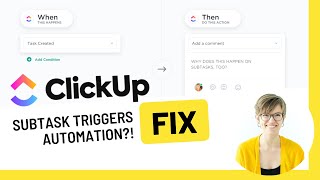
ClickUp automations trigger on both tasks and subtasks, which can cause problems. Use custom fields, tags, or assignees as conditions to filter which items actually trigger your automation.
Have you ever tried to set up automations in ClickUp and then you found that the subtasks were actually triggering the automation? Yeah, me too. And it's kind of a frustrating feature right now. When you create, say, an automation in ClickUp that says when task is created, apply a template, what you'd expect that just applies to tasks. However, in terms of automations with ClickUp, they view tasks and subtasks exactly the same way. And as of the time of recording this video, there isn't a filter by condition for subtasks which, which is a requested feature, which you can find the link to upvote that request in the description, but that's not currently an option. In the meantime, we need to get kind of creative if we want to have our automations only trigger some of the time. Whether you're trying to isolate just tasks and not subtasks, or one subtask and not the other subtask. The secret for making sure your automations are triggered by the right action is to add some kind of condition that is unique to that piece of the equation. It might be a custom field, it might be a tag, it might be something else altogether, but we need something unique to identify these from each other. Because with automations by default, all tasks and subtasks and nested subtasks and so on all look the same. Here in ClickUp I have a task, and in this list I actually have one automation already set up where it says when task created. Add a comment. We're going to use this automation as our guinea pig today, but really the stuff I'm demonstrating will apply no matter what kind of automation you have. So leaving this as it is, If I go back into the overall task area and I create a subtask called this is a subtask, if I actually pop inside that subtask, we're going to see that the automation was triggered. Now, the way to avoid this happening is by building some kind of condition that is accessible by automations that will help us narrow our focus. So if I go inside the actual automation settings, we can see what our options are for conditions. Under the conditions menu, we've got status, priority, due date, start date. These are all of the options we have to work with most of the time. Custom field tag or assignee is going to be the best way to narrow this down. So for example, let's just say we had one of these primary tasks, like this one here. Let's say this was a YouTube video. Well, naturally, if we're doing a task equals a YouTube video structure, we're probably naturally going to have some kind of custom field in existence, maybe something like playlist. We know that that's always going to be there. And whenever we create a subtask or a subtask on the fly, whether it's in our template or someone just creates it from scratch, I odds are we're not going to fill out the playlist subtask. So to ensure that our automation is never triggered by subtasks, we can rely on the fact that the custom field will always be added to our parent tasks and say if custom field playlist is not set, then add the automated comment. So by using a custom field that's already filled out, we can ensure that this comment will only occur in tasks that are not the parent task, because for that parent task we're always going to make sure our playlist is filled out. Now, we can do that manually at the time of setup, or we can make our life a little bit easier and we can edit this field and require the field not for subtasks, but for all parent tasks. So I will not be allowed to create a new YouTube video here without having that custom field filled out. So I'm going to just go in, fill this out, click save. Great. And because again, this has playlists filled out, when I actually go inside here, there is no comment being added. If I created a subtask though, that comment, that assigned comment from our automation will be triggered because I did not fill out the playlist field. So alternatively, we could come in here and create a different kind of condition. Maybe when task is created and the assignee is set, then assign the comment. Because we know that when we do subtasks, we, we always use assignees. But we don't use assignees when we're creating parent tasks because no one's in charge of the overall video. So for example, if I just created this task, it should not be triggered. I can go inside to check, indeed nothing is triggered. But if I do the same exact thing and I make sure it's assigned to somebody, then we should see that automation being triggered. So if I go inside this task, there it is being triggered. So we're using the conditions that are available to replicate the lack of condition for is subtask or is not subtask. I've also seen folks use the tag field for this. Where task is created and tag is set, then blah, blah, blah. Maybe this would make sense if you use tags for things like filming. So when task is created and the tag of film day is applied, then we add a comment. So that means our parent task, which equal videos will have this comment be triggered. Or maybe we do the opposite is not set. If there's no tag, then do this. That will make sure it only applies to our subtask. But this is the manual workaround we can use to ensure that that we are only triggering our automation on the occurrences that we want to. And of course, if you'd rather just see a condition here that says is subtask or is not subtask or is nested or is not nested and you'd rather not have to do this crazy workaround, go ahead and upvote this that I have linked in the description. This is a feature request on Canny's Feature Request board where folks have been asking to have this feature available. So I'd appreciate you guys giving this an upload to help bring a little bit more attention to this. But until then, this is the workaround. This is the way we can make it happen is by using an either naturally occurring or artificially created condition to make sure that your automation is only triggered when you want it to be. You can support this channel and support this video by giving it a thumbs up and leaving a comment, if only to say hi. Those kinds of actions help this video perform in the YouTube algorithm, and they also help.