ClickUp Extension | Tutorial & Pro Tips
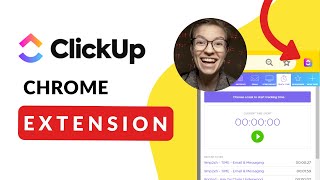
Layla, a ClickUp consultant, walks through the Chrome extension's features and how to use it for productivity. She covers what it does well, where it falls short, and her plans for a ClickUp community and course.
Hello and welcome back to another feature Friday where we go through a core feature in ClickUp. Discuss what is it, why you would use it, and how you can avoid screwing things up while using it. Today we are going to be talking about the Chrome extension. If you're not familiar with either the word Chrome or extension, what we're talking about today is the little icon that'll be near your navigation bar if you are using the Chrome browser, if you're using Chrome to search on the Internet or to be on the Internet. If you are using Chrome and you're using ClickUp, it makes a lot of sense to install this Chrome extension for the reasons I'm going to show you. But if you haven't yet and you want to follow along with this video, go to this website, ClickUp.com/apps and look for the Chrome extension button here. And you can install this directly into your computer. If you click on it, it'll open up the Chrome web store. So go ahead, take a second, install it. If you haven't. Okay, we're going to keep going. I always start these with a what? And before just going into what the Chrome extension can do, let me explain what an extension is. Thanks to Google, we know that extension extensions are small software programs that customize the browsing experience. You can see actually my own browser here that I have a bunch of different extensions installed, some of which are visible and some of them which are not visible, but nonetheless they can alter my experience on my browser. Right now I'm using a tool to help record my screen. This is an extension that's recording my browser. I also have a tool here that'll help me identify fonts on a web page or colors on a web page. And again, these are just little extensions that are extending the capabilities of of me when I'm using my Chrome browser. Now let's go into the actual ClickUp Chrome extension here. We can see it in the corner of my screen here. And we have a few buttons just catching our eye right off the get go. The first one is Settings, which is kind of boring, but if we click in there, we'll see some of the different options around ClickUp. Here we can choose to have a floating button, which basically is a floating little ClickUp icon in every single workspace that you're in. If I refresh my screen, you'll see that there's now this tiny little icon hiding in my corner which I can move around my screen, where I which actually gives me all of the core functions of the actual Chrome extension, but it's on my screen. I don't know why you would want this. I guess some people like this feature, but nonetheless that's what that is. If I go back into settings, I.e. the floating buttons icon. Below that is show floating buttons on this domain. You can basically turn off that floating button for certain areas. Maybe you don't care to see that when you're in your banking website, so you could choose to turn it off for certain domains. Below that we see the email feature. This little piece is referring to this guy that'll appear in your Gmail inbox. It's basically giving you a quick command button, much like that floating one that can allow you to add something to ClickUp in just one click. If you click on this, it'll kind of load your screen and it'll generate an email that you can then attach or create a task from back to the settings area here. We've talked about the email feature. Time tracking basically just says do you want this button to be visible? Notepad, same thing. And edit screenshots by default is just saying do you want to be able to edit your screenshots once you take them? All of these options will make a little more sense when we go through the remaining tabs. Next up is Notepad, where we have a bunch of gibberish right now, but this Notepad is the same Notepad that you see in your ClickUp account and it allows you to access it on the go. So this is kind of nice if you want to go in here and edit things on the fly because you have the full text editor as well as the ability to full screen things from this Chrome extension, which is pretty cool. Next up is the email feature which we already talked about. It prompts you to install it into Gmail or to add it into Outlook. Not really a lot more to say here, although you can find out more information right here if you want to dive deeper into that feature. Next up is the Screenshot tool, where as you might expect, you can create screenshots and send them to ClickUp. Like most screenshotting tools, you can choose either the entire screen or a select area. In this case I'm going to go with a select area. I'm just going to copy this and once I do that based on our settings, it's going to prompt me to edit. So I could add some details in here like this kind of thing and maybe some text. I could add some stuff here through this. We can actually do nice step by step instructions using this Chrome extension because of that numbering sequence. There's also just some generic shapes as you would expect, as well as a color selector. We can change the width of lines as well as the color of them here and it's just all in all, very nice editor for your screenshots. Once you are done, you can click Done and it'll prompt you to put that image somewhere in your workspace whether you attach it to a task or or you just download. Notice there is no way to create a new task from it here, but I think that's a fair trade off for all the other functionality that we saw here. So after the screenshot function we go into time tracking. Now I've did a whole video on time tracking and why I actually recommend using this extension instead of the built in time tracking. Still, even though the new built in time tracking has some extra fancy features, leave it to say you can track your 10 most recent tasks here and click on them in one click to start the timer on that task. You can easily flip between them by clicking on them. If the task that you're looking for isn't among the top 10 most recent ones that you've worked on, you can also just click select other task here and you'll be able to go through and search for any of your tasks in the normal way that you would search for tasks, either by using the name, the task id, the URL, or something else as it suggests right here. You can also cut things down by looking at things assigned to your team, or again going into that Me mode here at Search to cut things back even further. So if I was in this tasks area, I don't know if any of these are signed to me, but yeah, one is. So this will cut down to just show tasks assigned to me and I can search accordingly. One feature that I think is often overlooked around the Chrome extension is this little tiny three dot ellipses menu. If you've learned one thing about ClickUp, it's that the ellipses menu always houses all the good features and in the Chrome extension it is no different. In here you can actually set the default locations for the remaining three tabs. So time tracking, bookmarking and new tasks. So if I click Save as default every time I come back here, it'll default to this general time area that I'm in right now. This can be really nice because normally it'll just pick up wherever you left off, so wherever I was last working, it'll pull that up again. But if you're generally coming into your say time tracking list to track your general miscellaneous time, which I did talk about in another video which I can link above. Saving as default can be a great way to just save yourself some time and make it a bit easier. You'll notice that there's also a little favorite star here, so if you want to add certain locations to your favorites or navigate to your favorites from this position, you could also do that. So once again, favorites are going to be a great way for you to jump to certain locations that matter to you. Next up is Bookmarks, where you can actually send a area of the Internet into ClickUp. It generates a task in ClickUp based on the information that you gather. But if I come in here and I click on the bookmarks, it'll automatically take a screenshot of the webpage that I'm looking at and it'll create the name based on the search results for that page, as well as the URL to the page at the end of it. And that's pretty much it. It does not read the text like Notion does, where it kind of pulls a query of all of the text on the page. Instead it just puts the link there and we'll put it into whatever your default location is. For bookmarks generally, I like to have like an Internet Resources area in ClickUp, so that way you can quickly dump things in. Or if you're using it for personal use, a recipes list could be really good. Next up is just the new task one. Now you might argue that bookmarks and new tasks do the same thing. I would pretty much agree with you, except for the main difference here is the new task one does not prompt you to create a screenshot, and it allows you to select your position, your order and in your list. Really? Otherwise this new task area is identical to bookmarks. So. So I don't know. It's. It's whatever you prefer, I guess. So that's what is the Chrome extension now. Why would anyone use it? Well, the main argument for using the Chrome extension is speed. It's just easier to add things on the go using the extension versus using the phone app for sure, or having to have an extra tab open and enter things manually. Particularly with time tracking and bookmarking, you can add information into ClickUp just a lot faster using the pre made kind of interface versus working in the actual ClickUp web app or in another form of the tool. The second main reason to use the Chrome extension is because it has a few features that you don't see elsewhere in ClickUp. Specifically the email plugin feature where Like I showed you, you can send in your emails directly into ClickUp as well as that screenshot editor. This gives you a lot of extra utility that you would expect to see in the built in proofing features in ClickUp, but unfortunately is not quite there. The final reason to use the Chrome extension isn't really any different than using anything else, but it's just kind of something to keep in mind is that in this Chrome extension you can have multiple workspaces in it. So just like in the actual app, you can flip between different workspaces using this toggle here. And just, just a side brain on this point, I've always been annoyed that ClickUp's actual web app, when you look at the bottom corner, you the person is hidden behind the company you work for, which I feel like is such a terrible metaphor. Whereas in the Chrome extension, yes you are smaller than your company or your workspace or. But at least you are in front of the workspace. So I consider that a small victory as well. Now we've talked about what the Chrome Extension is, we've talked about why you might use it. Now let's transition to just some little pro tips to keep in mind when you're using the Chrome extension. The first pro tip is just the fact that what you see in the Chrome extension is very, very similar to what you're going to see in the Outlook add in. If you have people who are using different tools, just keep in mind that the functionality is almost exactly the same. The next pro tip is around the difference between Forwarding emails to ClickUp and using the Chrome extension to get emails into clickups. So let me flip into the inbox and show you what I mean about how the plugin works a little bit differently than when you attach an email using forwarding. This button will generate a prettier add to ClickUp preview than if you were to forward to that same task. If I click on this, it'll generate kind of a pop up. It goes up into the extension, it says, all right, where do you want to attach this task? I can pick my task from the dropdown, which I believe I have in here. There we go, attached to task. Now if I forward an email to that same task, we can see that the end effect is just a little bit different. So now if I come back here, you can see that this is the original attachment using the Chrome extension, where it makes this nice little HTML preview of it in a kind of a pretty easy to read way that, you know, I could foreseeably print or Save and be able to reference later versus if I use the option that I covered in a later video to actually email in that email into a task comment. I use this little button here. We get things looking a little bit uglier. So here you can see the same exact email. You can see the same exact email comes in and it just shows you a bunch of links. It just turns it into a plain text email that looks just a little bit hideous. Now it does still have the HTML here, so you can actually click that and preview it. But to say that this is less attractive is a bit of an understatement. So that is our giant comment, just from an email that had nothing actually in it. My Pro tip is to use the Chrome extension. It's just going to look a little bit nicer unless you you need that automation, or maybe you're using filters that are set up automatically, in which case you're going to have better luck forwarding things versus using this extension, which you cannot control at this point with any automation. This next Pro tip is around switching teams and it's just simply this annoying fact that if you go and switch teams in the Chrome extension, it'll actually force your whole screen to refresh, including your ClickUp, all of your ClickUp windows, and your Gmail is going to refresh when you flip between workspaces. So. So just something to keep in mind there for those of you who are switching between many companies. Another Pro tip for using the Chrome extension is that if you are using templates, the Chrome extension is not your friend. The Chrome extension allows for very basic creation of tasks. I mean, we have this default thing which is kind of cool, I guess. We've got our favorites and our position. I don't know who cares about position that much. But okay, there it is. But while you have due date and assignee, no other functionality around creating a task is available in this Chrome extension. Now, I would not be surprised if this Chrome extension gets an upgrade in the very near future. But for now, looking at it is as it is today. There is no way to pull your templates in when you're creating tasks here. So if you're creating tasks on the fly, I would put them somewhere where either you have an automation set up to automatically apply the relevant template, or just make sure that you are aware that none of your template stuff is pulling in. You're just kind of getting things quickly out of your head. On that note of getting things quickly out of your head, one weird thing that is missing in our Chrome Extension is reminders. You'll notice here I can create bookmarks and new tasks which basically do the exact same thing, but none of these options actually allow me to create reminders, which is what you'd expect to be able to do on the fly, more so than create tasks. Maybe that'll change, but for now that is a limitation. This final limitation is one that I've talked about before, and that's just the ability to search for tasks. This is the same issue you have anywhere in ClickUp. Whether you're working on dependencies, which I made a video about, or whether you're searching for time to track. Searching for tasks here can be a little bit clunky because you're seeing such a little amount of data. All you're seeing is the title of the task, the status color, and the code, which probably means almost nothing. To see that task id, it can be hard to look for tasks where they have the same name here, so you either need to keep in mind your task ID go into ClickUp itself to find tasks with the same name, or just hope you have really unique names across your workspace. I know a lot of companies that use templates, and so there's a lot of subtasks or tasks with very similar names, and those kinds of structures make it hard to use the Chrome extension effectively, because it's hard to know, wait, which of the five tasks should I be pulling from if they all have the same name? Like, let's just imagine all of these said time they were clipped off a little bit. It would be hard to be able to tell where you're going. The search just isn't that great here. So the Me mode and T mode can be helpful, but really you're running into the same problems you're running into elsewhere, where you have very limited search functionality. Here we cannot filter Unlike other areas, I cannot filter by table description, by file type, by different types, like you could if you were using the actual Chrome window. The search function on the Chrome extension is very basic, so this is just a limitation you want to keep in mind, but that's pretty much it for this feature. Friday Talking about how you can use the ClickUp Chrome extension to use ClickUp a little bit more easily. We talked about what the Chrome extension is, namely that it's something that extends the functionality of your Chrome. We talked about why people would use it, which mostly comes down to speed and convenience. And then we went through a bunch of pro tips which kind of poked little holes in that speed and convenience argument, highlighting some of the ways that the Chrome extension may not be all that you'd like it to be quite yet. I have a personal hunch that this Chrome extension is going to get a bit of a facelift, if nothing else, for the aesthetics, because it definitely doesn't match the branding of the platform right now. In the meantime, this is kind of my sense of where we can use this Chrome extension and how you can make the most of it. By now you guys probably know me. My name is Layla. I'm a vetted ClickUp consultant. What I do is help people set up and learn ClickUp with a very much teach Amanda Fish kind of approach, which is why I create these videos. I'm also looking right now at developing more of a content community. So rather than just needing to work with me one on one, which can be kind of expensive for some teams, I'm looking to create a product that takes all of the ways that I've been working one on one with clients to help them set up their ClickUp and teach their team and migrate that into more of a course structure so that way you can implement your own ClickUp and train your team without having to create everything from scratch. And if you're interested in that, I'd love for you to check out Clicking up Community now. Right now this is just like a wait list thing. This is very early stages, but I want to put it out there because you guys always have really good feedback. Right now we are at kind of the pre launch phase. Once we have a wait list of 50 people, I'm going to be taking this live for at least the beta launch and then we'll continue improving it from there. So if you're interested in more in depth content, kind of going step by step through a framework versus just these little tips and tricks videos, definitely put a comment below or go to the website in the description and sign up. Cooking up the community. Thank you guys so much for watching and I will see you in the next one.










