ClickUp Task Types: How to Best Use ClickUp Task Types
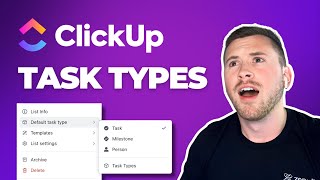
ClickUp 3.0 added task types to organize different kinds of work. The feature includes actionable tasks, milestones, records, meetings, time tracking, and out of office tasks. Learn how to set them up and use them to improve reporting and workflow.
All right, so ClickUp just released a new feature called Task types inside of ClickUp 3.0. And this is an awesome new feature. Some of you may be already doing something like this inside of ClickUp, but we all know that ClickUp is obviously a project management platform. But there's a lot of other things that you can do inside of ClickUp, like creating a CRM team directory, tracking out of Office, things like that that make it so that not every task inside of ClickUp is an actionable task that someone's going to be working on. So I want to go over the new feature task types and show you how to use it, why to use it, and sort of the different task types that you should be leveraging inside of ClickUp. So first of all, in order to find ClickUp task types, what you're going to want to do is you're going to want to go into ClickUp, obviously, and I'm going to come up here to the top right corner and I'm going to go to my settings. Once I find my settings, I'll see the task types is right here. There's a little new but right there to make it stand out. But I'm going to click on task types and you'll see the variety of test types that I have already built. If you want to create a task type, it's very easy. All you're going to do is go to create task type right here, give an icon to it, and I'll show you where that icon actually shows up. But the icon is kind of important here. Make sure you have a name for it, singular as well as plural. And then if you want to add a description as well, then just create a task type. So super easy to do that. The default is going to be task. This is going to be sort of our actionable task. You're also going to have milestones in there as well. So these are the two that are already going to come with sort of your task types and ClickUp is task milestone. In addition, what we have is a record meeting time tracking, non actionable as well as out of Office. So I'll show you how to use these. But essentially record is going to be records within your ClickUp workspace, especially where you're utilizing a CRM. And those tasks in the CRM are not necessarily actual tasks. They're going to be records. They're going to be labels for your deals, your contacts and your companies. You also have meetings as a task type. Meetings are a great way for you to label all the tasks that are meetings inside your ClickUp workspace. That way you can kind of pull all those together and see how maybe how long we've spent in meetings for the week, the month or the quarter, as well as be able to filter those out of certain reports and things like that. Also time tracking. So for tasks that are sort of a bucket to track time against when you're doing sort of admin work, whether it's just sending emails, browsing LinkedIn or things like that, that you might necessarily have all of your tasks in ClickUp for. But it's nice to kind of have that time associated to a certain client or certain marketing versus sales. You'll want to have a time tracking task type as well. Non actionable for all of our sort of deliverables, which I'll go over what that means repair tasks oftentimes are going to be non actionable tasks. All the tasks underneath that are your actionable tasks and then out of office. So for tasks in the system that are related to just someone being out of office, to make sure that populates the workload, you'll also want to leverage a task site for that. So the reason this is so exciting, especially for us at Zenpilot is in the past we have always utilized a dropdown custom field which I'll show you here to label these tasks as non actionable records, things like that. So as you can see here, building into our processes, we always had a task type here as a dropdown so that we could label non actionable actionable meeting time tracking record as well as out of office. That's super helpful for views that you're going to be creating because you can use that as a filter as well as being able to create dashboards and leveraging that so you can kind of filter out the non actionable versus the actionable or the meetings inside of dashboard widgets there. So it's always super helpful and now it is natively built into ClickUp so you don't have to do this workaround and you can just leverage the task types directly in ClickUp. So all you have to do is set those up for your team and then you're good to go. So a few things to note in this you can also leverage default task type. So if I were to go to especially my CRM where all of these are going to be records, I can go to my deals list and you'll see here I can choose the default task type to be records. That's another thing that you can do super helpful to make sure, every task that goes in there is just going to be a record as opposed to an actual task that I have to change it. But that's one thing to think about is what are your lists that you can have a default task type. Oftentimes that might not be super helpful, but for places where you're just storing records. So for instance the CRM or in the operations space, we also have a agency tech stack where all of these are just going to be labels or records for all the tech that we have with a status use link over. Sort of the champion of that as well. So these are all new records too. But once you initially set up your task types, you're going to want to start to label all of your tasks to make sure that again, they can use your filters, dashboards and things like that. You're actually using the task site feature. So first off, let's go through and label a record. So again, in the CRM, I haven't done in the contacts list yet. So what you're able to do is you can utilize the multi select toolbar. So I can come up here, I can either click right there to select all these in this list or if I wanted to, I could go click that and then hold shift and I can select all these. So if you've never used a multitask toolbar, that's super helpful there. And you'll see at the top here a bunch of different options. But we're going to go to this little cube to set task type. And again, you'll notice here that these are little circles right now that are going to be labeled as tasks once I switch them to records just like that, I'm going to do dismiss. You'll see that that icon comes up. So the icon is definitely super important when you set that because you don't want it to be something that doesn't make sense for that. Because this kind of shows me that this is a record. Obviously not all the icons are going to be super accurate in terms of what it is, but just make sure you have something that's easy to distinguish of what this actually is. So these are records. We have a little sort of file system there. Deals, companies, contacts, all of them are labeled as records. And again, you can go through and just make sure all the default task types are records. So whenever I add a task to this list, it becomes a record just like that. So super easy to leverage that. So that's my records. The next one is going to be the non actionable and actionable. So If I want to go here to my delivery space to start this off, I'll go here to Dunder Mifflin and you'll see here. Now I have all these labeled as non actionable. So I've already done that. But what you want to do is just make sure all of your deliverables because this is essentially the name of what we're doing here. And then the subtasks underneath that these are actually the steps that are being complete. This is the work that's assigned out, that has time estimates on it that's going to be sort of closed and have time tracked against it. So we want to make sure that these are all of our actionable steps. Once sort of the last step here of receive final approval from client is complete, then this is all going to be done. So that we're going to. Once that step is done, then the ebook, the paper manual is complete. So again this is more of a non actionable item. So we want to make sure that's labeled as that. So again with views, filters, dashboards, things like that, we can sort of pull those out or pull them together to just see sort of my non actionable deliverables. But again that's how it's going to look. There we have the icon. Again, if you want to label them all as non actionable I can go here, which they're already labeled. But just like that, label them as non actual and keep all the tasks as regular tasks. In addition, another one that we get a lot of questions about is that time tracking task type there. Essentially what this is going to be used for is in the future. There's a lot of times where you want time associated with a certain client, but there might not be a step for our task for every little thing. So maybe in the morning account managers go to their email, they're just looking through some emails from Dunder Mifflin. Takes about five to 10 minutes. They can easily go here to this time tracking task. And since maybe there's not a task assigned to them for it, you can maybe it's a recurring task, but for this instance let's say it's not. And I want to make sure that we get all time tracked. That's billable for Dunn. So I come here. This will be for the account managers sort of track their time. They can easily come here, track time, maybe it was just five minutes in the morning, just like that. And they can also leave a note to say what they did. That way when I go to reports later on I can see all those notes as well to make it easy to distinguish between those different time tracks there. So after that, just be able to click, save, enter a note, five minutes. And that's just kind of my way to track time against this. Again, it's not an actionable task. It's just a time tracking bucket for me to track time against. To associate that with Dunder Mifflin and then another task type you're going to want to leverage is the out of office, as we discussed earlier. So if you have an out of office manager, sort of a way to manage those requests as well as just create sort of out of office tasks in there, especially for the workload, just to make sure that their workload is fully filled up because they won't be in the office to take any work and we need to make sure all that is in the system. So if I go here to out of office tasks, I could just label this task as Jeff Seifer out of office. I put the assignee of myself there. I'd have a start date of Monday, if that's when I'm going to be out of office to Friday. And then the time estimate is going to be how long they're going to be out for. So Monday to Friday, that would be 40 hours, eight hours a day there. Essentially what that's going to do is in the future it's going to go and populate this workload view so that anytime that I'm out of the office from Monday to Friday, it's going to populate that with full filled capacity to know and let the team know that I don't have capacity to take any work because I'm not in the office. So that's another important piece is the out of office manager and having those tasks in here be labeled as out of office. So that's another thing that you want to do there. And we have a nice little umbrella there icon to label as out of office. So the last one you're going to want to leverage is meetings. So this is just super important to help us kind of distinguish between meetings versus actionable tasks, especially when we maybe in the future you want to see how long we are in meetings, you could filter all that into a dashboard, new time tracking report, things like that. But what I want to do is if I have internal meetings like our all hands level 10 meeting, if you're running EOS and we'll want to go through and all those tasks for people that are meetings, we just need to make sure that those again are labeled as meetings. Just to distinguish those between actual tasks in the meetings. But that's just another important task type to have. So again, to summarize, if I go to my task types I'm going to have tasks milestones. Those are built into ClickUp as well as records meetings, time tracking, non actual and out of office now. And the beauty of these, especially for when you do create things like your time tracking tasks here, what you're able to do. If I go to the everything level and I want to be able to bucket all those time tracking tasks together to make it super easy for my account managers, what I'm able to do is I can just go, I can create a view, let's add a list view right here to the everything level. And then what I'm going to do is I'm going to utilize my filters here. So as you see now I'm just going to see everything, but I can go to my filters and I can say when the task type is for this, maybe it's meetings, maybe it's time tracking. I'm going to pull time tracking. It's all going to funnel all those up to this everything view here. So for my account managers and they don't have to group my status if they don't want to, but this will pull all these for my account managers to see all of their sort of time tracking tasks. And to make this a little bit better obviously then you can go and add in additional options to show those breadcrumbs if I wanted to. So if I go to list options and we go to task locations that way it shows me this is Dunn or Mifflin viewing strategy in the delivery space. So that'll just make it easy for them to can also leverage some custom fields and things like that. But that's another way to make sure that you just are able to create views for your account managers to make their lives a little bit easier. But again that's task types and ClickUp super powerful feature. We've used it before in custom fields but now it is built into the system because obviously it's a project management platform but there's a lot more that you can do inside of the tool. So if you have any questions about task types, please let us know, go to zenpilot.com call and book a call with us. Thanks for watching this video. We'll see you again next time.










