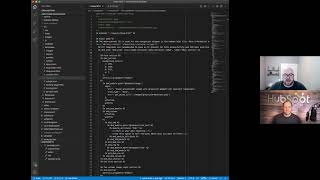
This is a YouTube video titled "Developer Bytes | HubSpot VS Code Extension with Anthony Pizzurro" containing an English interview recorded on June 16, 2021. The video features a conversation between a host and Anthony Pizzurro, a software engineer at HubSpot, discussing the features, setup, and usage of the HubSpot VS Code extension for developers.
Foreign.
Everybody. Hey, how you doing out there? I am joined by Anthony Fazuro, who is a software engineer at HubSpot, and he is deeply embedded in the VS code extension experience. And he's been nice enough to join me to kind of discuss how to use it, how to set it up, and what's it all about. Anthony, how you doing?
Good. Hey, thanks for having me.
No worries. All right, if you don't mind, would you go and share your screen and we'll kind of get started on this?
Sure thing. Cool.
So, yep, looks like we're looking at VS code, and if you could just kind of explain how this extension fits into the entire experience on your. On your code editor.
Yeah, sure. So the local development experience is kind of new to HubSpot. It's only, you know, a year or two old. And so what the VS code extension aims to do is to take all of the building blocks of the CMS and make it simpler to interact with them. So it takes our Hubble templates and gives you the ability to, like, have syntax highlighting and snippets so that you can quickly write different functions and filters and that sort of thing. Yeah, so I think that's pretty much all I had to say on what it does. Cool.
And I see you have an HTML file open here. Are we limited in scope to HTML files or does it go beyond this?
No. So the extension supports HTML and CSS files in terms of linting and snippets, and it also supports JSON files. So there are a number of JSON files that would you would use to define a theme or a modules set of fields. It also provides a bunch of snippets to make it easier to develop those files. Amazing.
So what's the best way of going to get this installed on your VS code? How do you go about that? For anyone who's new to VS code, I think this might be a little nice little primer.
Sure. Yeah. So for those who already have VS code installed, the easiest way is just to go to the Extensions tab, which is also Shift command X on Mac and search for HubSpot. You'll see a couple of them. There's only one official HubSpot extension. That's this one up here with a big orange sprocket. Click that and you'd be able to install it right here. Perfect.
And so I know there's. To get this working, there's some setup instructions for, like, the file association in your settings. You want to do that? Or is that something like. If you're actively coding HubSpot stuff, you want to have that versus if you're like, it's a one off project. How do you handle that?
Sure. So if it's like a one off file, then what you can do is just if you've got the extension installed down in the bottom right hand corner of your screen, you can just change the language that you're using. So this is an HTML document. It would be an HTML language by default. But I've gone and updated that to HTML plus Hubble and that gets me this. The nice syntax highlighting that you see here and activates the other features of the extension, if you want to. Oh, I'm sorry.
Yes. No, no. So but if I'm only developing HubSpot stuff and I open an HTML file, I want this to be HTML plus hubble.
Exactly. So if you go to your settings, you can update your file associations.
To.
Point your HTML files to HTML Hubble.
And this would be the same thing with css.
Exactly. We could do the same thing for CSS and that would affect CSS files. And you can also, you can do this. I've done this for my user because I mainly work on Hubble files, but you can also just set it for your workspace, which is generally the project that you're working on.
Gotcha. And would you extend this to JSON as well?
You do not need to set this for JSON. Perfect. That's great to know.
All right, could you walk us through a couple examples of how to use it?
Sure. As you can see here, one of the main features is that there's syntax highlighting. Without that, things look a little drab. You can see here, see the differences between the different tags. We've also just got a pretty, pretty large snippet library. So if you wanted to say right above here, maybe I would create another drag and drop area. I can just grab the drag and drop area snippet, name it main, get rid of the class, and then inside of here add a section.
Oh, this is nice. So you actually, as you, as you type it brings down a dropdown of all the possible things you can use for that shortcut. Right, that snippet.
Exactly, exactly.
That's very nice.
I think we got the wrong. I'll just use this as an example drag module and then I can name it. I can set a path. Any of these are optional and you can, you can add. These are just the kind of the common default ones. Yeah. Then you can select like we've got enumerated options as well too. So do that and it just makes it a lot easier to go through and write code that may not be the easiest if you were to write it from scratch.
And is there a cheat sheet available for all these yet?
So we don't have a cheat sheet available, although that's a great idea. We're still trying to figure out the best way to kind of teach the VS code extension as part of the greater developer journey. But yeah, nothing yet. More. More on that to come, hopefully. Cool.
And just kind of following up on that. I know this is an open source project, so if anyone in the community wanted to start this as a cheat sheet for this, we would definitely. You can make a pull request and actually start working on that, Correct?
Exactly. Yeah. The. The project is open source, so we're happy to take contributions and work with you to get new work committed to this. If, if you've got any ideas or questions, you can also open up GitHub issues. That's probably the best way to give us any feedback actually, is through the GitHub. Great, great.
And that's. You follow that, right? Those issues, you're actively looking at those to make sure that we're on top of things.
Cool.
And lastly, is there any way I can get like new functionality that is not quite available yet, but you know, it's in the works.
Sure. So most, most features will work their way right into the extension. But for things that we may want to put through, like a testing or beta kind phase, we've added a. It's a. It's a flag for beta features in particular, where we're just basically going to enable other features. So right now I've got this HubSpot beta feature enabled and what that will do is the. The current beta feature is that we will link to your Hubble file. So if you have like a tag that doesn't work correctly, it'll give you the same messages that you would see like in our Design Manager Code editor.
Do you happen to document what is not quite in the official release, but is in like this more new functionality type of release? This beta type of release, is that documented somewhere?
Yeah, it's documented on the GitHub readme. Perfect. Cool.
I think that's about it. Is there anything you wanted to add? Are we missing anything that you wanted to highlight?
No, I think we've covered the basics.
Amazing. All right, so yeah, thank you for walking me through this. Anyone in the community. If you guys have questions about this, please feel free to post and we will definitely get back to you. Anthony Once again, thank you so much for helping me out here.