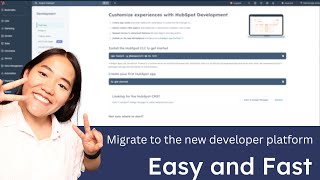
Brooke shows how to migrate your HubSpot developer account in one click. The move is permanent but keeps all your data, projects, and API keys. You get two core users with full access and unlimited developer seats with limited permissions.
Chapters
Hey y', all, It's Brooke with HubSpot. Today I'm going to show you how easy it is to convert your developer accounts into the new developer experience so that you can start building on our new developer platform. This conversion is completely free and all of your data in your account remains the same. Nothing gets changed. So currently we are in an old developer account. You should see this banner that reads experience the new developer platform. You can go ahead and click on learn more to go ahead and start this update. This will give you access to all of our new features on the HubSpot development platform, including our improved tools for development, the HubSpot MCP server, new surfaces for UI extensions, and a new developer overview page. So once you agree with all this, go ahead and click I understand this account update can't be undone again, all of your data will be moved over seamlessly to your new account. So. So nothing will be lost. Once you do that, you're going to click on update your account and it will take a second to do this update. So if your account has a lot of data, it may take a while. All right, so now we are redirected to the new HubSpot development. Now, when your account completes the conversion, you will see a banner that says, your account has too many active users. And the reason why is because in an old developer account, every single person in that developer account was considered a super admin. When you convert over to the new developer account type, you'll have a max of two core users and then an unlimited number of developer seats. The developer seats do not have full access to the account. So when you choose which users to have those two core seats, make sure that you know that they are active within your account so that you can get into your account. You can go ahead and click on the banner and say, review users, and this will take you over to the users page. What you'll need to do is you'll need to go over to seats, go through here and you can change the seat and then instead of them having the core seat, you can add them to the developer seat. If you don't manually choose which users to reassign their seats to within two weeks of converting your account, your account will automatically add them to the developer seat. So right now you're still seeing the old developer menu I'm going to sign out and resign in, and that should update our menus that a new developer account gets access to. Awesome. So now that we relogged in, we can see now that we have access to the CRM. If you're assigned only a developer seat, you won't see any of the other menu items, you'll just see the development menu item, and that will give you access to your projects, your legacy apps, as well as keys and test accounts. And you can see that the test account that I created and the legacy apps that I created inside of the developer account were successfully ported over so you don't lose any of your data. Thanks so much for watching. Please make sure to like and subscribe to the HubSpot Developers YouTube channel and I'll see you all in another video. Bye.