Helping your sales team fall in love with HubSpot | Admin HUG | June 6, 2023
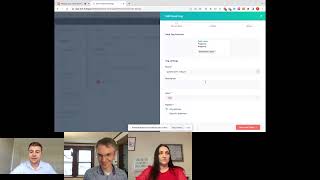
Alex Anaka walks through HubSpot sales features that help teams work faster: lead prioritization, deal tagging, commission management, and analytics. The session includes live demos and answers questions from sales admins on getting their teams to actually use the platform.
Hey everyone, welcome to HubSpot Admins hug. Super excited to have Alex Anaka here to talk about helping sales teams fall in love with HubSpot. Alex, I'll just pass it over to you.
Thank you Kyle and hi everyone. So we are getting to over 100 people today. So very, very excited to go through a number of cool use case sales and share a little bit of a story at the beginning of this hug about myself and why I actually love HubSpot. So let me quickly share my screen. Hopefully everything will work as planned. Awesome. So welcome everyone just in terms of a brief, brief description about myself. So I actually fell in love with HubSpot about five years ago while I was a salesperson. So I used to be a Salesperson for a HubSpot agency when I started. So that was very exciting. And then I ended up leading the sales consultancy departments of two different HubSpot agencies, a diamond HubSpot agency and most recently an elite HubSpot agency. About two months ago I actually founded my own HubSpot Revos consultancy, AECRM. So very much specializing on revenue operations and primarily working with sales teams and just building better and better processes for sales teams obviously using HubSpot just in terms of what we are going to cover today. So I'm going to tell you a short story and I know you didn't sign up for a story for today but you'll get it anyways. Then I'm going to talk a little bit about some underrated features on HubSpot on the sales side of things and diving a little bit deeper into some cases. So how you can build lead priority models, how can you manage commission on HubSpot and how, how do you go about building some customer tiers on HubSpot. So I'm very keen to show you a little bit how you can do all of those use cases because I see more and more companies using very sophisticated tools and paying lots and lots of money to do things that honestly with a little bit of thinking you can actually do in HubSpot. So very keen to show you all of that today. Any questions you have, please let me know in the comments and hopefully Diana and Kyle can help me with some of those. Just to kick us off, I thought it would be nice to tell a short story of why I fell in love with. So it was about five years ago, literally finished university and was looking for a job and ended up being a salesperson for agency. I had no idea what HubSpot was. I was pushed to do a lot of you know, cold calling and you know, I thought I was a decent salesperson but I had a really tough time with prospecting and actually getting people on the phones, right. So I thought I have this amazing tool that I need to promote so let me learn a little bit more about what it can actually do. So I went on HubSpot Academy and you know, most of us are students here. I know we, we know about HubSpot Academy but maybe there is one of two of us that haven't heard about it before. So typed in sales and all of these amazing certs actually showed up, right? So I've taken literally every single one of them, completed it and you can see Kyle there on every single one of them, which is very, very exciting. I love being a salesperson, but I actually loved the, you know, the, the process part and building processes, you know, for, at the time for me to succeed. So I thought, okay, I can do this for more customers, right. So I ended up actually taking the lead on the sales consultancy side of that business and starting posting on LinkedIn. Right. So this is how the hashtag HubSpot Underrated actually started. I have to admit I took a little bit of inspiration from Kyle from his HubSpot tips and tricks and hashtag. But I thought with the HubSpot Underrated hashtag there are many features on HubSpot that are just underrated, right. So I wanted to bring more exposure to them but they are not really complex use cases, just things that I thought people don't really know about. So I thought let me start creating more content about these underrated features and a few days ago officially launched my HubSpot consultancy business and getting this amazing comment from Kyle to congratulate me. Right? So I thought it was, it's really nice to look back from, you know, my. Myself five years ago not really knowing what HubSpot is and now having the opportunity to speak with to all of you guys and hopefully teaching you a little bit more about how amazing HubSpot can be for salespeople. So there's the story promise. I'm all done. And now it's only going to be about HubSpot content, which I know is what we are here for. Just in terms of the underrated features I want to go through today I would like to show you how you can apply a default close date to your deals, how you can use color deal tags which is a fairly new update which I think it's so underrated at the moment and how you can edit your deal cards and the deal Collapse feature, which again, it's a fairly new feature and I don't feel like enough people actually know about it. So let me jump into HubSpot now and what I want to show first, I hope all of you know about the sales analytics feature on HubSpot and in case you don't under analytics tools, you will be able to find this sales analytics section. Right? I'm in a sandbox portal. Not a lot going on in this one, so you'll see lots of empty reports. But I, I do want to highlight this feature because I know a lot of companies and sometimes some admins don't really know about it, but here you can find amazing, amazing reports that are out of the box and can give you fantastic insights into how your sales team is actually doing at the moment. Just to remind you. So what we want to do, we want to start applying a default close date on HubSpot. And I don't know if you can type in the comments, but how many of you have you seen in the past companies that were asking salespeople to add the close date when creating a deal on HubSpot. Let's see if anyone has seen that or maybe someone that's actually doing that. Now when salespeople actually create deals, you don't actually have to do that on HubSpot. You can actually calculate very easily your sales cycle and apply by default a close date to all of your deals. So what you want to do in this sales analytics section there is a report which is called Deal Velocity. And on this one you can actually see what is the deal velocity for each of your reps. But also if I want, I can very quickly switch to this overtime section and see on average how many days it book us in 2023 to actually close a deal. So I can see here, on average it takes us about 22 days to actually close a deal. If you navigate to the settings section and go on objects and then deals, you will find this little box which says apply a default close date to your deals. And at the moment this is set, set to be the end of this particular month. But what you can also do, you can actually switch to time from deal creation. So here I can just add 22 days from the moment a deal was actually created. Right? So very, very easy. You can quickly check this information in your sales analytics section, come in the settings section and set your default close date to be whatever your sales cycle actually is on average. Of course, if your salespeople actually have intel on that deal and they know it's going to close sooner or maybe later than your average deal cycle, that's absolutely fine. But this will help you a lot with forecasting. And as you could see, you can do this very, very quickly on HubSpot. So this is the first underrated feature that I think we can find on HubSpot. The second one that I wanted to cover was actually the deal label. So what HubSpot introduced a couple of weeks ago is this Deal tags, right? So part of your pipeline section. Again, I think it's a little bit hidden, but you can actually customize your deal tags. And what I've done prior to this session, I've actually created a deal tag which actually shows how many quotes have been sent for at least seven days. So I want to show you how I build this tag and we can build an additional tag together as well. So if you click on Edit for a second, the way this actually works, you can actually build it similarly with how you build a list on HubSpot just by using different filters. Right? So I have a custom field called entered quote, sent, stage, date, and I want to actually flag all of the deals that have been sent a quote for at least seven days. So I want my salespeople to very easily visualize all of the deals that have received a quote at least seven days ago. If I want to add additional tags, you have this add tag button. You can click on it. You need to give your tag a name. So let's create a second tag for quotes sent maybe three days ago. So three days plus I can choose my color, which I think is really nice. So maybe we want to go with this yellow. And I can also customize the pipeline I want this tag to apply to. So if you have multiple pipelines on HubSpot, you will probably want to choose specific pipelines that you want to apply the deal tag to. Or you have the option to just apply this to all of the pipelines that you have on HubSpot. So I will actually do this for the purpose of this demonstration. And now I have to select my filters, right? Like I was showing earlier, if I click Add filter, I have a property which stores when the date of a quote actually was. So as entered, quote, send, stage, date, and here I want to select this to be more than three days ago, right? So I've selected my filter, I can review the tag. So this is how it's going to look like on the deal pipeline. And now I can save it. After I've done that, I will be able to see all of My different tags that I have on HubSpot and I can very quickly either edit some of these tags if I made any mistakes, or I can go ahead and delete any of the tags if I just don't find them very useful anymore. If we go on the deal section now and we look at the various deals that we have, we we can see that this particular one has both of those tags, right? So this quote has been sent more than seven days ago. So it has both the quote sent stage for three days plus and also for seven days plus. Why are these labels so useful? And there are so many use cases that I actually found for them. I think they're really nice to prompt salespeople to do something. So in this instance, we want to alert the salespeople to watch out that they've sent a quote for a certain amount of time. But you could even update salespeople when a deal is in the wrong stage, for example. So if you have a deal at the meeting booked stage and maybe you have a field which marks when the first meeting was completed, you could even have a tag which indicates to the salesperson that they need to move the deal to the next stage of the sales funnel. You could even have a deal which signifies when maybe the amount on a deal was actually populated. And it's part of a stage where the amount shouldn't be populated. So there are lots of different use cases that you can think about. And I really, really love these tags. I don't know if you guys are using it at the moment, but I think they are so, so cool. Such an amazing addition to have this part of Sales Hub. And the last thing I wanted to show again, I think it's a super underrated feature. You can actually collapse deal stages now. So I worked with lots of different companies that have one of those stages, like on hold or parked. I've seen so many different definitions of that type of stage, but essentially the those deals that for some reason we want to keep in the pipeline, but we are not very sure about them, right? So you can very quickly collapse one of those deal stages or if you keep renewal part of your normal pipeline, which I know some companies do, you can very quickly hide that particular stage through the collapsing feature, which I think is really, really great. And if you click on board actions, I don't know if all of you know about this feature where you can edit your deal cards, right? So if you click on edit cards, you can have a different type of view for the deal cards in your sales pipeline. So let's look through a couple of examples here. If I select the compact stage, you will notice straight away how different our deal card looks like. So this is a lot more cleaner. I think you can see the information a lot easier. Or you can see this in the default cart style. I can choose if I want to show the associations to my deal. So if I want to show the company, for example, or if I don't think that's useful for sales reps to see, I can very quickly hide that feature, right? Or I can keep it enabled. I can choose to display my tags so essentially what I was showing earlier or hide them. And very importantly, and this might be the best bit, I can actually highlight deals that have been inactive for a certain amount of time. So for example, if I choose to mark as inactive deals that haven't been contacted in at least one day, I can select one here and you'll notice that the color of this deal actually change. Right? So if I change this back to 15, you can see everything is in the same color. If I change this back to one, you can see that this particular deal hasn't been reached out to in over one day. So it's just a really nice user experience feature in my opinion. So a lot of the times we try to implement very complex processes, but I feel like we need to think more and I'm very guilty of this by the way. I know I'm giving the advice, but I need to follow my own advice as well. We can be guilty of developing really cool things from an admin perspective, but not always. Maybe thinking about the end user, right? So I think this small updates like the deal tags or how you can customize your deal cards can make such a huge difference from a user experience perspective. I'm going to take a pause. Any questions? Anything that maybe was asked in the chat that I can respond to?
I haven't seen any questions. I've seen lots of exclamation points and heart emojis.
We love a good heart emoji. Okay, so hopefully this all made sense. These are things that you can apply literally straight away in your HubSpot portals. And if you want to check out more of these underrated features, there is a lot more on my LinkedIn page. I've had a terrible, terrible weekend trying to decide what are the three top underrated features that I actually wanted to present. Right? So you can literally apply this straight away. And as you could see, it takes literally minutes to implement any of the things I showed a couple of moments ago.
There Actually are a couple questions in the QA tab. Okay, I missed. So first, Alan asks, as a salesperson, you found to keep track of all the different types of outreach activities across hundreds of contacts. Task types, task queues, lead status or lifecycle stages separating prospecting pipelines.
I promise I haven't actually asked this person to ask this question. Amazing segue into the next thing I want to present. So literally the next thing I want to show is how you can prioritize leads in HubSpot. And I want to show you, I don't think it's necessarily the best way, but a really nice way to prioritize different leads that you have in the system. So if you don't mind, let's wait for two more minutes and I'm going to dive a lot deeper into that question.
Great. The other question is from Alex. If you update deal tags, do all users see them?
Yes. So if you choose specific deal tags to be set up in the system, all of the users will actually see them. What you can do as well, which I don't think it's too tricky. On the deal level, you have the HubSpot team property. So if you want only specific teams to see specific tags, what you could do. Let me show you in the filters. I think this should work. If we go again on deals pipelines and then deal tags and we select Edit, I want to add another filter for the HubSpot team. Perfect. So I think this should work. So essentially, if you only want specific teams from your sales team to see specific tags, you could also choose a filter which uses HubSpot themes. So that way I believe you should be able to enable certain tags only for specific teams that you have on HubSpot. I haven't tested it before, but I. I see no reason why that wouldn't work. So yeah, this is what I would do.
That's really smart.
Thank you.
Can you, Christina asks, can you add this quote, date, type of tag to an attachment? We create our quotes from a different software.
I believe you might need to actually sync that date from the other software into a custom field on HubSpot at D level and use that custom field in order to show the tag on HubSpot.
That's my intuition. Also, it might depend on the nature of. It probably depends on a lot of.
Things, but I think so. But I would say that's the easiest option because when it comes to these tags, you can only use filters that you know you can find on deal level. So I would imagine you need that date to be in a deal property in order to use it part of a tag. Cool.
All right, that's all for now. Now you can move on.
Easy. Okay, moving on to the really interesting part I think of the session. So I wanted to present a couple of use cases that I think are really useful and again can be applied straigh away by you guys. And I want us to think about the sales function of most of the organizations out there because each of these use cases, I believe, are very useful for a particular sales team in an organization. So if we think about the typical sales function, you'd have maybe sales development reps, SDRs that need to book meetings, typically for an account executive team or a business development team. And then once the business development team closes a new prospect and they become a customer, you probably have an account management team. Right. So I want to include a few examples in this session for each of those different sales teams. And the first one I want to talk about is actually lead priorities. And I think this is very nicely linked to the first question that Kyle was saying earlier and what I've done prior to the session and what you might want to do. I've created a contact property called lead priority. So let me go on my properties on this portal and search for lead priority. Okay. So I want to keep things very simple and just I suppose, suggest a couple of concepts that you can apply. But every single business is different, right? So what I present here might not be ideal for what you want to achieve, but hopefully it gives you a nice idea that is good for your business case. For your use case. In this lead priority property, I've only included three options. Priority one, priority two and priority three. And for these different options, I've set up a number of workflows that that will set up the lead priority for each of my contacts. So let me quickly show you those workflows now and what each of the workflow actually does. Perfect. So when it comes to the priority one, imagine that you have on your website a trial request form. So obviously when someone submits one of those forms, it can be maybe a demo request or a trial request, one of those types of forms. When someone submits one of those forms, probably that contact is a very good lead, a high intent lead. So I want to use in my trigger the recent conversion is the form, trial request and also which I think is important to include, the recent conversion date is less than 30 days ago. So for anyone that hasn't worked with this before. So whenever a form is submitted on HubSpot, the value of the form that was submitted is actually stored in a recent conversion property. And when that actual conversion took place, the date is actually stored in the recent conversion date. So this is what I'm actually using in my trigger. So when that form is submitted and if the form was submitted less than 30 days ago, I set the lead priority of that contact to be priority one. For priority two and three, I'm using the same type of trigger, but I'm changing the conversion, the recent conversion to not be the trial request form. So if someone downloaded maybe an ebook from our website or any other content except for submitting the trial request form, they will be either a priority two or a priority three. For my example, it's very important to segment the number of employees of the associated company of the contact that submitted the form. So if the number of employees is more than 1,000 employees, I would set the lead priority to be two. If the contact submitted one of those forms, except the trial request form, but the company is not 1,000 employees or more, I want to set my priority to be priority free, right? So priority one again, contacts that submitted a trial request form, no matter the company size, priority two contacts with a company of more than 1,000 employees and priority three contacts that are associated to a company with less than 1,000 employees. If I go on the contacts that I have on my HubSpot portal, you will notice that I have a couple of examples here. So I have three different contacts, each of them have a different priority. And I also wanted to show very quickly what is the recent conversion and the recent conversion date of those contacts. So if we look at this contact, which is myself, they downloaded the form trial request and they downloaded this form on the 4th of June, which means it was downloaded less than 30 days from. So that contact becomes a priority one contact. If we look at John, for example, they also downloaded a form on the 4th of June, but that form was not a trial request. And if I actually go into this contact very quickly, I can see that the associated company size is more than a thousand employees. So in this instance, John is actually labeled as a priority two type of contact. And lastly, we have one more contact, Claire, and she actually downloaded the same content as John, but her company is less than a thousand employees. So automatically Claire receives a priority free. What I want to do now is actually show. Obviously I only have three contacts in my view, but some companies might have thousands and thousands of leads that that go through the same process. So just to answer the first question, one of the best ways of how you can have good visibility over this context is actually to set up views part of your context. So let me show you what I would do. I want to select and build a view for contexts that have priority one, right? So I can only see the priority one context. Now I can click Save save as new and I can name this my priority one leads and I can save this with everyone, right? I don't want to be selfish. I want everyone to be able to see that I can also select a priority two view, right? So if I click on filters again, I will need to switch this to show my priority two contacts and very importantly save this as a new view, right? So I'm going to call this my priority two leads and you probably got the drill by now. I could also create a priority three leads if I clear this and refresh very quickly. I think this is the best way to be honest. But everyone works differently, right? So I can obviously see all of my contacts and maybe I have thousands of these contacts. But very quickly I can actually see only my priority one contacts and I can also see my priority two contacts by switching between the steps. If you have large teams, I strongly recommend to add an additional filter for contact owner is any of me. And when you do that, every single SDR that's going to log in the system will only see the context that apply to themselves, right? So if you actually end up using this type of view, I strongly recommend to add this filter as well. And I say this so many times every single day. Don't forget to save your view, right? Very important. What I think is also nice and I developed this for many SDR teams. I like to build a quick report with the different lead priorities that we have in the system as well. So just to give you an example so I can create a new report, I want to build a single object report and this will be based on the context that I have in the system and what I can do. I actually want the create date to be all time for my contacts and I only want to see the contacts that actually have a lead priority part of my filters. I want the lead priority to be no and in terms of the data points that I need to use again, I want to use the lead priority and just to display the the lead priority by the number of contacts. And this way you have a really sleek way to actually see all of the different lead priorities that you have in the system and how many contacts you have assigned to each of those lead priorities. Another thing that I do quite a lot I actually use a filter called Last Contacted. So there is a property called Last Contacted which stores every single date when we last emailed or had a meeting with someone or the last time we've called someone. If you select this filter to be unknown now we can see all of the different leads by their priority that were never contacted. So I could name this report leads by priority no contact. Right. So I can go ahead and save this and very quickly I have a really nice report on a dashboard which reps can actually use to have a snapshot view of the leads they actually haven't contacted and what is the priority of those leads. I'll take a small break now but, but yeah, if you have any questions, hopefully this was interesting to see.
I love this. But we are getting a lot of questions. Several people have asked questions kind of all around the same theme of does this lead priority setting replace lead scoring? Do you think of them as doing different things? Just talk on that a little.
I think lead scoring can be used. You might have different lead scoring models and very easily you could have, you know, you could actually build your, your priorities like I showed now based on the HubSpot score. So you can absolutely do that. I, from my experience, I think a lot of the times lead scoring is better use to signal certain marketing qualified leads, but it's not as useful for sales teams, which I know might be something very, very. I think I might start a debate here, but I actually think using something like this makes a lot more sense. But I've built also lead scoring models and triggered a particular lead priority based on the score as well. I don't think there is a right or wrong, but I tend to use very complicated scoring models to score marketing qualified leads and not as much to show the intention or, or how high of an intent a sales lead actually has.
Yeah, I, I would love to hear that debate. I just, I mean this is my first first glance at your approach here. There are a couple reasons why I think it's superior to a typical lead storing scoring model. One is it's just three discrete values. Right. And so as far as making views and things go, you don't have to make arbitrary cutoff points. It's either priority one, priority two or priority three. And that's really clear to a salesperson. Right. The other thing is the workflows powering this are, are based on a few very simple. Like if I, I've, I've talked to people lots about lead scoring models where you're like making quadrants of good fit and and sales intent. Right. And this feels very much like that. Right. If this person downloaded this thing and their company matches your ideal company profile, man, top priority, reach out to them. Right. If they requested a sales meeting, give them a sales meeting. But if they're just like downloading a white paper or if they're for. In an industry you don't serve, you know, get to them if you really need somebody right now, but there are other people you should get to much faster.
Exactly, exactly. And again, I've named this as priority 1, 2 or 3. You could give this very different names. Right. So priority one for you might be you need to get on this as soon as possible. Like, you need to get on this now. I think a lot of the times we can, again, we can build processes that are very good and very sophisticated, but not all the times we think about the person that needs to make some decisions based on the data that they can see. So I like to use this type of approach because I think it's very easy to understand and also very easy to report on. So if you think about lead scoring, you could have different variables in your lead scoring that would go up, up and down, which would change your lead scoring. So it might be very difficult to actually show a report which shows how many priority one context we've generated in this month. If you have those type of variables, if you actually store this type of value into a lead priority, like I was showing earlier, I think this is, you know, again, a bit superior to just using lead scoring. But again, I think this is just an interesting idea, and if you think it applies to your business context, awesome. If not, you know, it might not be the right fit.
Well, and this is not the death of lead scoring. Right? You were saying you use lead scoring models for MQLs like I. There are different. Different use cases. It's not. It's not one or the other. It's just different tools for different jobs.
Exactly. And I just want to get it on the record. I absolutely love lead scoring, but I guess I tend to use it in different ways than maybe how other companies are using.
Sure. Okay. To the four or five of you who asked questions about that, I hope that answered it. If it didn't, feel free to submit another question. Yeah, I'm okay with you moving on. Alex, There are other questions, but I think we can circle back to them later.
Awesome. I'm very excited about this one. So I want to talk a little bit more about commission management. So imagine that we've got that trial request that was actually a priority one. It was submitted to an sdr. They qualified that contact, it's a good contact. And they booked a meeting for an account exec to actually take the opportunity forward. And there are a few things that I want us to think about. In a sales organization, you might have different types of commissions for different types of roles. So for the SDR that actually booked the meeting, maybe you want to give a certain monetary value just because they booked that meeting. So maybe you want to give $50 because they booked the meeting. You maybe also want to compensate the SDR if that opportunity actually closes. Right? So if we got a lot of money for that opportunity, it probably makes sense to incentivize the SDR because. Because the opportunity also closed. And ultimately you also incentivize the account exec because they closed that particular opportunity. So I want us to look a little bit at all of these different examples and how they might actually work on HubSpot. If I go on my settings and go on my deal properties, the first thing that I like to build for most customers that have SDR teams, I like to build an SDR owner property which can be used to actually signal what was the SDR that actually found a particular opportunity. And this is just a user property, nothing sophisticated about that one. And moving on to the commission bit, I've also built three different commission properties. SDR Opportunity created commission with the $50 one time commission because the SDR booked that particular opportunity, the SDR opportunity close commission and the AE commission. And I want to show you the logic of all of these different properties for the SDR opportunity commission. Let's actually look at the workflow that I've built here which sets the opportunity created commission to be $50. So let's see how we can actually build this. In the trigger we want to use the SDR owner field is known. So whenever there is an SDR associated to a particular deal, we want to set set the SDR opportunity created commission to be $50. Right. And obviously you can decide how what is the one time revenue that we actually attribute. But let's say that it's $50. So this particular commission property is actually set using the opportunity commission property. Through this simple workflow. The next two commission properties are are actually calculated fields. And let me show you how I build those two. So if we look at the opportunity close commission, I want you to imagine that we want to give a 1% revenue of the total deal to the SDR that closed the opportunity. So what we want to do, we want to divide the amount on the deal by 100, which means that is the 1%. And we only want to calculate this when the deal gets to close one. So unless the deal actually progress to close one, we don't want that particular calculated field to be calculated. When it comes to the account executive commission, I want you to imagine that we want to give the account executive 5% of the deal every time a deal closes. And here I want to divide the amount by 20, right? So that means that this particular REP will get 5% of that particular deal. I am actually not calculating this only when the deal gets to close one. And I will show you in a second why I'm actually not doing that. Right. So, but just to recap, we have three different fields. An SDR opportunity created commission which is set for a workflow, an opportunity close commission for the SDR which is a calculated field, and an AE commission which is also a calculated field. If I go on the deals that I have in my pipeline, you will notice that I have four different deals, but only three of them actually get to the close one stage. Sorry, four, five different deals. Only four of them got to this particular stage. For the first deal, that deal closed for $25,000. The SDR opportunity created commission is $50 for all of the deals that we close. So irrespectively of the value of the deal, we want to give $50 to the rep. And the SDR opportunity close commission is 1% of the deals, right? So we have $250 for this deal, 120 for the second, and so on and so forth. Lastly, we have the AE Commission which is 5% of the total amount. So in this instance we have 1,250 for a 25k deal or 600 for a 12k deal. Right? So very, very quickly, I was able to calculate the different commission amounts that we've had for all of these different deals. If you have lots of refs, having this information is great, but you probably want a snapshot of this information. So this particular properties can actually be used in reports like any other property you might have on HubSpot. So let me show you how that works. I'll go back to my dashboard now and I will show you three different reports that you can build. The first one, I want to show a report which shows the SDR commission, right? So I will click on the Create Report button and I want to create a single object report based on deals because all of the properties that I've created earlier are actually deal properties in My filters. I want the close date of the deal to be this year. So I will choose the close date to be this year. And what I also want to do, I want to only show the deals where the SDR owner is known, right? So we only want to show the SDR commission for the deals where there was actually an SDR. Moving on, select the two commission fields that I built for my SDRs, the opportunity created commission and also the opportunity. And you want to see how much you need to pay your SDRs every single month, right? So what you'll also need is the close date of the deals. So let us go and get that property very quickly. Perfect. So now I have my close date and also my two commission properties as well. Oh, wrong one. So opportunity created and opportunity close. And lastly, I want my frequency to be a monthly frequency, right? So if I select either a table or a column, whatever, however you prefer to see this, I can now see my commission for each of for each month. If you have multiple SDRs, you want to include your SDR owner field as well. So if we select that one too, I have my sdr, my SDR owner field and I can see for each of the SDRs when they've actually how much they need to get in terms of opportunities created and opportunities closed. I've just realized we'll need probably two reports for this. So we'll need one for the ones that we've closed and one for the ones that are created. If you build this as a custom report, you don't need to build two reports, but in this instance, because it's a single object report, I actually need to build two of them. So first, one SDR opportunity closed commission report. Let me save this one quickly and go to my dashboard and we'll create a second one using exactly the same logic. So what I can actually do, I can clone this report and this one I want to show the opportunity created commission report as well. And the only thing you need to actually change here is that commission property, right? So let's quickly go and change that one. So instead of using opportunity close, I want to use SDR opportunity created. So if I go ahead and save this, I have side by side two reports which very quickly show me what is the SDR commission close that I need to pay each of my reps and and the SDR commission for the deals they actually create, right? So very, very easy. If you actually have multiple reps, it's not an issue. You'll just have all of your SDRs at the top of this report and you have a complete view of how much you need to pay your reps. No need for spreadsheets, no need to do anything else. You have everything on a HubSpot dashboard with your account executive commission. What you want to do is again, I'm going to clone one of these reports and I'm going to rename this AE Commission and save this and I just need to change my property essentially. So if I click customize and I select my deal owner and the AE commission so I have my commission and then also my deal owner. And again this is a monthly frequency. What you also want to do here, you want to ensure the SDR owner filter is not on. So obviously the account execs might actually generate their own opportunities as well. So you don't only want to calculate this for deals where there is an SDR and you only want to show this for deals that are at the close one stage. Right. So I don't know if you recall, but our AE commission property, it only it actually calculates for deals at the close one stage and for other stages as well. So very importantly, you have your deal stage at close one and then your deal owner and the total AE commission. And now I can go ahead and update this report. I'll take a pause now to see if there are any questions.
There are. I am behind.
And again, a snapshot view of your SDR commission and of your AE commission as well.
Nikita asked pretty straightforward just operational question. Is it true that you can only add one condition for a calculation property? I was trying to set a commission logic today. If the deal stage is one and a customer, a custom deal property had value, blah blah.
It's true, it's true. Yeah. My workaround is actually I choose just one property and I make sure in the report I create I add that additional filter. So if we look at this report, for example, I wanted to make sure the SDR owner is actually known because I don't have the option to add the deal stages close one and the SDR owner is also known. So I tend to add one of those options when I build my calculated field and when I build the report, I add an additional filter in the report. Cool.
I think that's the one question that is relevant to what you were just showing. We have just a couple minutes left here. Do you want to take some general questions or did you have a couple last thoughts you want to share first?
That would be great. Just one last thing. I want to show on the AE Commission report the reason why I Wasn't calculating this property only when the deal got to the close one stage. I love to actually build a report which also shows the potential commission an account executive could earn if they close all of their deals in a particular month. So if you select that the deal stage is not close won or close lost on this report, you have now a potential AE commission. And obviously we don't actually have any deals that can help us to show any information here. But if you take out any deals at the close won and the close loss stage, you can actually show your reps and this is how much you could earn if you were to close all of the deals that you forecasted for the month. I think this report is so powerful for reps because they can actually visualize not only how much I've closed so far, but also how much more I could earn if I were to close my deals for this particular month. So strongly recommend you to add this one. I think it's really, really cool.
Cool with the couple minutes we have left here. If folks want to get in touch with you after this, what's your preferred method? Should they connect on LinkedIn? What do you like?
Definitely LinkedIn is the best way to get to me. I'm there with Alex and Ake. So if you have any questions at all after this session, if you are applying these methods, I would like to learn more. And if you, if you find any limitations as well, please let me know because I take requests for my LinkedIn videos. So if I can help with anything, I'd be more than happy to put together a short video for you with a solution to a problem that you have. Awesome.
Well, thanks so much for being here. One question. This is not for you at all, Alex, but I just want to call out Jonathan Simmons asked about call transcription and client contact history. Jonathan, I think that could at this point be a hug unto itself. I will take upon myself. I'll find a call transcription expert here at HubSpot and we'll get that on the books because I think that could be really good. But yeah, thanks so much for being here, Alex. Thanks everyone for your engagement, for your questions. Alex, any last words before we shut it down?
No. Thank you for the 85 people that actually stuck around until literally the end of the session. Hopefully it was useful and really it was a great pleasure for me to go through some of these use cases with you guys. HubSpot can be so, so powerful for your sales team, so you just need to use it well.
Thanks Alex. Thank you so much.
Thanks guys. Have a great day. Bye. Bye.
Bye, Sa.










