How I Use ClickUp as a Content Calendar for YouTube Planning & Production (ClickUp Tour)
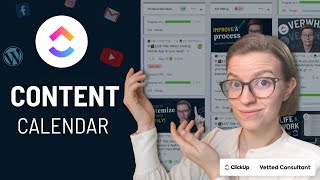
Layla from ProcessDriven walks through how her team uses ClickUp to manage YouTube production from idea to publish. She shows the actual system they built for sorting submissions, tracking edits, scheduling uploads, and promoting videos across their pipeline.
Every single week, we at ProcessDriven are producing one new YouTube video. And that one YouTube video needs to be scripted, edited, drafted, published, scheduled, promoted, cross promoted, repurposed, and all of those other steps that go into releasing a piece of content. And perhaps to no one's surprise, that whole process of creating and repurposing content is a massive, massive amount of work. And as people who are a bit of, I'm just going to call us ClickUp geeks here at ProcessDriven, you might be wondering, how the heck are we using ClickUp to manage all this content production? How have we gotten out the 200 videos that we now have on the channel and counting? Well, the answer is what I'm about to show you. In this video, I'm going to be taking you behind the scenes into our own ClickUp account to show you not only some of the upcoming content, which I guess may not be upcoming by the time you watch this, but to also show you a little bit of how we organize this whole journey inside of ClickUp. Oh, and I guess I should probably say, if you haven't watched this channel before, hello, my name is Layla. I am a ClickUp consultant, process geek, and you might have gathered I create a bit of YouTube content and I'm kind of wearing all three of those hats in this video. So if you're wondering kind of the perspective I'm bringing, there you go. If you subscribe to this channel, you're going to see a lot more about all three of those pieces of my world. And, and if you have questions as we go through this, check out the timestamps below or just drop me a comment. So with that, I'm going to turn it over to me from the past, giving you a behind the scenes tour of how exactly we manage all of our content in ClickUp. Okay, so we are looking at today the main content pipeline that we have here at ProcessDriven. This is the folder that is responsible for all of our YouTube videos, all of our newsletters, all of our social media posts for the most part, all of our Repurpose IO videos, just pretty much anything to do with our original primary content goes through this folder. And it is a process that has gotten a lot of iteration because it started off with just being me and over time it has expanded beyond that. So before we go to the overview, let's actually talk through kind of the journey of a video because I think that will help make sense. And I'm actually going to rearrange this for clarity. But all of our ideas for content, start on a form like this. Whether this form is submitted by you guys, because we do have this link in, I think it's like on the YouTube channel and some footers. Or whether these ideas come from the team who find them when people comment on videos or a burst of inspiration strikes. A lot of times people will comment on YouTube videos or in the course and they'll say, oh my gosh, we need to make a video on clip. Okay, cool. Clip is great. And if I just heard that idea, I honestly probably wouldn't remember it. So I always have this form in my favorites on my own personal workspace to make sure I can just add in. You know, someone wants to have a video about clip in ClickUp. Here's what they were talking about. Here's a link to where they gave me that idea if it's a member. Oftentimes they'll say members email to notify them if the video does come out and so on. And yeah, I could also include a screenshot here and then send that idea into ClickUp and that's kind of where the whole journey starts for our content. This form, as you might tell, is one that everyone uses, but it's often used by the public. So still with me? I hope so. All right, let's go over into the sorting area. So I have some. I don't even know what these ideas are. We have some old ones in here in this demo area. And these are content ideas. They live here until they don't anymore. And this is kind of the sorting ground for where all of our ideas go. I only imported some of these, so 102 is actually probably an undercount. But we get feedback all the time for different videos and they all go in here. So that way we can kind of evaluate them together once an idea is moving forward. Like, let's just say we want to do a video on offline mode and ClickUp we will take that idea and move it on to the all video production list. This is assuming certain amount of prep is done. So we've picked out our keywords or we've gotten close and then it's going to go into the to do status on the next list. This is a manual process and once that manual process is done, we end up adding a video to our pipeline here and that's when the video starts its process. Any questions about this part so far? The idea of taking ideas and then putting them onto the production list. P.S. if you haven't gathered by now, this was originally recorded live for our members inside the ProcessDriven membership. You can find out information about that below in case you want to see the full recording. But that's why I'm kind of talking to the audience here. I'm sorry, you can still leave a comment now, but realize that this is not actually being recorded live currently. Okay, I think that makes sense. Thank you. Moving on. One question that does sometimes come up here is when do you do this? We have a routine task. So in our capacity defense area, let's just say we have a routine. You know, our normal routine tasks, the ones that's the same across the whole business, we have a routine saying plan next X months of content and whenever that routine comes due, we shuffle over the next batch of content and that's kind of how we keep it up to date. There's sometimes where we just see, you know, we're like, ah, we don't have many videos in the pipeline because we worked through them faster than we expected and we might do it early. But generally the routine is what's telling us to do that step. That way our memory is not at all in charge of any of it. Okay, so that is that once we are in there, we are in the all video production area. And I don't know how much of this is going to happen automatically in this one and how much is not. This is close. Let's go ahead and I'll show you when it's actually in progress here. Because what happens in this first stage is selected and not started is where Lara, who's picking our content, she's going to do an initial review and jot down any notes we have, add any details we need to add and she'll put that information in the description. At that point she's also going to apply our template for new content. And I'm going to see if I can find one in here that actually has this. These are some older or some upcoming ones. Let's see. Here we go. So this is one that's in the early stages. We've got a few tasks complete and you can get kind of an example of what it looks like. This is what the template, when we add it adds onto the task. So once the idea is like, yes, we're doing this, we apply the template to the task using this and that merges on a bunch of data. It merges things like this description, which is a fill in the blank thing that I'll talk through. It adds due dates, subtasks and dependencies, these things here. And Laura then at that point manually Adds a prefix to each subtask. This is something I never really thought to do, but it's one of those things that we started to add later on. So we've got our production title, the title we're not yet set on. We've got the prefix that lets us know the episode number, kind of like a podcast. And we put that same episode number right in front of each subtask as a quick edit, just to make sure that when these tasks show up in home, we have context for what they're talking about, even if this working title changes over time. The reason we are putting this in the task name and not a custom field is because we want to see this in home, especially since we've got some newer folks working on this process that get a little confused when they're in the subtasks or sub subtasks and trying to go on with things. All right, so moving on, we will then script out the pinned comment that's going to go on the video after publication. We then have a section for each of the other, let's say sub assets. If you can't tell, we're putting all of the general information in this one big old description rather than the subtasks. I can talk about why if you want, but I'll just keep talking through. In here we have thumbnail guidelines. This is the section that is for the thumbnail designer. This one I think I self edited. So that's why it's not in here. We have some resources that always there that's added right by the template. And then if we have any notes or text that we want to see on the thumbnail, that's where we put. So here I might say no words. Special notes include asana logo, click up logo. And I would then have all of those things uploaded into the assets folder. Next up we have the video script and outline. I've shown this one on videos in the past. I think it's even the same as the detailed video template we have inside the resource directory. But this is kind of our template area for. What's this? Oh, okay. So this was started to be drafted a little bit. This is our kind of layout for the actual video itself. We have a few key sections like hook proof information, what you learned, call to action and exit message. But I tend to kind of rearrange with each video. You can see I've started to at least outline the parameters of the information I want to have covered in this video. There are two columns here. Editor notes and upload notes that for Anyone who does YouTube you might relate to. Editor notes are things that I want to see in the edit of the video. When it was just me, this was definitely not used very heavily. Now that we have an editor again, it's used to say, hey, I want a graphic for this. I want to put this image on top of the video here. That kind of stuff. And upload notes is notes for the person who then uploads the video to YouTube. So I might say, you know, have info card for ClickUp vs Monday video here or make sure the end screen says this, that kind of stuff or timestamps. So this is all done in the early stages. If we keep scrolling down, we get to promotion, messaging, which is just kind of a brainstorm area for what's going to go into the video when we actually publish it. Not a lot here, but you do see the timestamps being drafted. And look, you see the template coming in here twice. So I told you it was getting a little funky with the duplicate. This is all kind of tracked and done. I see this is weird, but through subtasks, so I see some duplicates on here again, which goes into all the other issues we're having with duplicating things right now. But basically it starts off with Lara planning content, setting due dates, setting keywords and setting the call to action. These three things. The call to action is normally a relationship field. We have to a list of our common call to actions. That's another story. Thumbnail is a series of tasks here, raw materials, which is the production tasks. These are all here. The final upload of the final video is the whole result of the editing process. And normally all of these tasks have due dates. They're showing up blank right now because of the weird import stuff for the same reason that you're seeing duplicate thumbnail tasks here as well. So what happens is this task overall is like the end result. And Laura's job here is just to make sure it is done right. And to get this task done, she needs to make sure all of these other things are done. In this case, draft one, draft two, draft three and so on. And that's kind of what we've got going on. That's the whole editing process and so on. Inside these editing tasks, you can see an example of what this looks like. Tasks for myself tend to be a little bit lighter where I just say, you know, here's what you need to do. And I always track notes in my own task, but I will do the legwork to put that information where our Contractors and other people need them. So in this case, when I'm reviewing draft one, you know there's gonna be a timestamp where I'm like, ah, oh, 21, need to change font, something like that. And I'll have a list of these kinds of edits because we're no longer using Frame IO or any kind of reviewing software. I'll timestamp them like this. I will use checklists for anything that requires action and a bullet for anything that's just a note, this looks great, and so on. I'll then take all those edits and I will go back up a layer and I will go to the person's edit Draft two task here. This person has significantly more instruction because they're a little bit newer to ClickUp. This goes down to kind of making things as detailed as they need to be for that person. So we start off by saying, hey, don't do this until you can do this to remind them what dependencies do you have? That little picture there. And we have our list of edits. So we did have two people doing edit reviews for a while. Now it's just me doing those because just kind of save time a bit. So I will paste my description, my edits, right in here, making sure that those formattings come over of what is a task and what isn't. Everything else in here is the same every time. So all this stuff kind of just shows what it is. This person receives a notification that their task is unblocked, they go in, check things as they go through them, and then mark the task complete. And because everything is connected with dependencies, I am then alerted that, hey, I'm ready to review the final approval, because generally we only have one round of revisions and that's a video, but that is that all these ones are all the creation of content. Then we have the twos or the two. And this is where we publish content. If I didn't already say this, this is definitely more complicated than most people would need. But for our production schedule, it helps us a lot to have it this. This detailed. All right, so in here, you see we have a bit of a description, but I'll give you the rundown. We have basically a task for each of the two major types of publishing. We do the two major promises we have. We have a video that goes out every week now and a newsletter that goes out every week. And those are live, done in real time and so on. And what this shows us is basically what newsletter is going out here and what are we actually talking about in that we connect. I always stumble trying to explain this, but this is the task to publish the newsletter and we use a dependency to say what video is that newsletter about? The creation is separate from publication because in theory I'd like to have 100 videos published and ready to go or sorry, not published but ready to be published. And I could just plop them onto the calendar at any day just by changing this relationship field. So this relates to all of the videos over here in production. And that's kind of how I schedule things. When we have the routine tasks saying schedule content, that's what it looks like. We go down here and let's just get rid of this one for a moment so you can see the example. All right, we have all of a sudden an opening with no episode on July 1st. What are we going to publish then? Well we can go to our video production, browse any of our ideas that aren't already scheduled and let's say maybe we want to do this roles 1 copy the link and I'm going to build a relationship between the gap in the schedule and that idea. Pasting it in. It always takes a second to paste in, but there it is. And why I really like doing this with the dependency is because dependencies allow for us to do things automatically unlike a normal relationship or a custom relationship. And once these add in I have a roll up field right over here showing us some details so might be hard to see. But this is the status of the dependency and in this case that means the status of the video. So we have ClickUp versus Asana, it's in progress and we also have the due date of the video which in this case is May 27th. May 27th is when we want that video done and June 24th is when we want to have that go out in the newsletter and also on YouTube that same day. The reason we have these separate is to look at the difference between those states that lead time. Increasing and increasing and increasing is a really big goal of ours lately. So relationships there using dependencies. Why this is fun is because we could then create automations like when task is unblocked meaning the video is done, alert somebody say something, all that kind of stuff. It also means that if we wanted to, if the video got delayed for some reason we'd see that here and we'd know to take action. It also means you can now visually see okay, here's the next three weeks of videos. All the videos are already done, but the week after that is in progress. Meaning the video is somewhere in the journey, but the week after that, nothing is in progress. But then I realize, oh, it's a look back. So that's fine. That's why it's not showing in progress, because it's a live stream. These three columns are showing us information about that video. Hope that makes sense, Katherine. I'll say, when I started this journey, you guys can find the video on YouTube of kind of the evolution. But when I started with YouTube videos, I had this ideas list, which has simplified over time, but it's pretty much been the same thing since the start. And I had one list like this with everything all together, and that's it. And honestly, I think back then it was maybe three subtasks and a few checklists, and the three subtasks were, you know, create video, publish video, repurpose video, and then some checklists inside there to remind myself of what to do. And that's where it all started. It evolved into this after, I think, yeah, Laura was telling me the other day, we're at 230 videos now, which is bonkers to me. But at this point point, we needed a little bit more guidelines around things like what do we need to remember not to miss, what are we looking for here? What are our parameters? But you don't have to start here. I wouldn't start here, honestly. All right, so that concludes our snippet of this behind the scenes tour. Now, to be clear, the real tour that we did, the full tour behind the scenes, that was originally live for our members inside the ProcessDriven membership, that was 45 plus minutes long. So we did have to clip it down here. For the sake of YouTube. If you have any questions or you want to see more information about stuff I haven't yet covered in the snippet that you saw, feel free to drop a comment below or skip ahead, skip the line and you can join the ProcessDriven membership using the link in the description below and you'll get access to this full recording, not to mention like all the other benefits of the membership itself. But I think that concludes this behind the scenes tour. Sneak peek. Peek if you have any questions or if this video raised some thoughts for you of why would you do it this way? Or man, I hate that. I'd love to hear it in the comments below. Dissent is welcome. This is just what's working well for us. And as you might have been able to tell by that quick tour, a lot of work goes into this free content. So if you wouldn't mind helping paying if you will for this free content. A like and subscribe to this video would go a really long way and I'd really appreciate it. So with that, thanks so much for watching and until next time, enjoy the process.










