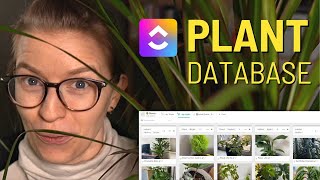
Learn how to set up ClickUp as a houseplant database, tracking care schedules and plant details through custom tasks and views. The speaker walks through organizing plant records, setting reminders for watering and feeding, and customizing your workspace to keep all your plants' information in one place.
Today we're going to talk about organizing houseplants in ClickUp. Let's start with some physical organizing first. We're good, we're good. Let's just start. Okay, so to start off this journey, we're actually going to go inside ClickUp and just like many of our other database style videos, this is going to start off with the underlying assumption that a task in ClickUp does not have to be a task. In this case, we're going to treat tasks in ClickUp a lot more like a record in Airtable or a note in Notion. It is just a piece of information, a row of information that we're going to collect information on. And in this particular application, to make this feel more like a spreadsheet, each row, each task is going to equal a plant in our household. I'll just keep tapping these. So here you can actually see the database we have for our own plants which inspired this video. So we have first up our aloe. So we've got a little picture of the aloe here, which is actually right behind the camera here on my, my desk. Windowsill, the nickname, which is very creative of being aloe. Let me just zoom in a bit more. So you can see that here we've got a description just copied off the Internet, just describing a little bit about the plant, the Latin name, temperatures. If I scroll to the right a bit, you can see the light preferences, the water preferences, which we've gotten a little funky with this one. I feel like we might be able to break this out into multiple fields. Humidity preference. Then we have some text fields for pruning, how to propagate it, fertilizers that it prefers, fertilizer frequency and fertilizer type kind of all mixed in there. So soil type, soil drainage, edible yes or no, planter size. Currently things to watch for, which is just a bunch of notes from things we found on the Internet and when we originally purchased the plant. We just finally bought houseplants this year after our major renovation and cross country move, which you can watch more on this video here. So a lot of these plants are from this year. That's why you see only the dates and not a year field next to it. Because note right now this is just a database. This is not including any actual to do items for these plants. And if we wanted to track things like watering the plants or fertilizing, what we'd probably do is create say one task that repeats every four days or something and have it in our routine task area and have that task say Water all plants that need to be watered. And that's it. So that's our prompt, and this becomes the guide for how to know what needs to be watered. But this itself is just a database and not a list of tasks. I hope that makes sense. And if not, just drop me a comment below. The next major piece of this, besides just creating all this data, is actually breaking up the information to be more usable. So here we have one view where it's broken up by soil type, one that's broken up by what's editable and what's not. We have one where it's broken out by light preferences, which is really pretty because it's got kind of that gallery vibe to it. While I do really like the visuals here, it helps me remember what plants what, you know, all that stuff. I'm not a huge fan of having these images in gallery view, which is why I normally live in list view, just because it takes so much scrolling to actually see all of the stuff in one column. You can see I just have two pictures in each column here, and it's pretty much filled vertically. But if you are a Trello user trying to replicate Trello and ClickUp, this is going to get you pretty close to that. What I'm not using up here, which you could easily add, is adding some custom fields. So maybe here I wanted to add maybe the humidity preferences. I could add these additional details onto each card, but again, it makes the card so much bigger that I'm not inclined to do it. I just prefer to see the pictures. And when I'm ready to look in on how the Royal Charlie is doing, I can scroll down a little bit and see the additional info about that here. And actually it might be good to point out what is actually happening inside this task because there are a few just very small little details here as well attached to each task. We have a plant. Please ignore how dirty my windowsill is there. This is just a picture which we have pinned as the COVID image. So the way we did that is we attached a picture and then down at the bottom with attachments, we just click the little pin here once you upload it, and that will pin the image to the top. It's pretty big up there, but when you have it zoomed out, it looks quite nice. And then inside the actual task itself, we don't have that much. We just have a banner which is created by doing slash and searching for the word banner, just giving a little note telling people how to use this. So for example, use the comments to Note any specific updates about this plant. So for example, I could write repotted and I could then change the planter size here to note that exactly what we changed it to. Something like that. And also in here we have an additional note section if there's anything else we want to add as standard information that's not broken out into the custom fields. But right now I. I mean, we don't have too much more. All of the data in this spreadsheet is being typed in manually, so once I created those columns, I actually just did the research to fill them all in. If you're feeling really fancy, you could import a directory of information and then use relationships to connect a database that you find somewhere else to your actual plant so you don't have to type all that information manually. But for me, with just 20 some house plants, it wasn't a big deal to go in and type all that information. And honestly, it was a little bit educational as well. And just for context, this is the plants list in my stuff database and it is in my life and home projects area, which is related to all of my other personal tasks that are in there and ClickUp. So if you want to learn more about how to use ClickUp for personal use, I have a whole playlist on it here. But I'd also be really open to hearing what ideas or requests you guys have, what types of things you'd like to see covered. Just drop that in the comment below and we might add some future videos about it here. This video, I'm going to be honest, this is a selfish video. Just because I needed some way to keep track of all of these little babies and figure, might as well make a video out of it as well. Ooh, and speaking of multipurposing, because I'm just all about that efficiency here, this actual template that you see here is also going to be released inside ClickingUp community as a bonus template. If you're a member of Clickingup Community, our learning community teaching people how to systemize their whole business inside ClickUp. And you happen to have house plans, we have that template added in there as just a fun little bonus. Thank you guys so much for watching this video. I hope this was a helpful quick tour. If you have any questions, drop them in the comments below. Let know me like and subscribe while you're down there to feed the hungry algorithm here and enjoy the process and the plants. Enjoy the plant process. See ya. This is really weird. Like it's got a little bit of a mind of its own. Do we want to get this jungle vibe going on for this video. Let's see Alila in her natural habitat.