How to Modify a Template in SmartSuite
22 Apr 2023
Walk through customizing a Patient Management template in SmartSuite for a coaching workflow. Learn how to adjust permissions, change visual elements, and edit applications to fit your needs.
Walk through customizing a Patient Management template in SmartSuite for a coaching workflow. Learn how to adjust permissions, change visual elements, and edit applications to fit your needs.
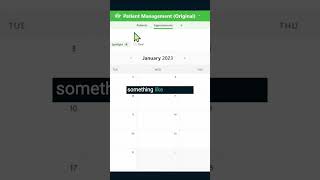
As of this moment, there is not a go to template for coaching in SmartSuite. You and I are going to fix that by creating one of our own, but actually repurposing a rather strange one, I might admit, called Patient Management. I know you probably think I'm crazy for thinking Patient Management is going to translate, but I promise it actually does. When you load it inside your account, you should see something like this appear. First things first. As we do with all new solution templates, let's just go up to the top of this template here and review the key information. The stuff you always want to be checking for is permissions. To make sure that this is only showing to the people you want to have it shown to. And beyond just permissions, you might also take a moment here to change the color, the icon and the name. Once you have your solution information all dialed in, we're going to go over to the first application and we're going to start customizing this to suit our workflows. Because this is not built for coaching, we are going to need to make a few edits here, which I think will be great practice for those of you who are beginners in SmartSuite who are still getting used to all the fundamentals.










