How to Set Up ClickUp as a Student (or Teacher!)
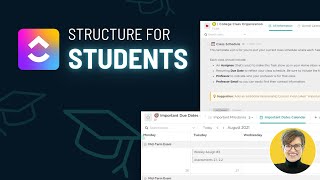
A walkthrough of setting up ClickUp for school. Learn how to organize classes, assignments, textbooks, and due dates using templates and task management features designed for students and teachers.
Earlier this year I received an email from a teacher just like many of you who reached out and told me.
I am slightly confused on how to best use ClickUp as a teacher who teaches two subjects nine different classes, and I would appreciate it if you could give an overview of how we can best use this in an educational context for you.
Rebecca, I want to walk through this quick template we created for the membership. This example is going to be using kind of a college professor example. You could modify this to any kind of educational context, but hopefully this will give you some good ideas of how you could adopt ClickUp, its task management, and its database properties into building an educational HQ for managing all the tasks you have on your plate. Without further ado, let's go check out the template at the folder level here we have two views. These by themselves aren't remarkably helpful because this template includes a lot of different data types. The first view is just the default list view that shows us all of the contents, and the next state is a calendar that just shows us the key dates based on our class schedule and any of the other important dates we've added into our calendar. Like I said, folder view not that interesting. So we're going to dive into one of the lists and dig in a bit there. In this case, I have class schedule as our list, and in this list we are using tasks, not to be tasks. That's very important to much of this layout. In this area, we use tasks to represent classes that we are either teaching or taking, depending on the point of view you're doing. Each class has a description on the inside. It has a class code, the number of credits, the department, a description of the course, and some custom fields to help us keep track of what this course is and where is this class. Ooh, and I should note this video is a template tour, so we will not be going into the nuts and bolts of how to build out every single one of these settings. We have tons of tutorials about each of these features, but this is going to highlight just a finished use case. If you're getting started with ClickUp and this is all like, whoa, what's going on here? I would highly encourage you to check out this playlist here where it walks through some of the beginner features that kind of go in to templates like this. All right, back to the video. Importantly, over to the right, Our classes have recurring due dates because these are tasks, but they're not really tasks. We want them to automatically keep happening regardless of whether or not we mark them done so in these settings, we have our tasks set to recur weekly or on a schedule, meaning whether or not we mark it complete and to recur forever. We could also give it a set repetition, like maybe we want it to end at the end of the quarter or the semester, but this is the settings that we're going to need in order to use this to represent each class. These tasks, remember, are what showed up on our overall calendar. And this just becomes a piece of data to help us manage our class schedule and keep track of all of the things we have going on. We're going to then build some relationships off of these courses so we can relate them to tasks and other notes. More on this soon. Now, beyond classes, we also have textbook notes. Textbook notes is a place where we can write every single textbook or resource we have for each class and track our notes and our progress through each one of those textbooks. So here we have textbook one and we have each chapter or segment of this book. And on this list we can use assignees, scroll start dates and due dates to track when exactly we need to complete each piece of reading. So we're not that kid coming into the seminar pretending we read the readings when we really didn't. So start dates and due dates here are going to help you keep track of all of your reading. And you could also easily modify this list name and include other kind of assignments here as well. If you wanted to track individual pieces of homework as noted here in the suggestion, if I was feeling fancy, I would take a few moments to relate these textbooks using the relationship feature back to the classes that we have. So what we're going to do over here is add a column, add new look for the word relationships and add a relationship where we're going to relate our textbooks, which is the list that we're currently on, and relate it to the classes that we have. We could even add a roll up field here to say the next due date showing up there as well. So for this one I'm going to say textbook one and is related to my math class and the next time I have that math class in this case is in October. So I know when I need to have that reading done. If I go back to class schedule, I can actually see the same exact relationship from the last side and then this way I can relate my classes to the books or assignments I need to do. Now the last list in this template is the important due dates list. And this is going to be a really big one, particularly for keeping track of midterm exams, final Projects, that kind of stuff in here. Once again, we are treating tasks to mean something other than tasks. In this case, each task is an important event where we have a start date, a due date, and a point, so we know how much it contributes to our grade for a particular class. And again, we have the option here to relate this to both our course or to what areas in the textbook is covered. For example, I could create a relationship called chapters included and relate this list to the textbook notes list. So I can say, hey, the midterm exam is going to cover things in this textbook. Great, good to know. And if I go back into the opposite side, maybe I want to get more specific. I could show that relationship on the opposite side which shows up there. And I could say chapter one, well, that's actually covered in Weekly Assignment one, and chapter two is covered in Weekly Assignment two. And both of those things are going to be covered in the midterm exam. But for this particular textbook, in this way, we can use relationships to give us a little bit more insight into how all of this stuff works together. So to jump back to the important due dates list, I do want to highlight some of the other views we have going on here. This first view is just showing the milestones, basically tasks where we've designated them as an important date. But there's also another view up here which just shows all dates. And we have it in a list view as well as a calendar view if that's what someone prefers. And this just allows us to see all the stuff that's going on, all the key assignments that I want to make sure I tackle. And because these do tend to be a little bit more action oriented, I'm definitely going to want to assign these to myself so I can keep track of when key assignments are due. If I was a teacher or if I was a student, when I first get that syllabus or define that syllabus for each class, I would input all of this stuff into this due dates list, this assignments list, and keep it all in one track slide assigned to me and dated. So that way when I'm getting through my day, I can just go straight to the ClickUp home view and find the work I need to focus on right now. And I should note also in this textbook view there is an activity view. So if you're feeling demoralized and about not getting enough reading done, you can go to this activity view and see your progress and how much you've been doing over the past few weeks. So that is our very simple college course slash Educator template here. Whether you are student or a teacher of students, this is the kind of structure that is very simple, but could help you organize your coursework without overcomplicating things inside ClickUp by no means is this the perfect solution or the only solution, but this is a nice way to get started if you're kind of stuck on figuring out that hierarchy. Of course, if you are stuck, please do leave a comment in the you know comments obviously below. I'd love to hear your feedback, your questions, your thoughts. Oh, and I should also say, if you are someone who's a member of our Process Driven membership, you can find this template as well as the 30 plus other ones all inside your membership resource area, all ready for you to install it in just a few clicks and customize it to your own workflows. And if you're not a member, you know you know how to fix that, you can find the link in the description below. If you have any questions again, drop me a comment like and subscribe while you're down there. Thanks so much for watching and until next time, enjoy the process.










