How to Time Block in SmartSuite to Improve Personal Productivity
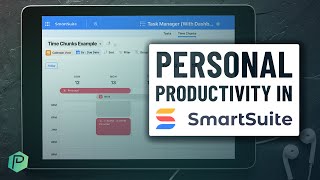
A tutorial on time blocking using SmartSuite's calendar views and dashboards to organize tasks and priorities. Learn how to structure your day by blocking time for specific work, and use SmartSuite features to track and manage what matters most.
I think we have all experienced those days where we sit down with the best of intentions. We are ready to film those videos, we are ready to knock out those priorities, those client proposals that whatever it is we have to do, we've got our priorities in our head. But then we sit down, we start our workday, we have slack open, we have the email open, we've got notifications open, and all of a sudden it's 5pm, we've finished our workday and we look back and we've done a tremendous amount of work. And yet our top three priorities of the day, whatever those were, we're not done. I know it's not exactly anyone's favorite day, right? But we all have these kinds of days and sometimes in a small team environment, it is just the day you need to have. Okay, so before we go into some strategies here to avoid these kinds of days, I want to start off by saying, do not blame yourself. Also preaching to the choir here, do not blame yourself if you have these days. Because sometimes in small teams, things happen, or reacting to those things is sometimes the best thing we can do in that moment. Even though it may not feel like the best thing at the end of the day when you compare it with those initial priorities lists. Fact is, life happens, things happen, things change, and we need to sometimes adapt to what life throws at us. However, when these reactive days become the norm, it can get into an unhealthy spiral where team leaders or team members can just struggle to get a sense of agency over their day to day work. It constantly feels like you're on the back foot, you're always behind, and so you never really feel like you're growing or or contributing towards your own personal priorities. That's why in this video, I want to take you inside of SmartSuite, the sponsor of today's video, and show you how we can manage our time a little bit more effectively from a personal productivity standpoint by utilizing some views and time blocking methodology inside of SmartSuite as we go through today. Please do check out our affiliate link in the description below to Sign up for SmartSuite and try it out for yourself. But before I go too much into all that, I want to just address the elephant in the room and that's that many of you hear the word time blocking and break out in hives. So first of all, what is time blocking? Time blocking, in my view, can be summarized as the way to align your priorities with your calendar in order to ensure that you're actually productive. Okay, now that's a lot of terms all jumped in there, but really all it is is just saying, hey, here's what I want to focus on and here's when I want to focus on it by adding that when element, as opposed to just having a to do list of priorities when we can give ourselves the actual space in our day and in our brain to do the thing we said we wanted to do. Now, the use of the term productivity in this definition can also throw people off. So just to be clear, I'm talking about productivity in the sense we talk about in this video, which is productivity that is measured by how fully you are doing what you view to be important in that moment. So in this case, productivity is not more for the sake of more. It's not hours worked, it's not button share time. Productivity is just how fully you do what it is you've set out to do in the moment. Okay, by taking our priorities, putting them on our calendar and then doing them. That alignment between our priorities and our time, that's what productivity means and how. This is useful. Sounds great, right? But the natural next question is what do we actually do with that knowledge? How do we implement it? Well, that's what we're going to go through in the rest of this video. The very first step to implement some kind of time blocking system for your own personal productivity is to determine what your blocks are. Let me take you inside of SmartSuite's calendar view and actually mock this up with you so you can see what our options are. So the first option we have in terms of determining our blocks is to choose to block by task. This is the most common option for the traditional time blocking methodology and has some problems. But it looks something like this. You would go about blocking every single day of your week, including weekends, with a task or a thing to do per second block. So in this case we'd have task number one, we drag it onto our calendar, we do a little rearranging for the duration it'll take, and we'd keep rearranging tasks until we have a full day. Now, this approach is the more traditional approach to time blocking. For this you would want to have some kind of tool where you track all of your tasks, such as SmartSuite. And you'd probably want an easy way to drag tasks onto your calendar when you know when you want to do them, or to create new tasks as needed so that you can easily well track the tasks. Now, despite this being the most popular option and one that's really easy to do inside of Work management software like SmartSuite. The challenge with this comes in having so many little tasks. I mean, having 15 different events during your day to track every little task you need to do minute by minute can feel very restrictive and can be challenging if for some reason things happen and you need to reschedule them. Because this kind of planning is so granular. I really only recommend this approach if you are someone who is extremely organized in terms of your task distribution and doesn't really do a lot of knowledge work thinking things that could take variable amounts of time. If you are purely execution oriented, or maybe you're just mapping out household chores that you know exactly how long they take, you could try this approach. But otherwise, let's keep looking at the two other options. The second option we have for time chunking or time blocking is what we have over here on the left. These two days, Sunday and Monday, this is where I'm not breaking down every single task I need to do. I'm just kind of tracking the big picture priorities in a given moment. In this case, my priority on Sunday is personal. Whatever the heck I want to do on personal use is there. And then Monday my focus is on work. This is a more shift like mentality that is great for people who are balancing multiple jobs, multiple roles in their life, or multiple roles within the same company. This option is really great for people who prefer a looser structure who are balancing multiple jobs or just balancing multiple roles in our increasingly intersectional lives. This is also easier to administrate in a tool like SmartSuite because you can set up these events, have them repeat, and you're pretty much good to go in terms of the actual strategy on this one, rather than having to administrate and plan out every single day. With this option you would just be setting your schedule, adjusting things one time, and then you'd be operating off of that schedule on all repeating occasions. That is our second option. But if you want a bit of a Goldilocks in between these two options, option number three is smack dab in the center. It is the idea of not just breaking down personal versus work, but taking a category like work and breaking it down a bit smaller. This is really good if you are someone who's balancing multiple roles or hats in your small team. And if that is you, you might want to watch this video next. But here in this particular flow, I've got a marketing time chunk up in my morning, a break for personal lunch, whatever, and then a shift in my day for working on operations. This allows me to focus on one role or hat that I wear. And again, isn't so restrictive that I need to have every task broken out day by day by day. Just kind of gives me a general guideline. Regardless of which chunky method you use, the general guideline when it comes to this time blocking is to only work on that thing for that time period. So if I'm working on marketing work, it better be in the morning. If I'm working on the 15th operations, I'll hold off and work on it in the afternoon. We don't want to let things bleed in or out of these containers. We want to make sure we're keeping them contained within each block. If things take longer than expected, hopefully you have some wiggle room in your calendar where you've maybe left some blank space or you can just move it on to the next relevant block. So for example, if marketing work I wanted to work on four videos but I only got two done, I would move the remaining two onto the next marketing work block. If the videos were so urgent that I had to drop everything to make sure that they could indeed get done, I might instead shift my operations work to the next day and continue the marketing work instead. You have that kind of flexibility when it comes to these blocks, but still proceed with caution because doing too many modifications to this blocked schedule kind of defeats the purpose of blocking to begin with. Oh, and two quick pro tips here. I am currently creating this inside a SmartSuite calendar view because it's just convenient to be able to reference inside my account by having this starred as a starred item. But if you'd prefer to create this inside your Google Calendar or Outlook or on a piece of paper, that is fine too. For this particular view where we have our default schedule, we're not going to be working from here on a day to day basis. This is more so going to be a reference for us to focus our energy. The only exception would be is if you have this super detailed view, in which case you would be referencing this more frequently. However, whatever tool you're using to organize this, whether it's a whiteboard or a piece of paper or something else, I would encourage you to utilize colors wherever possible. In this case, I've got some spotlights baked into my SmartSuite view to make sure that things that are today turn green in the work category and anything that is personal is always pink so I can easily tell them apart. Incorporating these kinds of colors is personal preference, but I think it can be a meaningful way to help you have a Sense of focus when your work is due. Notice if you are using a smartsuite view for this, you can rearrange these filters to have a priority apply and you can set a ton of different parameters here depending on what is important to you. But for me, I just want to make sure that my personal stuff stood out. Once you've decided what kind of chunky method you'd like to try, go ahead and implement that inside your smartsuite view. Or maybe just whatever your calendar tool is, whether that's a physical planner or something digital, just get it out of your head and onto that calendar. What we're aiming for is a recurring or repeatable structure for how you'll spend your seven days a week. Now, once you've had your ideal week kind of mapped out here you've got your chunks all set up in whatever tool you want to have, such as SmartSuite. Now we need to start deciding what we're going to do during those chunks. If you are someone that's doing the extreme form of time blocking, where you're blocking off every single task for you, that's going to be a little bit self explanatory. By having the block, you know what you're doing. But for the rest of us mere mortals who are using a more fluid approach, we need to have a place to actually find these specific tasks. Since all these tell us are the hat we're wearing or the job we're working in. So just assuming we're going down the Goldilocks path, I want to make sure I define a go to spot to find all of my marketing work prioritized by whatever I prioritize by. So assuming we're going down this Goldilocks example in the middle, what this would look like is having a spot where we can see all of our marketing priorities and a spot we can see all of our operations priorities. The reason we're doing this is so that when marketing work time shows up, I know exactly where I'm going to go to find what tasks I'm working on. If you are using a SmartSuite for this, you don't even have to do any extra work for this step. You can head right up into my work, the little check mark icon and I would group by solution and hopefully you have some solutions that align with your priorities and you should be able to find your work in this way. So in the case of marketing work, I'd probably go into my marketing solution and sort by the priority flag and this is going to be my go to Spot anytime I need to do marketing work. Now we want to do the same thing for our operations work. Where do we want to find that? Well, again, I could go up to my work group by solution, go to my operations solution and find my tasks there. But if you're in an imaginary world like I am here in this demo account where you don't have a very clean one spot to find your operation stuff, maybe instead we want to link out to a specific view. So maybe when we do operations work, rather than going into the my work section, we want to go to some kind of custom view we've created, such as in our capacity defense area. Maybe we have a view called Open Task by status and this is where we want to focus. Well, if that's your preference, go ahead and just add that to your start items and again, just grab the link and put it back in your other area. So I'm going to take the operations work link and I'm going to put that there. That's just telling me where to go in order to find this information. Once again, our goal here is to have one spot to look for tasks per chunk that we have. That way we're not so much worried about one overall priority list. We have kind of our priority list per hat that we wear or block or chunk that we have. And when say the operations work chunk comes in, we go to that link and we find the information that we need. These kinds of use cases are why the views inside a SmartSuite are just so valuable. Because they allow us to take the same baseline data that we have inside our account and view them in different ways depending on what we need to see in that given moment. Yes, the data might be the same whether I'm CEO for the day or content creator for the day. But being able to switch between those two hats without breaking anything for anybody else is incredibly valuable. And that's what we want to do with this time blocking piece of. Now, by the time you are done this, you should have a link to each of these places or just a little note inside your pen and paper notebook defining where to go to find your tasks for each of these chunks. Now, you know when those time chunks arrive on your calendar or whatever, you go to that given spot and start working down the priorities list as much as you reasonably can during that chunk of time. Please note that this is very different than syncing things to your calendar. Okay, so this is just a chunk to telling us to go look here for work to do in order until the time runs out. Okay, we are not in this stage putting things on to say, our Google Calendar, our Outlook Calendar, that kind of two way integration thing. While I know many people find it appealing, I have seen so many disasters where we associate our calendar with our priorities that it just doesn't work out very well. But if that is something you are interested in, we'll put a link in the description to some information about SmartSuite's feature that they're building around that calendar integration. But personally, this kind of reference chart to task list setup is one that I've seen work a lot better. Now, so far we have determined our chunks, we have built out our ideal time blocked schedule and we have associated those time block chunks with areas to find our prioritized work. Cool, right? But there's just one thing left to do. In most workplaces we can't just say, hey, I'm going to work on things till I run out of time. No, most cases that's not the case. We're a little bit more type A than that. And usually we operate with things like due dates that are external promises where we say, I will get this done by this date. And sometimes if we're not careful, those due dates can conflict with our time block protections. We can say, oh, I've only got three hours for marketing, but then we have due dates that mean we need to spend eight hours on marketing and those two things just fail to line up. So our final step in time blocking is just for those of you who want the additional layer of due dates inside your work management software. And to make that work, we need to manually add in a balancing check to make our time blocking and our due dates make sense. Now the way we're going to do that is by creating a workload rebalancing dashboard inside of SmartSuite. I'm just going to get ahead of it and say that this is one of our more advanced dashboard examples for SmartSuite. If you'd like something a little bit more beginner friendly, I suggest you watch this live stream on capacity management where we go over more of the baseline dashboard examples. This one bit more advanced. Okay, so here we are in the workload rebalancing dashboard and the first thing you probably notice off the bat is there's this pretty little image. As of right now, there's not like a banner generator inside of SmartSuite dashboards, but it's super easy to just create an image of your own inside something like canva, exporting those images and then just pulling them into your dashboard. That's what I have in the top left. No functional use, just aesthetic. To the left of that I have a minimized by default or collapsed by default section for quick reference links. So here's where I'm going to have links to things like my chunking schedule, my ideas for tasks I want to do, and maybe my time tracked might also have handy little reminders I might need to have at the ready. Put those right here. Notice this is a widget I have collapsed by default, which is why it's kind of tucked away. I like that. Just so it's a little bit less cluttered and it allows me to have the information there without kind of overwhelming me. Right from the get below that I have a quote of the week. This is more of a personal mantra or focus. You can add here personal preference. This particular widget is another text widget where we're just able to add any sort of text or formatting we'd like to add, including some other default flows here. To the right of that I have a world clock which would be useful for multi time zone teams such as ours. And then we get into the meaty stuff. The first meaty section is one that's going to look very familiar. All this is is an embed of what I already showed you. Notice it does have a double header here. Because all I'm doing is taking the SmartSuite URL meaning this guy, and pasting it inside an embed widget inside of SmartSuite. This is currently my workaround because there is no calendar widget yet in SmartSuite. I think it's coming very soon, but I was impatient in creating this video so I just did it this way. And this is a great solution that anyone can employ if they're being a little cheeky and want to embed things in SmartSuite inside itself. So here's how I have that embedded that is popping up right here. And just like the other widget I showed you, it is collapsed by default so it's not so overwhelming. And it also doesn't slow down my load time by having it minimized below that preferred time block schedule. I have work tasks by time estimate by week. This is a bar chart inside of SmartSuite where I'm looking at the time estimated for each task, breaking it down by week of the year and just seeing how balanced I am at a big picture scale. For team members who are more execution focused, this may be overkill. Your manager might be doing this for you, but for folks like myself who are both Doers and managers of myself. Seeing this kind of view, where it zooms out and tells me where I'm at in a given week, can be a nice way for me to balance the big picture as opposed to just looking at things in the day to day. Here is a quick look at what the settings are to create the chart that I just showed you. This is a chart view I created inside a smartsuite that I have embedded into the dashboard. That sounds really tricky. It's really not. And if you want me to go deeper on any of these widgets in future videos, just drop us a comment below. But that is that one with a benchmark at the 40 hour workweek I'm aiming for. Now over to the left we get to the coolest part of this entire dashboard, which is this work task by time estimated and day. If I just make this full screen, you can just see how darn cool this thing is. And what is this, you might wonder. Well, this is a chart that is showing me the days of the week or the days where I have due dates and the task names in this case, because my records in SmartSuite are set to be tasks and are color coding them based on how much time is estimated for that task. Okay, so for this particular task, 35 hours are estimated for this 1, 4 hours for this 10 hours. And this chart is created over in a chart view I have in SmartSuite. Why is that? Because right now only chart views which are created over here, just like the other ones we talked about, only chart views, allow you to have all the superpowers of a heat map, even at a quick glance. What this is showing me is how much brain power or time I am already allocating towards each given day. Currently this is grouped by the actual task name, but if I wanted to group it by something like priority or maybe the category of tasks or the department the task is associated with, I could just shake that up. But I think this can be a really helpful way for us to look at the due dates, which is our x axis here, and how those due dates relate to our actual capacity in the moment. And just know that in this example I actually have my due dates in all sorts of weird ways because this is a demo account. But if you had all your due dates filled in, it would look a lot prettier. So let's go back to the dashboard and talk about how you would use this, because pretty charts are great, but pretty charts that you can use way better. So how exactly would you use this? Well, let's just say we're looking at the date of September 9th. We've got September 9th here and we are looking at four hours of work in the high priority category. We would compare that to say our preferred time blocks and evaluate whether we have four hours of high priority work, high brain power work that we can actually do. If we were to look forward to that date and realize we only have three hours to work that day, we could go back to this schedule and realize, oh shoot, something's got to give. I could click on this day, see what is tasked during that day and try to either break it up into smaller pieces so smaller tasks, or see if maybe there's a typo in the duration estimated. In this case, maybe this is off. Or see if I can spread this out over multiple days or multiple work sessions. So rather than just doing it on the due date, maybe I add a start date so I can start it a week earlier and kind of space it out. Oh, and a quick warning here guys. What I'm showing you today is the best practice as of right now in my particular view. But SmartSuite is in a position that is rapidly changing. They are rapidly adding new features and there are some exciting developments coming when it comes to calendar integrations and multi solution summaries that should be hitting probably by the time you watch this video. But unfortunately I am filming this video today. So if you are someone who would like to stay up to date on all the best practices as they change inside the SmartSuite universe, I've got two little call to actions for you. Beyond just subscribing to this channel and using our affiliate link to get your SmartSuite account set up. I would recommend that anyone who's interested in the newest happenings in the SmartSuite universe check out their community product updates area. We'll include the link in the description below, but this is a really great area that you can subscribe to in order to get updates when their newest things come out. And like I said before, they're updating really quickly. So you will want this. If you are someone who's looking to get really into SmartSuite in the short term, don't really have the time to go pouring through forums to stay up to date. Well, we've also got a second option in the description below you'll find the link to our waitlist for SmartSuite resources. We are actually working behind the scenes on some services for how you can work with us at ProcessDriven to get your SmartSuite organized to build your business processes just to learn your way around the tool. If that sounds like something that would be interesting to you, again, description below. Maybe by the time you watch this video video it won't be a wait list anymore. By putting your email below, you'll be the first to know when something's available. And hint hint, it's coming very soon. So that concludes our SmartSuite time blocking tutorial. Just as a quick wrap up here, I want to remind you what time blocking is and isn't before you go away with any bad habits, Time blocking is a way to align your priorities with your time. It is a tool for you to feel more empowered saying no to things you do not have time for or do not align with your particular priorities. Time blocking is not a tool for self hate if things take longer than a time block. And time blocking is not a jigsaw puzzle that you have to fill every single piece of your day. It is just a art, not a science to help you feel a little bit more in control. If you'd like to see more videos like this about SmartSuite, personal productivity, or anything in between, please do drop a comment below and let me know what video you would like to see next. Or if you're someone who's just getting started inside of SmartSuite and are kind of like, whoa, where do I go from here? Check out the video we'll have linked at the end. It's our playlist about all things SmartSuite that should help you further on your journey. Thanks so much for watching guys, and until next time, enjoy the process.










