How to Use Missive to Delegate Your Email Inbox
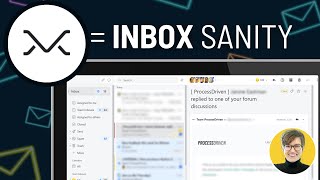
Layla walks through Missive, a tool for managing shared inboxes with your team. She covers team inboxes, assigning emails to people, archiving, rules, and templates to cut down on email overload.
Email, it is not one of my favorite things. And if you are like me, I'm guessing it is not one of your favorite things either. That's why in this video I want to talk about some of. Well, one of the key tools I have used to take my inbox from being something that took me literally an entire workday to work through every single week, several times a week, to instead being something that is almost perfectly delegated and inside processdriven. Before we talk about the after and the system I'm using right now, which is including a tool called missive. In order to delegate my personal inbox, I want to first explain what the before looked like. So you guys know that, I mean, we're probably more similar than not prior to using missive prior to the system about to tell you. When it came to my inbox, it was my inbox, right? If an email came to me, I would respond to it. At some point as we were growing, I realized, oh man, it'd be nice to get somebody to help me on this inbox as we reach, you know, 50, 60, 70, 70 emails a day. And I just never felt comfortable having a virtual assistant have access to my personal email. It just felt like a security risk and just kind of creepy. Didn't want to do it. So without being willing to have somebody in my personal email pretending to be me or as me, the only other option I had was to forward emails or to create a task and ClickUp saying, hey, go respond to this email. Both of those options kind of stunk because if you forwarded an email right, the end client would see, they'd be able to scroll down and they'd see that you forwarded the email. And that feels kind of impersonal and gross. But on the other hand, if you created a task saying, hey, go send an email to so and so, they had this question that almost takes longer than just answering the email on your own. At least that's what it felt like to me. I was in between a rock and a hard place, as they say, and I didn't want to give someone access to my email. I didn't want to forward all my emails and I didn't want to take the time to manually retype the action items from every email and send it to somebody else. I also didn't have the time to do it all myself. I was getting backlogged and just drowning. Days of my week were being lost emails. So I needed to figure something out. Something had to give when it came to the quantity of emails that's when I discovered a tool called Missive. And I know the tool isn't the most important thing here, but for this particular conversation, I feel like the tool has a transformative quality to help you think about your inbox in a completely new way. So with that, let me give you a quick tour into our Missive account where my workflow has really, really changed since implementing this. This is Missive, and this is kind of the key tool in our toolbox for delegating my email, which has changed my entire work week over the past few months. Missive here is a team inbox, as it says, with a chat feature that allows you to delegate and collaborate around a whole bunch of different message structures. So with that, I'm actually going to take you inside my own Missive account and give you a bit of a tour as to how this works. Here we are inside my Missive, and this is where I go. Rather than going to Outlook or to Gmail, when I'm starting my day and want to check my email, I go directly to Missive. The inbox is basically a collection of everything that's important to me based on any activity inside my Missive account. This could mean any emails that have been sent to me, any discussions which I'll talk about soon, which I've been tagged in, anything I've snoozed that I want to get back to, anything that I need to deal with when it comes to missive shows up here in my inbox. When I'm in my inbox, every single email I have shows up as a row, kind of like Outlook. If I click on a given email, I can see the email itself in the right panel. I can also see details about a contact on the far right panel. Now, this has some sensitive information in it, so we're going to make sure it's blurred in the editing. And I'm also just going to hide it from you for this purposes. But that can be a nice way to get context about whoever the contact is. In this case, the contact is just me, so I'm just going to go ahead and give you the rundown without having that expanded inside an email. Once we have it opened and we see the whole thread of conversations, we have the ability to make private comments. These comments are really powerful. This allows me to comment and tag other people like, hey, ProcessDriven, could you come check this out? Do you know who this person is? And I can pull in others into this conversation, let them see this email, and collaborate over the result before I ultimately create a Response to answer whatever this question is, this draft, this original email and this comment is going to be visible to anybody I share this email with. Okay, hopefully you're following. This is basically making all of my email inbox kind of collaborative, almost like a ClickUp task, if you're familiar with that. Now, in and of itself, you know, as the business owner, I'm not doing too much of like, hey, can you help me with this? I pretty much know how to handle all of the emails in my inbox, but my team, not so much. So when it comes to these kinds of comments, this is a great way for the team to loop me in on emails that they're working on that they say, hey Layla, I need a quick decision on this, or what does this mean? Or do you know anything about this? This is a really great way for me to delegate emails that go primarily to other team members, but if they need help, they know they can always ask me, tag me, or tag someone else on the team and get some support if they need it. While we're in here, I should also talk a little bit about sharing because I said anyone who's shared on the email is going to see the email. Well, let me just show you one of these examples. I'm going to take Jen, someone on the team, and click Add to inbox. Add to conversation. I have now added Jen to this conversation. She will now be able to see this email when she logs in and participate in it if she's just browsing through her own inbox. I could also choose to share it and add it directly to her inbox so it shows up at the top of her queue when she logs in if it's something really important to her. The nice thing about this is it makes it easier to kind of give someone, FYI like for your information, access where they can browse if they need to say they need to look up a record, but they're not the primary source of contact for an email. This sharing section is a lot like permissions in ClickUp because it basically allows us to pick who gets to see this email, even though it was originally only sent to me. The other important one, and probably the key to this whole thing working, is the assignee field over to the right. So the assignee field is where I can go ahead and take an email that's sent to me and give it to somebody else. I do this all the time and this is pretty much the only way I stay sane in my inbox. I will start my day in my inbox. Delete anything that's just quick junk and anything that needs to be answered. If I need to answer it, I'll keep it there. But the vast majority of my emails I will take and I will drag into a relevant team inbox. This is kind of like a category, a grab bag of emails that my team is responsible for answering. So for example, this one, maybe I want to say this is something that the sales team can answer. I can drag it right into there, it deletes it out of my inbox and it goes into the teams. I'm actually going to undo that before I confuse them. But by doing that, you see how it has now shared this email with all of these other people because those are people who are in the sales inbox. If I didn't feel like clicking and dragging. I can also do the same thing by selecting sales right here. And as you can see, this email now has a whole juicy thread of activity tracked in here. And this is is a huge benefit when it comes to using something like missive versus other forms of delegation because I can now see if I delegate something to somebody, when did I delegate it, when did it get responded to, what's the timestamps of everything? It's all completely centralized. And when an email is taken care of, you can actually close out that email and see that right in here. In missive, every thread has really two statuses, open and closed. And that lets us know whether the email needs action, it needs to be settled, or it's been handled and it's taken care of. That simple to status setup is really, really helpful for delegation because I know that that email I sent has been taken care of or not. And I can tell that by the color of a conversation. You'll see that when we have a big pile in here or by looking at the activity inside an email and know exactly where things stand. So so far we've talked about inbox, we've talked about emails as a detailed thing, we've talked about sharing, we've talked about assignees, we've talked about opening and closing different conversations so we know where they stand in the process. The last thing I want to talk about here is a very important feature for me as someone who's more of the business owner and not so much the day to day on the emails. And that is the archive feature. Now this, I kind of hope missive changes the name of this feature because I think it's a little confusing. But in missive archive is the word that represents when an email is basically taken off My plate. It means it's hidden from me, but it's not necessarily done. It's not necessarily removed from anyone else. It's just not in my inbox anymore. This is a huge one for a business owner archive. You could also think of it kind of like clearing a notification. It's kind of like that. It doesn't affect the task, it doesn't affect the email, just kind of hides it from your view. So in this example, let's say I delegated this to the Ops and tech team. I didn't want to close it because the email's not done. It still needs to be responded to, but I don't need to see it anymore because I trust that my team's going to take care of it. So with that, I can click up here or just click the delete key and archive it from my inbox. If I go poke around in Ops and Tech, if I click into this team inbox, the email is still there, it's still open, it's still everything, but it's no longer on my radar because I'm not involved with it anymore. If the opsintech team goes in here, they see this email and they say, layla. Oops. Well, I can't really tag myself, but let's just say layla. No. I don't know. If they tagged me again, it would show back up in my main inbox, but otherwise it's out of my sight, out of my mind, and it's on their plate to handle. I can always go look for it like I'm doing right here. I could go click into Ops and Tech and browse the emails that are open, but I don't need to constantly see it on my radar. So I've given you an example here of how an email that went to my personal inbox got delegated and discussed through this process. I also want to highlight the fact that you can have emails by default go into team inboxes. And this is a huge time saver because if I'm constantly getting emails in my inbox from, let's just say, our newsletters, right? And honestly, every time someone responds to a newsletter, I'm going to let someone so and so handle it first, and only if it needs my help, will I get involved. I want to empower them to be the first line of defense. So to show you what this looks like inside my settings emissive, I actually have it set up. So the email address hello, rocessdriven, goes to the sales inbox primarily. There's a bunch of people who can see it, but that's the main home of it. Every time an email comes to that email address, it automatically goes, with no forwarding required, into that sales inbox without me having to be the person sorting and dragging things together. This is how a collective general email address can be a huge time saver in Missive. But I know there are also going to be times where, you know, you signed up for something with your personal email if you still want to delegate that. You can also use rules in Missive, and that's one thing that we've done quite a bit lately. So rules are kind of like your backup. They're kind of like automations in missive. We can say, hey, if an email matches certain criteria, do this, do that, do whatever. And one of the best use cases I could think of when it comes to missive rules is to send emails to the correct inbox based on certain criteria. For example, we have a website, right? And that website has things like tech updates. And because of how we purchased our plugins and so on, a lot of those tech updates come to me personally. And that's not always the best spot for them. And at a certain point I get tired of dragging them into ops and tech every time. So I created a rule here. You can see one Add tech emails to Ops and Tech. If I edit this, you'll see any email that's about wordfence, which is one of our plugins, is automatically going to move into the ops and tech inbox. Similarly, I could set up something for every time we get a payment notification, send it to the bookkeeper's inbox. Every time we get a new sponsorship request, send it to the sales inbox. All of those possible combinations are ways that we could use rules to reduce how many emails hit my inbox to begin with. Even if this email here in the first example is sent personally to me, doesn't matter. Missive is going to see it as long as I have this rule in place and share it with the right people without me needing to know. But I feel like I've hit on some of the big things here and I don't necessarily want to make this a 30 minute video and completely overwhelm you. However, before we go, I feel like there's one more thing I should really highlight here, and that's the fact that Missive also includes some pretty cool template features built into it. So if I click the pencil icon in an email, whether it's a draft or a brand new email, I can actually load a dynamic email Template and I used to think that Gmail or Outlook's templates were pretty good. Missive takes it to a whole nother level and it's actually been a really big time saver to help me have the trust to delegate my emails. Because when it comes to certain things, you know, it needs to be answered correctly. And when you're able to template it and clarify what your expectations are, have things be a little bit more fill in the blank. It makes delegation and trust a lot easier to to build because you're setting up that recipient that delegatee up for success. So I'm gonna show you one example email template right here. So here's an example response that I'm gonna insert. This is a response that I drafted up, actually I think the team drafted up for me. But whatever, it's a template in here that we could have anybody from the newest support person to myself click in here and click response and generate a standardized response to, in this case, a request for a copy of an invoice. Inside this template, not only do we have a bunch of text which is telling us, you know, information, it's the body of the email, we also have these things which are kind of like fill in the blank, dynamic information. And I'm going to go ahead and insert this and I think it'll make more sense once you see it. When I click insert response, it asks me what is the recipient's first name? In this case I'm going to say John first name. What is the name of what the customer is requesting? In this case I'm going to send an invoice. What is the customer's email address? Exampleo.com and what is my first name? Layla. Click insert. And here it created an email following our template for this user that is completely consistent regardless of who is typing it. This kind of fill in the blank email template is just the next level from having a copy and paste template that you might have in a Google Doc or in ClickUp. It's a really effective tool, I think, to help build that trust again so you can actually delegate without feeling nervous about your expectations not being met. Because this template makes my expectations very clear as to what this email should look like at a baseline note. If I wanted to send this email, I could send it later or send it now and follow up in a few weeks to remember to, you know, make sure that they actually respond. So I could just go ahead. Let's just say I'm going to go ahead and click send. Yes, it's sent. Even though there's no attachment. Hey Joe, I sent this. Just tag the team, whoever needs to know. These are the kinds of ways where you can really start treating email as this team effort and not individual silos. Now to answer some FAQs you might be wondering about when it comes to Missive. First of all, is there a free plan? Yes, there definitely is and I will just be upfront and admit to you that I am someone who is not inclined to give more to Silicon Valley than I need to. And I definitely recommend anyone else follow the path that we followed and start off with the free plan. If you want to explore Missive, we have an affiliate link in the description below. Just because we really like the tool, you do not have to use it if you don't want to. Again, this video is not sponsored, but we started off on the free plan of Missive and we used it for a long time before we decided to upgrade to the paid plan. And the main reason we upgraded is because we wanted longer history. So the ability here to see messages in the past and because ultimately I wanted to be able to incorporate rules, those automations that I was talking about there, it ended up being such a time saver that it felt worth it to invest. But honestly, the free plan was more than enough for us for a very long time. And if you are looking to get started, that is where I would go. Start with a free plan. I mean, what do you have to lose? The second question you might be wondering is what about other messages? You mentioned that it connects with Instagram and all this other stuff. The answer is yes, it definitely does. We have our set up so that way all of our Facebook and Instagram messages go right into the sales inbox and are shared with the sales team. It was super fast and easy to set up and honestly I don't know, I don't know how we, how we handled this without having this integrated. We used to use a social media scheduler where you could respond to DMs and stuff but that caused problems because then the sales slash marketing people were all the way over here and everyone else was in the email and it just, it was just far too separate. So by bringing the social media and email all into one place, it's just been a huge game changer in terms of making sure we're all on the same page and using the same templates, same information, all that good stuff. The third FAQ you guys might be wondering is why are we using Missive when ClickUp, a tool that we make a lot of Tutorials about has an email feature, mainly because Missive is just a lot better. ClickUp isn't the most reliable tool. It's pretty buggy in certain things. And when it comes to email, ClickUp is quite buggy. That's one of their least, I would say close to least reliable features. And email isn't something I want to mess around with. I view it as really important to our business. And we have pretty. We have a high volume of emails because of our business model. So especially when we started off on the free plan, I wanted something that was going to do the job really well. I didn't care if it was one more tool. I wanted it to be the right tool. And in ClickUp's case, I feel like they can be really good for email if you only need a few emails, relatively low volume and you're okay with a little bugginess. Uh, we're not okay with a little bugginess when it comes to email. It is so important to our workflow, it is so important to our business that we want to make sure things are just so. And that's why we went with missive. Ah, in the last question, you might be wondering if you're a bit of a control freak like myself. You might be wondering about visibility. So what is everyone seeing? What isn't anyone seeing in general? In missive, people only see things if you share it with them or if rules share it with them automatically. So when it comes to your personal emails, you can choose when you connect it to missive. Is this a shared email or not? Is it private or shared? If you choose private by default it is not going to share with anybody unless you have some kind of fancy rule set up which most of us will not have. So private by default, the exception to that would be those group emails where you might want to have it go to a certain inbox by default that's up to you, but that's choosing the shared email option. So if you were setting this up for yourself, I would add your personal email address and make it private. And if you have a general email address like hello or info or support, make that a shared inbox. But otherwise you can always just manually share things with people so you make sure you're not over sharing. But just know you can always check that in the top left corner and you can always remove people if you accidentally share it with too many folks and you just want to make it a little bit more private. The key thing when it comes to missive is just living in your inbox starting your day there, ending your day. There's a and really only poking around these other areas if you are looking for some extra work or hoping to contribute on other people's projects. I think this is a good rundown of Missive. I hope this gives you a big picture overview of how I use this, of how this has prevented the need to forward emails to share access to Gmail, which just feels so gross and made email something where I'm not the bottleneck in it anymore. In fact, as you can see, I have two emails right now. Woohoo. That is like a tenth of what I would normally have by this time in the day, given any other setup. So if you're interested in trying Missive for yourself, try the free Plan link is in the description below. We have really enjoyed our time with it, but of course, as with everything else we talk about on this channel, when we find things that are wrong, which I'm sure there are things that are wrong with it, we'll make a video about that too. We're going to be honest about the good and the bad and the ugly and everything in between. And if you try out Missive and you have your own feedback and reactions, I'd love to hear it in the comments. But I think that's it for this video. Get yourself free of your inbox and until next time, enjoy the process.










