This is a YouTube video titled "How to Write a Competitor Analysis Report in SmartSuite 🔎 Part 2" containing a tutorial-style monologue from July 11, 2023, explaining how to use the public sharing feature in SmartSuite to share views with clients or external stakeholders in real time.
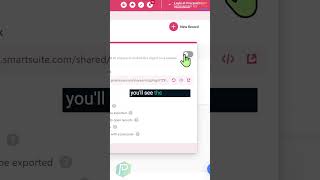
Ever find yourself wondering what this whole thing is all about? This is what shows up when you take a view in SmartSuite and have it shared publicly. To make one of your own views public, you want to scroll over to the right hand side and look for the Share View button. It'll look something like this, right towards the center of any views that support public sharing. When you click on this, you'll see all of the options for having a shareable link for your given area in SmartSuite, and if I scroll slightly over to the right, you'll see the toggle that allows you to turn on or off this Public sharing this share view allows you to let anyone on the Internet or anyone with the password see this particular area of your SmartSuite account in almost real time. So anytime you update information, what the person sees that has this link will also be updated. If you're someone working with clients, consultants, mentors, or external stakeholders of any kind, this Public Sharing view option is a great one to keep in mind as a SmartSuite user.