Organize Automations in a ClickUp Database
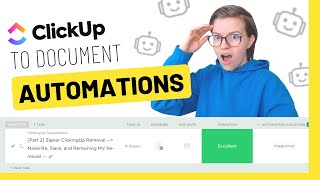
Learn how to document and track business automations in ClickUp using custom fields, relationships, and maintenance tracking. The tutorial covers setting up a database to organize your automations so you can manage them efficiently and keep them updated.
So this month we've been talking all about automating things in ClickUp, but the fact is, as you start doing more automations inside of ClickUp or with Integromat or Zapier, it gets to be a lot to keep track of. Certain point you need to do something to help your brain remember all of the different automations that you have running in the background of your business. Because if you don't note to self when something breaks, you end up having to check a ton of different tools and try to figure out where the issue is and it wastes a lot of your time. Again, not talking to anyone in particular who might have just had this happen to her. But anyway, I was fed up and I decided it was time to get serious about documenting our automations, which is something that we'd never quite done previously. I was a service business and so most of our processes were human sops like instructions for ourselves. As we've switched into a one to many model running ClickingApp membership, helping people learn how to use ClickUp, we're working with hundreds of clients and that's a volume game which has more automated processes than it has manual ones. And so we needed to step up our game to start documenting the actual automations in our business. And of course when this happened, I turned to ClickUp. So today I want to take you inside my ClickUp automation database to show you how I'm documenting automations in my own business. Let's just dive right in. So here we are inside my automation database and basically how this is set up is each task is an overall job to be done or part of our process, and each subtask is an automation which is a scenario, whether it's an Integromat, Zapier, Mailerlite, thrivecart, whatever else, it's a subtask. And in each one of the fields we have additional data about that process to help us keep track of the quality and status of that automation. The very first one is Task id, and this is just the identifier. It's a field that not many people actually show in their ClickUp columns, but it's always there. It's a standard field, it's just a unique identifier of the ClickUp task. The reason I have that showing is because for us at least, we are basically putting all of the information about the automation in the custom fields and in the task description. And this unique Task ID is what we're putting in the automation tool. So for example, in Integromat, in this scenario we have the title of the integromat scenario to have the task ID in it. So that way we can always reference that if we want some documentation about what that automation is. Next to the task ID we have assignee and due date and this is just for the maintenance tasks. There are some processes, some automations that we want to test every 30, 60, 90 days. And so we'll have an assignee and a recurring due date to keep track of those maintenance tasks Here to the right of that we have condition and this is an important one and one of the main reasons I wanted to get this automation database up and running. The condition shows whether the automation needs revisions, whether it's in excellent condition, whether it's in testing condition or whether it's not quite working. And that condition area there, that condition column is a drop down custom field, not our status. Our statuses in this area are more simple, which is my preference generally speaking, which I talk about in this video here but but our statuses are active or inactive basically just means is this automation on or not on? That's the most important data that I want to know about it. And then our condition gives us some more details about how strong the process is. Next to the condition column we have the automation location. Now this and the one after it are both relationship custom fields. And if you're not familiar with relationships and rollups in ClickUp, I do talk about it in the CRM video here, but leave it to say automations are basically relating tasks in one area to tasks in another area. So rather than having to create a label or a dropdown with tons of options, we can just have a list of tasks here, a list of tasks here, and use a custom field to relate those two tasks together so we don't have to retype information. So that's what the automation location field is here it's basically saying where is the automation housed? Typically it's only one spot that that one scenario is housed and we can choose that from the dropdown here. Because I have one list like you're seeing here with all of our automations and another list elsewhere listing all of the software. In our business where one software is one task and that's how that relationship is working. If I click inside that task I'm actually going to be able to see who has access to that software as well as the link to the software. Those are called roll up columns and they're just summarizing data from that other list so that way I don't have to click over I can kind of just see a snapshot from the view I'm already in without having to leave where I'm at and click up. The next field is also a relationship field and it is almost the exact same thing, it just has a different title. Whereas the first one is Automation Location, meaning where is the automation happening? The second one does the exact same thing, but the title of it is Technology used, meaning what tools are involved in this Automation. This tends to have a lot more tools because typically we're using automations because we're connecting things together. This once again builds a relationship between my software database and my automation database. But why this is so important to me is one day, for example, Mailer Light. One day we're going to probably switch away from Mailerlite. We're going to go up to a big girl email automation tool and when that happens, I want to know how many automations we have that rely on Mailer Light existing. So that way if I do switch to say convertkit, I will know how many automations I need to recreate. I'll have a task list all there by tracking these relationships all at once to the right of the tech used column, I have just a regular yield tracking the link to the actual automation. This does not take me to the general integromat page. This takes me to the exact scale scenario that I was building. So if I need to edit this very quickly I can into the right of that. I have a function dropdown custom field that just helps me categorize my automations by the job it is doing. The reason this is so valuable is because I want to make sure we are automating all parts of our business, not just the sexy parts. So marketing and sales, those are pretty sexy and those are typically where people are going to spend a lot of their time automating. But for me I want to make sure we have lots of automations on the back end too. I don't want to have a bunch of administrative costs, I don't want to have to have a big team of I want our team to be small and mighty and be able to do a whole lot by doing so very efficiently. Inside the task itself. I have a description where I just keep track of some screenshots of the automation, some notes to self, and any notes about editing it or errors that we might have had come up that we're manually tracking there. Not too much exciting in the details of the task, mostly just this overview that's been so valuable. And honestly there's not much more to it we have a few other views that I have at the top like sorting things by condition or by owner or by department, but that's just kind of a convenience tool to help me keep track of the condition of these automations. But more or less this is how the automation database works. Each automation has its own subtask or task. They are linked back to the actual tool that they're using by having the automation location field but also having the unique task ID inside the area where we made the automation. And that's pretty much it. So if you are someone who's been following us along this month of automations and you're starting to feel like I have a lot automated but I'm starting to lose track of what is what, don't wait until you have a headache like I just had, get ahead of it and start writing down these automations. Your life will be so much simpler. And I'm, I'm just loving already as we start to have this being built out piece by piece, much clarity. This is giving us around the strengths of our own processes here at ProcessDriven just by having these all laid out in front of us. Oh and as always, this template is going to be available inside clicking up if it's not already. So if you are someone who is in our training program where you're learning how to set up ClickUp while actually learning ClickUp with myself in the ClickingUp community, this template, exactly as you see here, plus a few other, you know, nice little details is inside Clickingup and available for you to add into your account with one click. If you are not a ClickingApp member, consider joining because we do have this template as well as like 25 others inside clickingup waiting for you. Otherwise I think that's pretty much wraps it for this video. Now I want to just ask, kind of gauge the interest in this video to see if we can do a follow up depending on what you guys are intrigued by. So I was thinking in one breath to maybe do an additional video talking about how we have our automations tracked. On the technology side, what does our tech database look like that we are referencing in our relationships here? So if you are interested in seeing more about like a technology wiki, how you track the SOPs for each technology using your tech stack. Put the word software in the comment below. That'll let me know that you're interested in seeing how we're documenting our software processes that this automation database references. The other thought I had and you might have seen me briefly show it in this video. Today is talking more about HR databases. So like you saw, we had a tracking list of who has access to each software and who is in charge of each process. We're using relationships for those. If you'd be interested in learning more about how we're using ClickUp for HR functions like tracking people, access levels, that kind of things roles. Put the words HR in the comments below. And of course you can always vote for both, but just trying to gauge what kind of video would be helpful to you guys otherwise. Thank you guys so much for watching today. Please do give this video a thumbs up and click subscribe if you like this kind of content. I'll see you guys back here with another video about how to build your processes and ClickUp soon. Until next time, enjoy the process.










