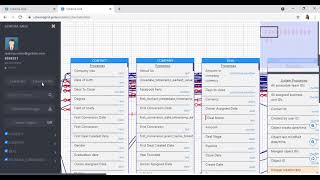
This is a YouTube video titled "SchemaGrid App Demo | CRM/Sales Hub App Accelerator 2021" featuring Reshma Virani presenting a demonstration of the Schema Grid app by Gricon. The video, created in June 2021, explains how the app retrieves and displays object schemas from HubSpot accounts, showing object properties and relationships in an interactive grid format. The content is a single-speaker presentation focused on explaining the app's features and usage.
Hi friends, My name is Reshma Virani and I'm very glad to introduce you to our smart and easy to use schema builder app brought to you by Gricon and available to use on HubSpot. Sounds exciting, isn't it? Before we dive into the demo, I would like to give you a brief introduction of what the app does. The Schema Grid app retrieves the complete object schema from the connected HubSpot account and displays it on an interactive smart grid. Isn't that amazing? Along with all your standard and custom objects and its field properties, you can also view the relationships between the different objects. It gives you an actual relationship blueprint of your complete database. Let's dive in to the app and let me show you around. This is how the app looks when you have logged in. On the left panel you will see all your standard and custom objects. You also have action tabs here select all will bring in all the objects to the grid view. Deselect will remove them all. There is a search bar where you can search the object you would like to. For example I would search contact and there it is. I will bring contact to the grid view. See, here is our contact object, its properties. You will see the label name and the data type next to it. When we scroll down we will see the required or mandatory field. In this case it's the first name and it has a red mark next to it. All the mandatory fields have red mark next to it. When you scroll down you will see the system properties. When you scroll further down you will see the unique creation key, the unique identifier and when you scroll down you will see what other objects is contact associated with all the associations. Okay folks, now let me bring in two other objects to the grid view. For example company and deal. When I bring them here you will automatically see how schema grid shows the relationship cardinality between all of them and you will also see the association name. When you hover the mouse over the link on the right top corner you will see the navigation panel. In case you want to search for your object which is not in the view. You can look on the navigation panel and search for it. So folks, that is it from my side now. I hope this video was informative and helpful. I'm really excited to use this app and I hope so are you. Thank you for watching.