Steal This Workflow | HubSpot Admin HUG | April 25, 2023
Stuart Balcombe from Arrows walks through advanced HubSpot workflows for onboarding, customer success, renewals, and health scoring. Learn how to automate post-sale processes and set up data-driven triggers to manage the full customer lifecycle.
Welcome to the HubSpot Admin Hug. Today's hug is Steal this Workflow Foundational Strategy with Stuart Balcombe, Head of Growth at Arrows. This workshop will provide a deep dive into the foundational principles of the automated workflows in the Steal this Workflow series and walk through common examples of how to leverage workflows in your day to day work. So Stuart, I'm going to let you go ahead and take it off and I appreciate you being here.
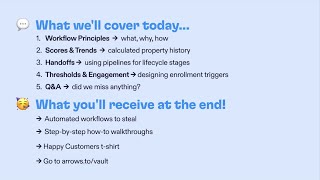
Yeah, thank you so much for having me. Thank you to everybody who's joining. Wow. 127 people here. That's awesome. As Diana mentioned, can dive into some of the principles in the Still Less Workflow series. I have some workflows that you may or may not have seen, but I want to talk through why they are the way that they are and get into how you can apply the very specifically examples and maybe very specific, but how you can apply the sort of components of those workflows to things that you're trying to solve yourself in your own account, in your own portal. But I'm going to go ahead and share my screen really quickly here. I promise it will not stay in the deck very long. We'll get into HubSpot and the workflows, but really quickly. So I mentioned Head of Growth at Arrows, um, and primarily the, the thing they've been focused on when it comes to HubSpot and sort of Arrows is focused there too is use cases for onboarding and customer success. So really sort of post sale things in HubSpot which have been really interesting because they are, you know, less common, less, less well served from a sort of education and product perspective in HubSpot which has been a, a really interesting challenge or sort of opportunity to go figure out some creative solutions to those things. I've certainly learned a lot along the way and hopefully share some of that with you all today as well. So what I'm going to get into have some principles for workflows and then from there we'll just get right into HubSpot and look at these sort of three big buckets of things, scoring and trends, handoffs and how that relates to using pipelines for different lifecycle stages and then thresholds and engagement and how that impacts the way that you might think about enrollment triggers for workflows. As Hannah mentioned, one benefit of being here, there's a whole bunch of stuff that you can go and grab at the end. If you head over to Arrows to Vault, there's a little signup form there. Put your Email in there, we'll send you all this great stuff. The workflows themselves, some step by step walkthroughs, and this really comfy happy customers T shirt. If you head over to Arrows to Vault, you can go grab all that stuff. But let's get into it. The first thing actually before I start talking a little bit more is I'd love to hear from you all specifically. This is an area that I've been focused on, but we'd love to hear from you all in the chat. What is sort of the biggest challenge that you run into or that you hear customers of yours running into or clients of yours running into when it comes to things that are post sale in HubSpot? So that might be onboarding, that might be customer success, customer support, but which sort of bucket do those challenges typically fall into? I'd love to hear and sort of get a pulse on what is most interesting or most helpful to hear about when it comes to solving that and improving the way that you do things post sale. So let's actually get started. So the first thing that I want to talk about is sort of principles of effective workflows. These are things that I've sort of found to be true, found to be sort of recurring patterns as I've been building workflows in HubSpot. And I think the thing that's become really interesting to me as I've done as I've built more and more workflows and sort of explore different use cases that maybe have unconventional solutions in HubSpot, the thing that I found interesting is there's actually a few patterns that repeat and that once you figure out something that works for one problem, you can then go and apply that to a different problem. But the principles that I would typically start with for any new workflow that I'm that I'm working on or any new problem that I'm trying to solve with a workflow is first figure out what is the data that you know, what is the data that you both have available in HubSpot already that is going to be consistently available and consistently updated, right? If you're going to build an automated workflow or an automated system, it's going to be built on top of data. And if that data isn't consistent, isn't always available, you're going to run into issues with your workflow not triggering the workflow, triggering when you don't expect it to or don't want it to trigger or running with data that isn't consistent with what you expect and ultimately isn't going to drive the outcome that you want. So that's number one. Number two, and this is something that I'll get into when I show some actual workflows. This is something that I use all the time in HubSpot, but is using the trigger of a workflow as sort of triggering a workflow when a threshold is met in the data. So an example of that might be something as simple as last contacted more than two days ago, for example. And that becomes a really easy way to sort of surface things automatically because you can set a workflow against it. Surface things automatically. That would take a lot of manual work to go and identify. Let's say it's the workflow is I want to contact or I want you personally reach out to all deals that haven't been engaged in the last two days. Just for, as an example, that would probably take a lot of time if you were to go and do that manually. Right, you'd have to go to your pipeline. You'd have to click into each and every deal, look at the timeline of activity and see how recently they had been contacted. Sure, you could show it on the pipeline cards themselves, but having a workflow means that you can proactively surface that information. Data thresholds are a really great way to save yourself and your team a whole lot of time in a workflow. Number three, this one is probably the most often overlooked, but something that I think is particularly important if you're running workflows at scale or you have a workflow that is going to get triggered. You have re enrollment turned on and it's going to get triggered a lot, but making sure that you're catching and escalating exceptions. So an example would be if you expect to have a certain piece of data because you want to include that in the task that you'll create in the workflow. If that data isn't available on the record that you're running the workflow on, you want to make sure that you're surfacing that so that you can say, okay, this is a problem that maybe it's only happening once in a while and there's a one off fix, or maybe it's something a little more systemic and you need to go back and revisit your workflow or revisit your, your process to fix that for the future. But the worst, the worst thing that can happen is you have workflows that fail silently and everybody's expecting them to work, they're not working and you don't realize that it's because there's a problem with the workflow rather than just that the trigger isn't, you know, the trigger isn't happening or the trigger event isn't happening. Fourth, and this one I mentioned sort of in passing earlier, but often there are reusable components in workflows. So there might be specific little blocks of a workflow that you can take that pattern and go and use it somewhere else in a different workflow or to solve a different problem. And I think learning to identify what are those patterns makes it much more efficient when you go to build a new workflow or when you go to solve a new problem with a workflow because you already have that in your back pocket. You're not starting from scratch every time. Then finally acknowledging that workflows aren't just a set and forget it type thing as much as automation is great and will save you a ton of time, knowing that the business is changing the data that's coming in is potentially changing the way that the team wants to interact with the outcome of a workflow potentially changes and sort of setting a cadence for yourself or setting a. Even if it's just a reminder go. We set this workflow live on the 1st of April. Let's set a reminder to check in on the 1st of May and see how things are going. Make sure that the users and the adoption of what's happening in that workflow is as you expect. With that said, let's get into HubSpot. Let's get into some workflows. So by the way, at any point, if you have, have questions, if you, you want to me to go deeper on something, just let us let me know in the, in the chat. Hopefully there'll be plenty of time for questions at the end as well. But let's get into this first topic and putting that, put this first because it's. Of all the things that I have shared, this is the one that has got the most attention. I think probably because it's health scoring or health. Customer health is a big, big topic that I guess is not immediately obvious that you can, you can address in HubSpot. So I'm just going to walk through this particular workflow. The one thing that I will caveat this with is that this workflow actually starts after you've already calculated the health score, which health scoring is going to be so business dependent. So it's such a big topic. We could run a whole other workshop just on how you get to a health score. But health score might be made up of Activity. It could be made up of satisfaction, it could be made up with product data. It can made up with any number of things. But in this case, our starting point is we have a property, this calculated health score, and we're going to trigger this workflow when it is known. We're going to also turn RE enrollment on. And this is one of those little patterns that I find myself using all the time that essentially allows you to run this workflow. And I know I don't want to muddy this, but if you are in the workflow triggers beta, this might look a little bit different for you, but this is a great little pattern for triggering a workflow. Anytime a property value changes is to use property value is known and then turn RE enrollment on. Make sure you check both boxes here. Anytime that property value updates, this workflow will run again. We're saying anytime that our health score is known, we want to run this workflow then. The first part of this is aesthetic, I guess, but can be really helpful for reporting. We're essentially taking this calculated health score and grouping the scores. So in this case, we're out of 10 or scores up to 10, and we're grouping the scores into ranges so that we can more easily categorize them. As you'll see down here, each of the branches is either green if it's healthy, yellow if it's neutral, or red if it's average at risk. And what that allows us to do is more easily report on where a specific account is. Right? You both have the advantage of you don't have to have the end user understand what does this number actually mean. You can just show them, okay, this is green, yellow or red. And it also means for reporting, you're rolling those values up, right? So you can say, you know, 30% is healthy, 20% is is neutral, and 50% is unhealthy. Hopefully those numbers are all flipped. But this is one thing that is incredibly helpful is taking a numeric score using an if then branch to group those scores. And if I just open this up here with nothing more complicated than greater than or equal to this middle one will always need to include both ends of the range and then the bottom one will just be the bottom of the range. But nothing more complicated than saying, okay, if the score is in this range, then assign a different property. So you see calculated health score and then health, assign it an emoji, which is a little bit of a hack for giving you some sort of visual aid for. For what that score is. The other thing that I mentioned I'm breaking my own rule here, but you'll notice here that we have none met as a criteria or as a branch in our workflow. I would always include this. And the way that I would escalate this is if you create a task and assign it to. Maybe you have a specific person that you want to. Maybe it's you as the admin that you want to assign exceptions to, but you create a task here that's, you know, data out of range for health score and. Go ahead. Yep.
Sorry, I didn't mean to interrupt you. There was a question. Is health score the same as lead score?
No. Typically the way I think about it is no, although it would work pretty much exactly the same. Essentially, you're just taking input about your. Yeah, you're taking input from data that you have about a specific record that might be a contact. And health scoring generally will be at a company level or sort of an account level. But essentially you're taking data that you have about a record and then based on that data, you're making some approximation of to give it a score. Right. In this case, we're calling that score health. You could also call it lead score, which is sort of why I started this workflow after that point. Right. So this workflow will work. If you were to replace this with calculated lead score, this could be calculated satisfaction score. This could be sort of any score that you. You want, any numeric value, essentially, that you're assigning to a record. And from there you can run this workflow to categorize that score and then show the trend of that score as well. But, yeah, good question. I would say that health scoring is different than lead scoring, typically used in a different stage of the lifecycle. But the workflow that you would use around it would be very much the same, or could use around it would be very much the same. So this is a good example of we have the branch that's catching an exception. I've created a task here and assign it to whoever's going to be responsible for looking into and resolving that exception, making sure that it's not a sort of more systemic issue with the workflow. Ok, so we got through assigning a rating to a range of our scores, and the next thing here is, which I think is interesting, and this took me a long time to figure out, the one thing that HubSpot is not very good at, is allowing you to see historical values of properties. It's kind of challenging to figure out, you know, directionally, where is the score going if you have a score just because it's changing. That change could be good, that change could be bad. Going from negative to neutral is much better than or is positive. And going from positive to neutral is not great. And you would want to know that beyond just reporting on what is the current score of this. Yes, absolutely. Share the health score example after the session. But just to show how sort of do this trend piece, which admittedly is imperfect and a little limited, but it will give you at least a directional indication of the last change of a property. Unfortunately, full property history is still difficult. If anybody has a great solution for that, I would love to know what that is. But the way that we're doing this is we are using another property. So you'll notice we have three properties now. We have calculated health score, which is the sort of original input numeric score. We have health, which is a, it's a drop down select in this case with the the emoji rating. And then we have a third property for trend and trend. If I jump over and share this tab, trend is a calculated property where we are just taking our calculated health score, which is again the input property to this workflow. And then we have another property called previous health score, which is just another numeric property. And we're doing essentially current minus previous to give us this trend value. And what that allows us to do is in another if then branch, I can say if trend is greater than zero, we're trending up. If trend is less than zero, we're trending down. And if there's no change, then there's no change. If the two values are equal, then there's no change. And then in the next stage here we're saying, okay, if it's trending up, then we have this health score trend property which is again another. You notice there lots of if then branches and emojis here. If it's trending up, we're going to assign the sort of up and to the right emoji to the health score trend property. Trending down, down and to the right or no change. HubSpot formats that this emoji support must not be great. But there's a no change emoji here too. And then all we're doing once we have that property set is we are, and this is the piece that really took me a long time to figure out is we're assigning the calculated health score which we entered this workflow with to the company property previous health score. So that's the one that's used in that Trend calculation. So we're essentially saying once we've done everything that we need to in terms of assigning a rating and setting a trend with the current value of the calculated health score property, we're going to make that the previous health score value so that the next time this workflow runs we can do that calculation again. We can reset the trend value if anything has changed because calculated health score will then be a new value and the previous health score value will be the score that this workflow ran with or this time through the workflow ram with. And then finally this is pretty common in workflows that I've set up is send some kind of notification surface. What happened in this workflow more broadly to teams if there's a change in health score, it went from previous to current and it's now this property value or this, this health score rating. And by setting this you can start to it sort of gets into the proactively identify accounts that might need attention, accounts that maybe have met some threshold in in the data and then ultimately make it easier for the people on the team to go and do the things that only they can do, which you can automate and which they're going to most high leverage to help support a customer and move them through the journey. So I'm going to pause there. Any questions on this workflow on the sort of the concepts in here, which is the sort of two big concepts in here is taking a numeric score and assigning it a rating which is helpful for reporting and then also calculating a trend based on that numeric value.
Lots of positive comments on the niceness of the setup itself, the brilliance of this setup.
So thanks everyone. The I will say that the one thing that the calculator score needs to be cleared in order for it to run the workflow, if it changes, the workflow will rerun. So yeah, you don't need to clear it, but once it is updated the workflow will rerun. Yeah, great node Gemma on the number of custom calculator properties 5, 4 especially for customer success use cases 5 becomes pretty limited. I find myself I have not found that to be a problem Christoph the one or two minute delay. I think particularly with this workflow, the times that I have found that to be a problem when you need delays is if you are using services that are external to HubSpot typically if it's property values in HubSpot updating then it's okay. I know that if you're using a service that's calling an external API, then including delays, especially if we've run into this or found challenges with this at arrows is depending on whether a workflow is running asynchronously or synchronously, it doesn't always wait for that data to come back that you maybe are going to use in a later step. So in that case the delay might be helpful. Jennifer yes, Health score in this case is a custom calculated property that could be as simple as, you know, satisfaction. Well, it's a whole can of worms, but that could be as simple as satisfaction scores from, you know, HubSpot satisfaction surveys. If you're running that on the contact level, there's some things you can do if you want that score at the company level. But yes, in any case it would be a custom property and you sort of have the flexibility to set that however or calculate that however you would want rerun workflow recording the previous health score that late in the workflow. Again, haven't run into that. Rhys I think I mean you the property value isn't being changed throughout the workflow. So the only I mean there are always exceptions or probably always cases where you could go and break this. Typically the property value for Health score is not going to be updated super frequently. So as long as it's not being if it's being updated while the workflow is running, then you certainly see problems there. But generally that's not going to be the case. Okay, let's move on to workflow number two, which is a little simpler but probably a more common or a very common use case for folks. Okay, so this workflow is for handing off closed one deals, presumably in your sales pipeline to sort of subsequent stages of the customer journey. So that could be onboarding, that could be renewals, whatever comes next in your specific process. So the first thing that we're going to do here is enroll deals in this workflow when they are closed one in the pipeline that we want to look at. I'm including a check here. This is probably overkill if you're using required properties in your pipelines, but I'm including a check here for any data that we're going to need later in this workflow. Again, I would absolutely make all of these properties required in your pipelines, but having them checking that they are known in the workflow also means that we can fire any escalations, create any tasks and probably delete this one here. We might not want to set that back, but create a task that is missing information assigned to the deal owner, assign it to the rev ops or OPS person who's, who's implementing this workflow. And then beyond that, the couple of things that we're going to do here, create new records for those subsequent lifecycle stages. That's one thing that I would always suggest doing. I love that. Waylon. One thing that I would always suggest doing is creating new pipelines or separate pipelines for each stage of the customer lifecycle. So in this case we're going to create a new deal record for the renewal. We're sort of making the assumption here that we have an annual renewal. You would want to handle this differently probably in a branch with separate branches if you have different periods of renewal because you're going to want to be able to set the close date appropriately based on, you know, the number of days to that renewal. You'll notice here there's one thing that we are doing is we're setting the the deal name to include the year of the next renewal. So we can sort of differentiate these, these deals in our renewal pipeline. And then we're also setting a specific property for for renewal year and copying over any critical information that we're going to need for that subsequent stage in the lifecycle. So typically the things being copied over here are going to be to the point about sales, not necessarily always filling in what you need, making sure that that experience is as easy as possible by only requiring things that you're actually going to use in the next stage can of course be helpful to increase adoption there. But in this case we have amount, we have success metrics which of course important for onboarding and success Persona. Here we have a property which is essentially a way to segment customers. You could also be breaking down if they bought a specific product, if they bought a customer implementation versus not for example, what are the things that you're going to use to break branch the branch, the workflow or branch the experience for the customer in later stages and then of course copying over any activity that we have about this deal. So that's renewals. We can certainly go deeper into renewals if we want conscious of time here. The renewals thing is interesting. I'll certainly share the the setup for or the how to set up for that in more detail as well because there are certainly some workarounds needed if you want to automate your renewal pipeline to get around a to include continue to include dynamic values in the in the name for the renewal year. But also you quickly run into limitations with creating new deals in a workflow for deals in the same pipeline. So there's a Workaround for that which I'll share as well. But the other record that we're creating here is for onboarding. In this case, we're creating a ticket. Folks who are only using Sales Hub and not Service Hub could also be using a separate deal pipeline for this. But this one is much easier. We don't have any sort of. We're not, we don't need to do as much math on onboarding this. So this is just create a new ticket using the original deal name in the onboarding pipeline and as I mentioned, include things like do they need a migration? Who is the original sales owner of this deal can be helpful to have. So this workflow relatively simple, but I find that this is a great one that pretty much every account is is going to be able to implement or that they'll have this stage. And the big advantage of putting the handoff in a workflow is that allows you to 1 define the data that is going to be required in future stages and make sure that you actually have it. But also help reduce the time that sort of lag between okay, we closed the deal over here, but then the next team didn't get everything they needed. They had to go sort of manually find the information they needed on the previous record. And all that time is potentially slowing down a customer making progress through the handoff and sort of get building momentum into. Into onboarding, which is of course, you know, building momentum in onboarding is of course something we talk about a ton at Arrows. But something that we see a lot as well is if you have this pipeline for sales, you have this pipeline for onboarding. It's pretty common that you see deals just get stuck or customers just get stuck and start ghosting because they don't know what to do next. They haven't had the appropriate contact, which often are things that could be easily resolved by better defining what is a when a customer is ready to move from one pipeline to another, but also making sure the data is available and accessible at the right time. So that's handoffs and then this last one, which I think has pretty broad application. It's a relatively simple workflow, but the principles I think are pretty broadly applicable. So let me share this one, which I think is really interesting and sort of really leans into that idea of setting using thresholds in your data as enrollment triggers for workflows. So this is the type of workflow that you might be running if you're running a sort of product LED or sales assist type motion in, in HubSpot where you have in this case, we have projects created and this might be data that you're, you know, integrating via. Maybe you're using a reverse ETL or you know, another service to bring in data from your product or from, from another source about what's happening with customers. But this can be a good way to kick off a workflow. If you have project traders less than or equal to three, we want to go ahead and send them a welcome email. So this might be for new accounts, they're in the early stages of a journey, haven't gotten going yet, send them an automated email and then we can branch, branch the experience based on what we know about a specific account. So in this case we are checking the. We're just using data that HubSpot is providing us with. You know, the number of employees at a company is a property that the HubSpot will populate. So if there's more than 100 employees in this example, where we're setting that as the threshold for we want a human in the loop to help move them onto the next stage and then check that we don't currently have an open deal for them. And then if that's the case, we can create a deal, rotate it to. This is a pattern that use a lot because it saves you so many headaches later, which is whenever you're creating a record, don't assign it to somebody and then immediately follow that with rotating the record through a team. Even if you are working with a team of one, I would always take this approach because it makes it much, much easier to manage who is being assigned deals or tickets or whatever other record later. If somebody leaves or if somebody new joins, it's much, much easier to add them to the team than have to go back. And remember, every workflow where you have to go and change the specific person that it's being assigned to, it's the first thing creating a deal, assigning it to a specific person and sending a notification about that, or if they're not meeting that sort of human in the loop type threshold that we're setting in this branch, then we can check different data. We can say in this case we have a delay. If our app we're using project created here, we're assuming this is a project management app and that it's collaborative. So we want there to be team members. All these of course are just examples. But these values or these properties will be very specific to your business. But the point that they are, we check one threshold up here, wait and then check a different threshold to Identify if there's upgrade potential. And again, all these thresholds are going to be very specific and should be sort of based on the data that you have about what actually equals upgrade potential. But in this case, if there are more than five team members that have been added, we're going to say, yes, they have upgrade potential and we will just put them in this sales assist flow. So they could, you know, have not met this criteria. Right. They could be, maybe There are only 50 employees, but they have very quickly added five team members and we want to make sure that we're supporting that account to get them to the next stage. Or if they, they haven't met that upgrade potential threshold, then we can, we can go ahead and wait. We can send them some educational content in, in automated email and this side of the branch could go on as, as long as you want. Maybe you actually want to include. You only want to send them two days of educational content and then you want to check this again, right. And you could just copy this down here and you essentially have, you know, this workflow could flow on for forever if you wanted to. You'd of course have to change these emails. But the idea being that you can rely on the workflow to surface the accounts that need human intervention or that you want to add human intervention to. And for the accounts that don't meet that threshold, you can automate the experience that they have in a more sort of scalable way. So any questions on this? I know this is. We sort of went through three pretty different examples, I would say, but yeah, curious to hear any questions. If there's anything that anybody would like to see more deeply covered. And I sort of mentioned renewals in passing, but anything that anybody wants to see more than happy to dive into. Just looking through the questions here in the chat too shows workflows as templates that one can use and refine as needed. I don't believe I can do that. I would love to be able to do that, but I believe that's a HubSpot thing. So if HubSpot wants to do that, that's more than okay. We have video walkthroughs and the, the screenshots of all of these that you can steal. But as far as I know, making them templates you can just one click add to your account is a little more challenging.
I think everybody was so intently watching you modify the workflow to add some additional things and do everything. They were just in stun. If you do have any questions, I don't see any over in The Q and A. Um, but definitely put them in the chat for Stuart. That would be great.
Yeah, yeah. I mean, I can. I know we have some, some time here. Happy to show more, More workflows. Let me.
Sure.
On a minute. Typically I go long, so I'm, I'm happy there's some space here. Let me go find some mores and.
Yeses and thank yous, please. So, yeah, go. Go right ahead. You've. You've got the floor, Stuart.
All yours. Okay, let's go find some renewal workflows because these are interesting.
While you're doing that, I'm going to go ahead and put the survey for today's event in here. Just let us know what you liked, what you didn't like, what we can improve, what we can add to it so that we can keep giving you these awesome events. And the recording will be shared out as soon as we're done. I download it, I post it, get it out as soon as I possibly can. Sometimes it takes a little bit longer to get the captions translated. So.
Cool. Okay, so I'm going to keep checking the chat for questions, but yeah, so the renewals piece is really interesting because there are lots of. Obviously renewals is a challenge that a lot of businesses are trying to. Trying to figure out. It's very, very topical. I know being proactive about driving renewals is certainly something that lots of teams seem to be trying to get better at, especially given the current, current climate. But what's interesting is a lot of the. As I sort of dug into this, a lot of the answers in the community or in the. The ways that you might first approach it and actually the way that I first approached it actually doesn't work because actually don't work because there's a HubSpot limitation that I mentioned earlier when it comes to creating new deals from deals that have already been created via a workflow. HubSpot's trying to. Incompletely, understandably trying to guard against you. Building infinite loops into your. Into your systems, into your workflows, because that would be bad. So the way to actually automate your renewal pipeline does take a little bit of extra work. But this renewal pipeline and the way that you set up your renewal pipeline, or the renewal pipeline itself, honestly could be different depending on the things that you care about during the lifecycle of a customer, from sort of, you know, initial sale to first renewal, first renewal to second renewal and so on. Like, in this case, I'm breaking it out by time. So six to 12 months, three to six two, three, one month and renewal close one and close last. I guess in this case is churned really, but maybe you don't care about 6 to 12 or 3 to 6. So you just have a 12 to 3 to 12, something like that and you eliminate this stage altogether. But in any case, the breakdown here by time to renewal is using renewal date, which is a property that we're setting in that first workflow that creates very first renewal date. Sorry, very first renewal deal. We're setting a renewal date property and then we can then use a calculated property which I should probably go go and find for your fuel using a calculated property of days to renewal. This is one actually that. Let's see. So this renewals quickly spirals into like a whole whole bunch of different things you have to set up. But this days to renewal property, the reason for creating this property is so that we can automate the progression of a renewal deal through that renewals pipeline as it gets closer and closer to the renewal date. So in this case we are using this calculated property of days to renewal. Look at the time between today's date, which unless you have Enterprise or unless you have OPS Hub, essentially you'll need another workflow to. Well, yeah, you'll need a workflow to go and create that property in any case and keep it updated. If you have OPS Hub, it's much, much easier because you can schedule the workflow to to run each day and update that property. Otherwise there's a workaround which I'll also share to go and keep that updated because again you run into the infinite loop problem. But we're just looking at the difference between today's date and the renewal date. So this is going to give us a numeric value for the number of days until the renewal, which we can then use to again move deals through through this renewal pipeline. The thing that is a little tricky is creating subsequent deals when you close one a deal. So like this is year one for pseci. If I move it to closed one, you'll see the renewal year is one, next renewal year is even. This is another calculated property. The reason for this is that we are using two different workflows to get around the infinite loop problem. So we're essentially bouncing back and forth between the workflow that we use to create the next renewal deal. Because if I show you this, this is going to create create new deals when this renewal year type is odd. And there's another workflow which is going to create subsequent deals in the renewal pipeline when this renewal year Type is even, so just bouncing back and forth between the two workflows. So in this case it's. If it's odd, we set the renewal year type to even so that the next time it runs again, it will use that other workflow. Copy any critical properties from the from the deal, from the renewal deal to the company record. This is an optional step, but if you want to show sort of high level information about an account on the company, it can be really helpful. And then creating the actual record itself. Again using this sort of dynamic deal name, we have this next renewal year, which is another calculated property which is essentially just current renewal year plus one so that we can dynamically use it in the deal name. Again, set the close date and then copy the property value, this is the important one, to the new deal that we're creating. Set the renewal year. Set the again setting the renewal year to the current value of the next renewal year. So for example, if this workflow is running with a deal, whether renewal year is one, this next renewal year, which is a calculated property, will be one plus one. So it'll be two, which would mean that the new renewal deal that we create for year two will have a renewal year of two. Again, we're copying the sales deal name. The reason for that is that we're of course mutating the name each time. So using the deal that we're creating the new deal from, using the name of that deal wouldn't work because it will include the current year. We just want the original deal name and then we can add on the dynamic value for the next renewal year. But yeah, so this one is a little complicated. I'm going to pause and make sure that that was somewhat clear at least.
I think you have a couple questions in the Q and A. Let's see. Could you show how contacts are re enrolled into the workflow? I'm not sure.
Yeah, so they actually aren't re enrolled. I mean, re enrollment used to be turned on for this deal, but the enrollment trigger really is that it's moved to a new A deal is moved to closed one in this renewal pipeline. And then the way that we choose which of the two workflows we use is by looking at this renewal year type, which will either be odd or even. In this case, this is the odd workflow, so we're checking that it's odd. The other workflow will just check that it's even, which essentially just means that you don't enroll a deal in the same workflow twice.
Awesome. And then what is your must have ticket workflow?
That is a good question. I would say, I mean I'm biased here because we talk about onboarding all day long, but this one which is we prepare to start onboarding which is sort of the part two of that handoff workflow that I showed earlier. So the first handoff workflow will create the ticket, but because that's a deal based workflow then you can't interact too much with tickets. So we have a separate workflow which is essentially going to take that ticket which we just created in the ready for onboarding stage and then set it up to start onboarding. So in this case we're looking at the difference between or branching the experience depending on the type of customer. So the enterprise or SMB, we're assigning the ticket to the rotating the assignment of that ticket to the appropriate team. So enterprise in this case or SMB in this case we are attaching a customer facing arrows plan which if you haven't checked out arrows and you're looking to to do more with post sale use cases, I would definitely recommend doing that. Essentially that's going to give you a customer facing experience which you can share, but it's connected directly sort of one to one to a ticket in this case and then all the data about what's happening in that plan will come back to that ticket. So we're just creating that customer facing onboarding plan to guide the customer through through that journey. We are copying the this is an arrows attribute plan URL which we will need to share that plan with the customer. In this case you can see we're taking that plan URL and we're using it to send an automated email to the contacts that are on that onboarding ticket so that they can go ahead and access their plan. And then finally just creating this internal prep task. So you can see this sort of right hand side is much more self serve, less involved and we're sending that automated email, whereas the right hand side we're not sending anything to the customer, we're just creating everything that we need so that our team can go and prep the handoff and sort of handle that more manually. But I would say that this is the, this is the one that we set up most often. We're doing it for onboarding in this case. But you could do this for any moment in the journey. If you're using a ticket for a qbr for example, you could use this in conjunction with your renewal pipeline. You could say okay, every time a deal moves to a New stage, we're going to create a. You know, because these are. Well, you would want to break this down again if you want to do quarterly QBRs. But anyway, you could use the movement of a deal through this pipeline to trigger creating a ticket for specific. A specific event in the journey, which can be really helpful. If you have like this pipeline is being managed by maybe an account manager or by sales and then you have CS that wants to run qbrs, you could go ahead and just create the ticket at the right moment in time to enable that. Which I think is one of the big benefits of doing everything in or defining everything in workflows is that you get to use the data to trigger things that otherwise you would have to remember or manage an entirely separate system that's sort of disconnected from the information you have about customers.
Awesome. Thank you. We got a. What are some best practices to document the interdependency connections between, et cetera, between workflows and HubSpot?
Yeah, that is a great question. And as you build more and more workflows becomes more and more important. One thing that I will say is that I find comments in workflows to be really helpful to just to sort of notate if you're the person creating the workflow, but there's potentially somebody else who's going to be maintaining it later or needs to figure out what happens. Even if you're not writing your full documentation in the comments, at least link to the documentation from a comment that's in line in the workflow can be really helpful. At some point you have to start maintaining a knowledge base or a sort of an SOP document somewhere. @ Arrows we use notion pretty heavily for documentation, but yeah, I think finding ways to link it where people will already be looking is helpful. For example, if you in your exception tasks, if you have that branch in a workflow that's catching an exception, linking to the documentation from that task can be really helpful. How do you sort of help increase the visibility or help surface the information that people need when they're actually trying to solve the problem? It's helpful to make sure your documentation actually gets used because there's nothing worse than spending a bunch of time creating documentation that nobody ever reads.
Of course, for very sure, I think we might have for one more question. Let's see. What about workflows that create tasks for manual renewal creation when humans are and need to be involved and then.
Yeah, yeah, I mean that's a. That's a great use case for you could either do it based on the pipeline stages. Because you're breaking, you know, deals will be in a specific stage when they're a specific, you know, a certain number of days away from that renewal. Or you could just use that calculated days to renewal property to create tasks. You could just have a workflow that says when days to renewal is 90, create this task for the owner of that deal. Which again is the benefit of having everything defined in data is you can set your own thresholds for when this is true in the data. We go and do X. Yeah, great call out for Stupid Trish. Love what they're doing over there. That's there can be really helpful, I think for fragments and helping document portals.
Absolutely. All right, I know there's a couple more questions and we're going to be respectful of everyone's time, but if you guys want to reach out to Stuart. Stuart, do you want to Share? Are you LinkedIn email? What's your favorite method of communication for people to reach out to you with some additional questions?
Yeah, LinkedIn is probably the place. I mean, yeah, you can reach out via email as well, but LinkedIn is the place where I'm sharing most, most frequently. Or. And shoot me a DM connect. Shoot me a DM if you have any specific, specific questions. And make sure you head over to Arrows to Vault. If you enter your email address there, I'll get you all the sort of how to walkthroughs that we talked about. And the big news there is within the next week we'll be launching a public sort of searchable library of all the Steal this series. So if you enter your email there, we'll make sure we let you know when that's available.
Awesome. Thank you, Stuart. I really appreciate you coming and speaking with everyone, letting us steal your workflows and doing all the hard work for us. Everyone, thank you for coming and make sure you're registering for those events so they're showing up on your calendar and I don't have to send you 800 reminders. And I will see you all next week.
Have a good one. Thanks so much for having me.
Thanks, Dar.










