AI voice bots: Automated Appointment Reminder Bot | Bland AI & Custom GPT Demo

Helena Liu builds an AI voice bot that calls people with appointment reminders using ChatGPT and Blend.ai. She creates a custom GPT, connects it to a voice service, and tests a live call to a patient. The whole setup takes 10 to 20 minutes.
Chapters
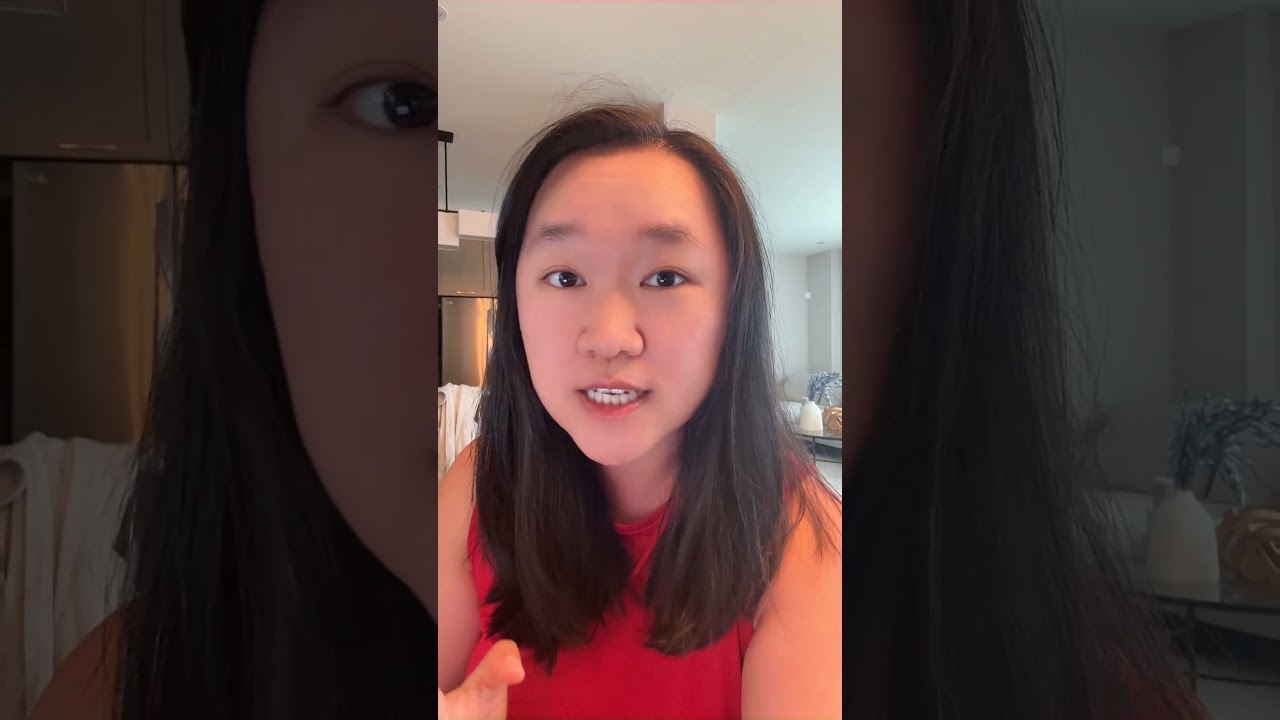
Hey everyone, it's Helena here and welcome back to my YouTube channel. In today's video, I am going to teach you how you can create your very own AI appointment reminder voice bot. Yes, you heard that right. It is no longer sci-fi. So here are some use cases for this. Let's say you have a birthday party coming up and you got 20 people on your guest list and you just don't have the time to call up each and every single one of them to remind them that it's your birthday this Saturday. Now you can create an AI bot that will call all of those people on your behalf and remind them that it is your birthday coming up. Another use case is let's say you are an AI automations expert, and you have a lot of local businesses that rely on clients coming in, and then them delivering the service as their main source of revenue. So some examples of this could be chiropractors, dentists, lawyers, hairstylists, med spas, etc. So all of these service-based businesses rely on customers going into their store, getting that service and then leaving. So if the customers don't show up, then those businesses don't get paid. And what they're doing currently is they're hiring a receptionist sometimes for, you know, $20, even $30 an hour to call up these customers that have upcoming appointments to remind them of their appointment. So this is very costly to the businesses. And now we can get AI to do all of this, to do all of this calling and to automate this process. And I'm going to show you how to build that today. So the first thing we're going to do is log into ChatGPT here. You do need to be on the premium version of ChatGPT, which is $20 per month. And once you are in, what you're going to do is click on your name at the bottom left-hand corner here and click on My GPTs. So what we are going to create is a custom GPT, right? Recently, ChatGPT has launched this new feature which has been just such a game changer. So we're going to go up at the top here and, and say create a GPT. Once we're here, we're going to see 2 different tabs. One is Create and one is Configure. So in the Create here, you can tell the GPT builder in natural language what you're trying to build, and then it's going to start filling in this section here for you. What I find is that it's just easier to manually control this process and fill it in right here. So the name of our bot is going to be called Appointment Reminder Bot because it's going to remind people of their upcoming appointments. And then here as the description, we're going to put Let's say that we're working with a fictional doctor's office, and let's say the doctor's name is Dr. Smith, and we're just going to remind their patients of their upcoming appointments. So the description here, I'll just write, remind Dr. Smith patients of their upcoming appointments. Perfect. And then in the instruction section, this is where we put in our custom prompts. And in this case, I have already written out the prompt that we're going to use in this GPT. And so I'll read out the instructions here to you. I have given ChatGPT a role here, which is that you are a receptionist for a doctor. Your primary role is to remind patients of their upcoming appointment. Initiate the process by asking the necessary details: the phone number, date and time of the appointment, and the user's name. Start each, each call with a polite introduction. Hello, I'm calling on behalf of Dr. Smith to remind you of your appointment at date and time. Your interaction should be courteous and focused on achieving the objective of the call. Once the call is completed, provide the user with a transcript of the conversation for their review. Always ensure clarity in communication and maintain a professional demeanor throughout the process. So that is a prompt, that is instructions that we're going to give to this custom GPT. Now for conversation starters, we're going to skip this part. And for custom knowledge, if there were specific details about how this doctor office operated, this is where we would upload it here. For example, cancellation policies or the services being offered. So if we wanted to add more information about this particular doctor's office, this is where we would add that. In this case, we're just going to skip that for now. And then over here, we can give this specific GPT some extra capabilities. We can give it the ability to browse the web, which we don't need in this case. We can also give it the capability to generate images, which, which we also don't need. And I will leave on the code interpreter. And then from here, what we need to do is now connect it to the voice portion of it. So we're going to go ahead and click down here to create an action because GPTs right now do not have a voice component. So we have to use an API to connect it to an external tool that has the voice capabilities and the abilities to make these phone calls, right? So what we're going to do here is use a tool called Blend.ai. So it's blend.ai is the website, and you can start for free and they give you $2 to test out this tool. So we're just going to go down here and start for free and enter in all of our information, full name as well as a phone number. So I have already got an account, so I'm just going to go ahead and log in. Okay, now that we are logged into our blend.ai account, the next thing that we need is to get our API key. Now I'm going to do a quick interruption right now to explain quickly what an API key is for those of you who don't know. So let me explain this with an analogy. Let's suppose that you are going to a restaurant and you want to order a meal. So you would tell your waiter what you want to order. The waiter will take your order and bring it to the chef, and the chef is going to make your order. And then once that dish is finished, that waiter is going to take what the chef has just created for you and then bring it to your table. So in this case, the waiter kind of acts as the intermediary to communicate between you and the chef. And in this case, uh, the waiter is kind of acting like the API key in this analogy. So if we take a real-world situation like what we're trying to do here, so you make a request inside of ChatGPT, your custom GPT here, and since GPT doesn't have the capabilities to create voice, so you use an API key which is from Blend AI. So you use the Blend AI API key to be able to then access the functionalities within Blend AI, and then Blend AI would turn the text that GPT has created into voice, send that voice through that API key back to you. So now you have the capability of creating voice using GPT. Pretty cool, isn't it? All right, so here instead of the actions, we need to add in an authentication and we also need to add in our schema. So writing these schemas is quite technical. So in this case, I am just going to give you what it is that you need to enter in and you can find this piece of code in the description below as well. So I'm just going to go ahead and copy and paste this code, and it has to go into the schema right here. And if you want to learn more about these API code schemas, definitely do look up the code, the API documentation from OpenAI and Blend.ai as well. All of these software will give you the exact documentation for what kind of API endpoints that they do have. So once you have the code in here, you just need to add in your API key. So to do so, inside of the authentication, you're going to click on the gear icon right here and then select API key. And then right here is where you're going to add in your API key. And if you go back to Blend AI, click on your name on the top right-hand corner here and then click on API key. From here, you'll see your API key, and don't bother using mine because I'm going to replace this right after this video. I'm going to go ahead and copy this key right here and then go back to GPT and then paste in my API key right here. Lastly, in the authentication type, I'm going to press custom, and then here I'm going to type in Auth0. And then I'm going to press save. And just, just like that, our GPT is ready. We can also— so now that we have that action added, perfect. We can also add in a photo here, but it is not necessary in order to get this bot working. So I'm going to go ahead and save and then publish. And then confirm. Great, and just like that, we have our appointment reminder bot set up. All right, now finally, let's test out our appointment reminder bot. So here I'm going to say the patient's name is Helena, which is me. Please give her a call to remind her of her upcoming appointment with Dr. Smith tomorrow at 11:30. Her phone number is, and I'm going to put in my real phone number, and make sure you have the country code in here as Well, so I'm going to put that in and just going to make myself a bit bigger here. Going to press confirm and also have my phone here. So you're going to watch this this appointment reminder call with me live right now. Oh, you can see the call has come in. Slide to answer.
Hello? Hi, is this Helena? Yes, it is. Great. I'm calling to remind you about your appointment with Dr. Smith tomorrow at 11:30 in the morning. Do you need me to repeat any part of that?
Uh, yes please. Can you say that again?
Okay, you have an appointment with Dr. Smith tomorrow at 11:30 in the morning. It's next tomorrow at 11:30 AM. Does that work for you?
Uh, yes, it does. That's great. Thank you so much for the reminder.
You're very welcome. Deal. Well, glad we could help remind you about your appointment. Please let us know if you need anything else. Have a great rest of your day.
Thank you. Bye for now. Wow, isn't that crazy? That was not a real human, that was AI. I'm mind-blown right now. So, and you can see how easy it was to set that up. It only takes you 10 to 20 minutes to get this working, and it's absolutely mind-blowing. So I hope you guys learned something new through, through this tutorial. Thank you so much.
More from Helena

How to Use Claude Code to Get UNLIMITED Leads in 6 Mins | Best Lead Scraping Tool

These AI Videos Has 21.5M Views — Here's the Exact System (Fable 5 + Higgsfield)


NotebookLM 2.0 Update: Analyze Your Entire Business in Minutes! (Full Tutorial)