Helena Liu shows how to use Microsoft Designer to create fifteen social media graphics for Facebook, Instagram, and LinkedIn in under five seconds. The tool generates AI images, lets you customize text and colors with one click, and sizes posts automatically for each platform.
Chapters
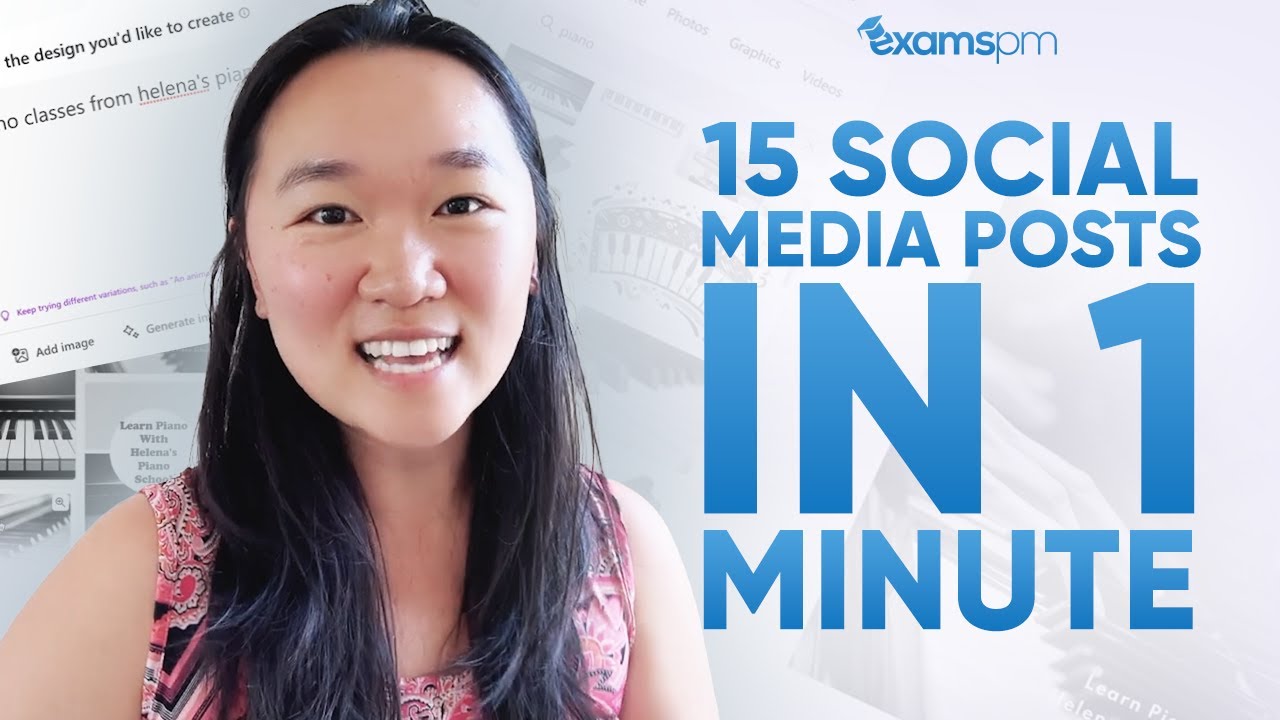
Hey guys, it's Helena here and welcome back to my YouTube channel. And in today's video, I'm going to share with you how you can make 15— 15, I don't even have enough fingers— but 15 social media posts for Facebook, Instagram, LinkedIn, you name it, in less than 5 seconds using this new AI tool. Wow, wow, wow! And now, if you're new to my channel, please make sure you like and subscribe for more awesome content just like this one. Now, without further ado, let's jump And now, so usually I do not like Microsoft products that much, but this one is actually pretty good. So Microsoft's new product is called Microsoft Designer, and unlike other AI tools that make images such as Midjourney or Stable Diffusion, Microsoft Designer helps you make social media posts in a flash of a second, which is super cool. So Once you log into Microsoft Designer, this is what you're going to see. You're going to get a whole bunch of images that you can use as inspiration over here on the right-hand side. And if you want to know the prompt that created them, then you can just hover over the image you like and then you can even try it out. So for example, if I wanted to create a social media post about an open house, then I can just press generate and it would go off and create so social media posts I can use for the open house. So this is different from other AI image tools which just generates the image that you want. So for example, if I went on to Midjourney and I said, you know, generate me a picture of a house, it's literally going to generate a house image for me instead of, you know, putting it into the right size. And with a click of a button, now if I like this one, I can just press download right over here. So, and you can select the size that you want for the different posts right up here. And I can just really just tell AI like what kind of social media post I'm trying to create, enter in the prompt right over here, and then they would generate it right here. So I could say piano classes from Helena's Piano School and then put generate. I can even put like generate me only Instagram post about a certain topic. So you just really tell the AI what kind of social media post you want to learn, and it would just go ahead and generate different social media posts here for you. And if I like none of these, then I can just press generate again, and it's going to generate 15 more social media posts for me. So let's suppose that I like this image right over here, and but I want to make a few modifications to it. I can just press Customize Design right here, and I can change anything that I want about this post. So let's say I wanted this text in white. I can just click on the text, and then this bar is going to show up to show me all the things I can do with the text. And I can change the color with just a button, and then I can change the type of font, the size, the location, and so forth. I can also add in more visuals. So let's suppose that I wanted to add in an image of a keyboard over here. Let's see, let's say we wanted to add this right over here. We can do that, but I think it looks a little— So cheesy? A little cheesy. So we can do this, for example, as our logo. We can change the colors right here. We can also press Inspire Me and it just changed to something that this automatically. Let's say I don't like this. So I can just with one click get rid of it as well. I can also set the background for these different texts. I can add effects to text. So this actually really reminds me of Canva, the different things that you can do with this image. Let's say I like this font right here and I just make it a little bigger. Learn Piano with Helena. And I can make the font size to 20. There we go. Less stretched, maybe more centered. Another thing you can do with this is to remove the background image. So let me find one. So let's say I like this girl, right here and I just want her face in it. I can just press, drag and drop this image into my post and then press remove background and boom, I just got her right into here playing the piano. Magic. You know, you can play around with it. Let's suppose I'm happy with this and all I need to do is to press download right up here. And in less than 5 minutes I got a social media post. And if I liked all the ones that I designed before, all I needed to do was, you know, and then based on what I have generated here with AI, it has actually generated more images based on our changes. So if I liked all of them, all I need to do is press download right up here. And if I didn't like these ones, I can go back and generate more ideas here just in a flash of a second. So such a game changer if you're trying to create a lot of, Instagram, Facebook, or LinkedIn post at once. Just all you need to do is type in the prompt of what kind of social media post you want to create. Look over here to see which ones you like. If you like it just as it is, you can just download it or you can customize it. And the customization tool is actually really easy to use. So I recommend that you give this tool a try and I hope you enjoyed this tutorial. Thank you so much for joining me. Make sure you like and subscribe and I'll see you in my next video.