MCP Explained in 15 Mins | Build Your Own Model Context Protocol Server Using Zapier & Cursor
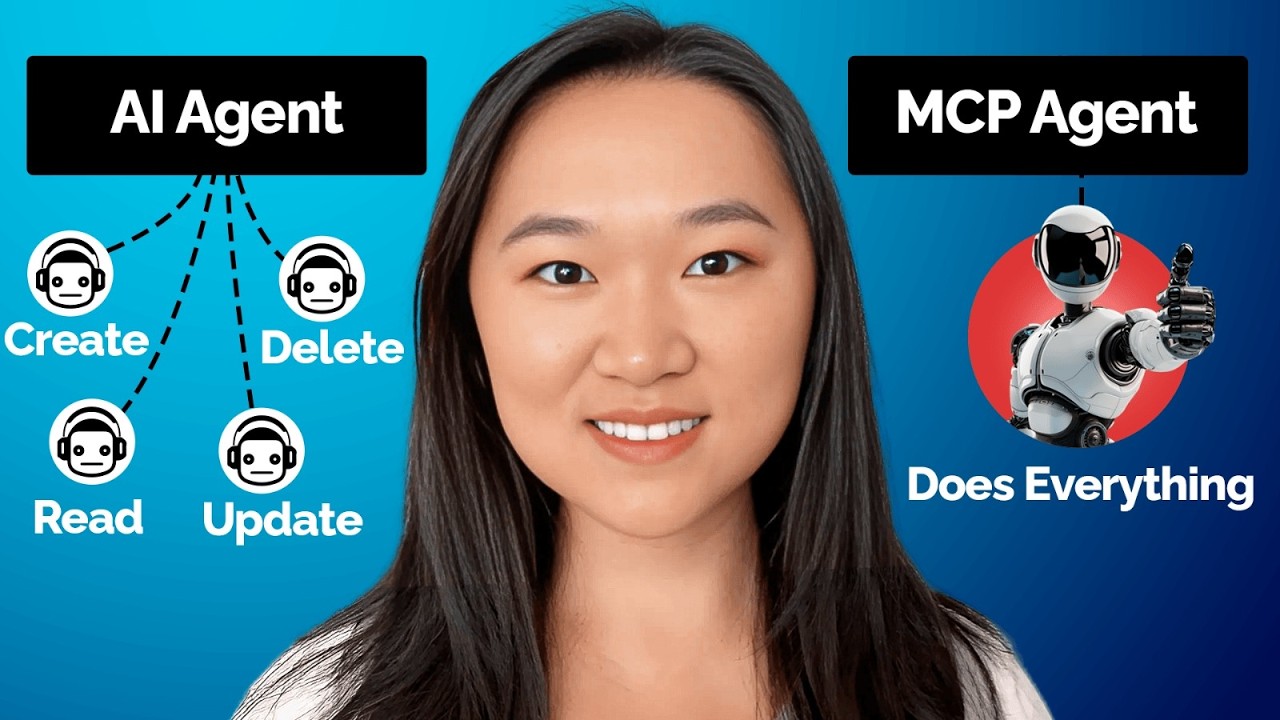
Helena Liu shows how to build an MCP server using Zapier and connect it to Cursor IDE. MCP is a universal protocol that lets AI agents access thousands of APIs. The demo creates a Google Doc and writes an essay, proving the end-to-end workflow works.
Chapters
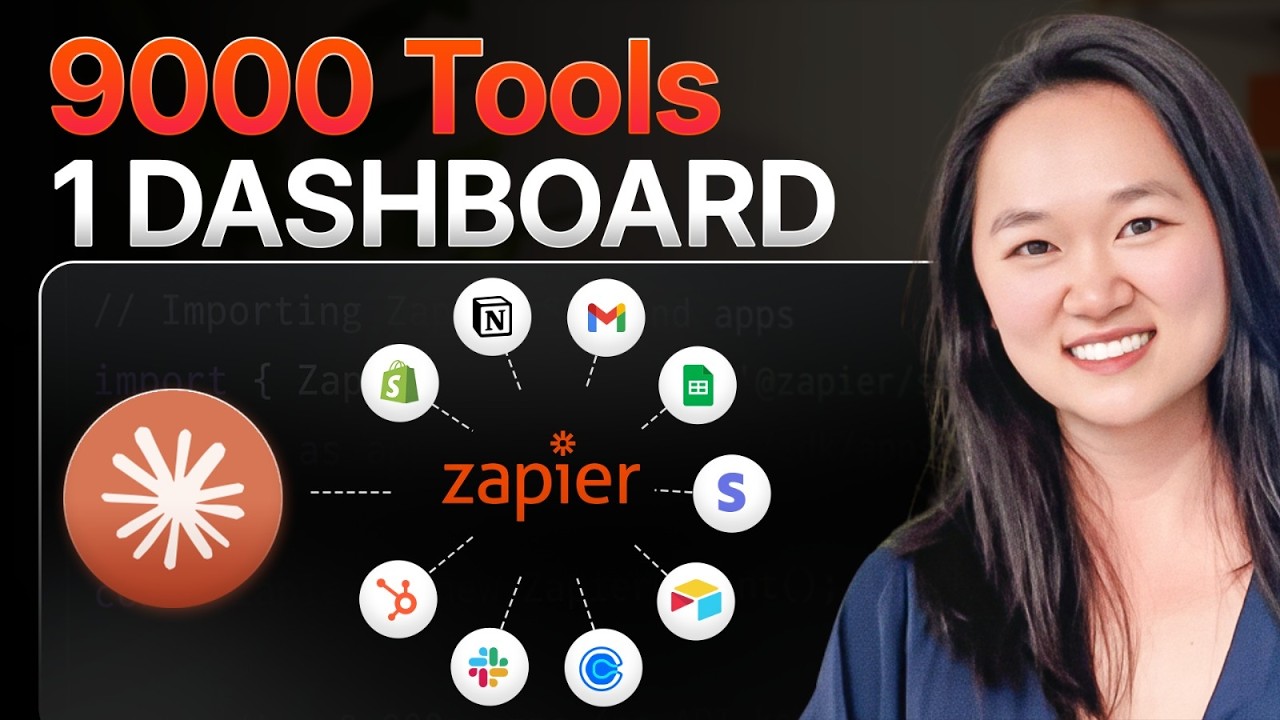
Imagine telling your computer that you wanted to do a whole bunch of chores and it just does it all within seconds. So you can say, set up a doctor's appointment for me for tomorrow at noon and tell me what my taxes were last year and send my best friend an email telling her that I'm going to be late for dinner tonight. And just like magic, it just does all of this for you. Now you can do this today with something called AI agents. I'm going to demystify this today and explain everything in layman's terms. So that it all makes sense. You can also level up your AI agents with something called MCP, which has been all the hype in the AI industry. So I want to break down this new technology for you so that everything makes sense. Now MCP stands for Model Context Protocol, and just like its name suggests, it's a protocol. Essentially, you can think of it as a USB-C cable except for all of these various apps that you want your AI agent to be able to connect to. So by just connecting to this one protocol, you'll automatically be connected to this wide variety of tools that your AI agents can access. Okay, if you're new to my channel, hi, my name is Helena, and on this channel I talk about everything AI and automation. So if you want to keep up with the latest news, please make sure you like and subscribe. I also got a free AI and automations training that you want to check out below as well. You can sign up for absolutely free. So let's break down what's MCP today and how do you start creating creating your own. Now, before we create our MCP, I want to take you back to the beginning and walk you through how we got here in the first place. So about 2 years ago, we saw the launch of ChatGPT, which is the world's most famous large language model, or LLM. Other language models can include Claude, Perplexity, Grok, etc. So in a large language model, you have some sort of input in, then it goes through a neural network, and then it gives you an output. So this could be text in, then text out. It could be text in, then image out. It could also be text in, then video out. It could also be image in and image out. You get the idea. So as an example here, I can put in a prompt, and in this case, the prompt is create image of a cute cat sitting on a beach towel. And boom, I get an image of a cute cat right here. And if you've been following my channel for a while, you know, you guys know that I like cats. And we actually can 10x the power of just the large language model by itself by combining it with automation. So this is stage 2, when we combine AI with RPA, or robotic processing automation. So we can string together a whole bunch of tasks together in a sequential order and have everything performed all at once. So tools like Zapier and Make actually allow you to do this all with no code. What's happening behind scenes though is that it's a bunch of APIs being linked together. So as an example of this, you can say use OpenAI to write a headline as one task, then write me a blog post, then automatically post this on WordPress for me. So in stage 2, we can actually string together all of these APIs to create some custom automations that can save a lot of time for your business. Now, those of you who are new to automations, let me briefly explain what APIs are. So just imagine you're going to a restaurant to eat, okay, and you tell your server exactly what you want to order. Let's suppose it's a cheeseburger with fries. That waiter is then gonna go to the back of the kitchen, tell the chef what you have just ordered. The chef is going to make your dish and return your dish to the waiter and give it back to you. In this example, the waiter is Acting like the API. So now let me put it into a techie example so that this can make some more sense. So let's suppose that you want to include the weather on your app, right? You're not going to go out and create, you know, a million different weather machines to monitor the weather. What you're going to do instead is use a weather API. And so you can request to the weather API what you want. So in this case, it could be I want to know the weather in Toronto right now. The API is then going to go into the API server to get exactly what you want, which is the temperature in Toronto right now. And it's going to then give it to you in an API response. Okay. Alright, so now that we've taken a look at what APIs are, let's take a look at a real example here. So this is the real OpenAI API. So all APIs have an endpoint, and each endpoint does something specific. In this case, the OpenAI API will return a response to you. And with every endpoint, you will have to enter in a specific number of headers and the body. So this is what you're telling this API to do. In this case, we had to enter in 2 headers, the content-type and the authorization. In the authorization, we will need to include our API key. This is what tells OpenAI that it's you that's making this request, and OpenAI will know how to charge your credit card. In the body, we will include the model and the input. So the input could be tell me a bedtime story or write an essay about insert topic here. And once we've put in this request, we will also get a response, right? So this is our response to the input here. So if it's write me a bedtime story, you will get that bedtime story as a response. This is what allows us to actually use OpenAI off of ChatGPT, right? And you can do this with thousands of different softwares. This is what allows you to create some very powerful automations that can save a lot of time. And this is what Zapier and Make is really known for. It allows you to create all of these automations without code. All you need to do is drag and drop the different modules that you want in your automations, string them together to achieve some powerful results. Now, earlier this year, we saw an even higher advancement than these automations. This is where AI agents comes into play. So these AI agents can actually understand your input and choose the most appropriate tool to use. So instead of you having to do everything sequentially, you can just tell this agent, hey, you have access to all of these tools, and depending on what the user is trying to do, use the most appropriate tool to do that. Now in this example, you can ask the agent to do something, and the agent is not only using the large language model that you have given it, but it's also got a number of tools connected to it. So this AI agent in this example can create Google Docs, can send Slack messages, can reply to emails, and write Facebook posts. So if my chat input here is write me a Facebook post about artificial intelligence, this AI is going to use the large language model that it has been connected to, and then once it does that, it can also then use the Facebook tool to then post onto Facebook automatically. So this is the power of these AI agents here. And then we can take these AI agents one step further with MCPs. Now, just in stage 3 here, all of the tools that we are linking to this AI agent is linked via API as well. But all of these APIs can actually be grouped together into one MCP so that this can actually look something like this. So I just need to make one connection now and I can have access to all of the API endpoints that this specific MCP or model context protocol is connected to. This allows us to be much more efficient when we're creating automations instead of having to manually link this specific protocol to thousands potentially of different APIs. We just need to link it to one and it will work. Now these MCPs could be related to just one tool. So we have seen developers creating MC clients, for example, for just Airtable. So you just connect it to that MCP Airtable client, and you'll have access to all of the API endpoints from Airtable. And depending on what you want to do in Airtable, this AI agent chooses the most appropriate API endpoint to use. Now, what's happening behind the scenes is that when you have your chat input here, you will be directly conversing with the MCP client. So the MCP client will take your chat inquiry and then turn it into an API request, and then it will go into the MCP server. The server has the entire list of APIs or services that it's able to do, and it will call on the appropriate service to complete this, right? So back to our example about Airtable. So if your chat input here is create a new row in my Airtable named Table 1, so you can tell this to the MCP client by looking at what your request is. It looks like you want to request a new row. So that MCP client will tell the MCP server to use the create row API and that MCP server is going to call on that specific endpoint that will accomplish that task for you. Pretty cool, right? So we're getting very, very far with this technology. And that's one thing that makes me so passionate about AI. Now I'm going to show you how to actually create one of these MCP clients on your own without any code. So the easiest way that I have found to create these MCPs is using Zapier. So to get started, just go to zapier.com/MCP. If you already got a Zapier account, it isn't anything additional to use this specific tool. So once you get to zapier.com/MCP, just click on Get Started and it will take you to your unique MCP server endpoint if you're already logged in. You do not want to reveal this endpoint to anybody because if you do, they can just connect it to your endpoint. Now you can define what actions or what want your MCP endpoint to do. In order to do so, just click on Edit MCP Actions, and this is where you can tell your MCP what you want it to do. So right now you can see that I have turned on sending an email on Gmail, finding an email, creating a post on WordPress, and creating documents in Google Docs. Now if I want to create another action, I just click on Add Action, and Zapier is the most comprehensive in terms of having all of the software APIs already integrated into their system. They were like the OGs in this industry. They have over 7,000 applications connected already. So I can add in, let's say, another action that I want my MCP to have access to. So let's say that I wanted to be able to reply to an email. I just put in the actions and depending on the action that you choose, you will have a bunch of other fields to fill out. You can have AI guess the value, or set a specific value for that field. For this, I'm going to have AI guess all the values and then I can enable the action and you can add as many actions as you want. And once you have done, you just have to connect this one endpoint and all of those actions will work. Now, right now there are 3 ways that you can deploy this MCP server endpoint. So the team behind Claude were actually the ones that pioneered this new technology. So you can actually link the MCPs to Claude Desktop. You can also connect it to Cursor, or you can create your own native one with code, which is just way too complicated. So we're going to focus on Cursor and we're going to focus on Claude. So let's take a look at how do we deploy this onto Cursor first. Now to deploy this onto Cursor, just go to cursor.com and click on download. Once you have installed Cursor, you'll be taken to this dashboard and you want to go down until you hit MCP on the left navigation. This is where you can connect all of the MCP servers that you want. I'm going to go up and click on Add New Global MCP Server. Now I have already connected to Zapier, but I'm going to erase everything and we're going to do it all together again. So going back to the instructions from the Zapier website, you can see it gives you the instructions here to connect it to Cursor, Claude, or WindSurf, we're going to go to cursor. And we can see that gives us this bit of code to add in. So I'm going to copy this and just put it right in here. And all I need to do now is just to replace this URL with my own Zapier MCP endpoint. So I'm going to go back, copy this URL, and put this in. Then I had to save everything. So it was Command+S on a Mac or Control+S on a PC. Now once I've saved everything, I have to make sure that the MCP is turned on. If this dot right here is red for you, just refresh this MCP and then it should turn green. Now to test out this MCP, we can go over to the right panel and just type in what it is that we want this agent to do. Okay, so let's test this out right now. We can see the right-hand panel here. And I just put in create a Google Doc and write an essay about the benefits of MCP. Remember that one of the tools that this MCP server has is the ability to create a new Google Doc in my account. So let's go ahead and run this. You can see it's generating now. So this is a pretty cool technology. Just link it all of the tools you want it to have access to, and boom, you got your own personal assistant. It's pretty wild that you can do all of this within like 10 to 30 minutes, right? All right, so it's been about a minute and I got this Google Doc automatically created, and you can see it includes all of the benefits of MCP in it. So it's pretty wild now that we can just converse with these bots and get it to do a whole bunch of actions as well. I just can't even imagine where this technology is going to be in 2 years, 5 years, and even 10 years from now, the world is not even going to look remotely like what it is today. It makes me super excited and also a little nervous at the same time. So if you want to level up in your automations, give MCPs a try. I'm going to include a link to Zapier in the descriptions below. I hope you got a lot out of this tutorial. Please like and subscribe, and also remember to sign up for my free AI and automations training as well. I'll see you next time. Bye for now.
More from Helena


How to Use Claude Code to Get UNLIMITED Leads in 6 Mins | Best Lead Scraping Tool



These AI Videos Has 21.5M Views — Here's the Exact System (Fable 5 + Higgsfield)


NotebookLM 2.0 Update: Analyze Your Entire Business in Minutes! (Full Tutorial)