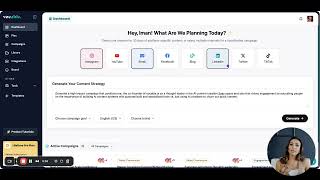
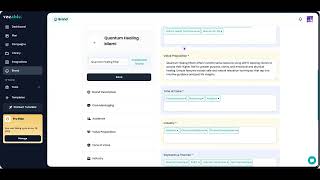
A short product tour of Vocable AI demonstrating its dashboard and core features for content marketing—Campaigns (short-term project grouping), Content Plan (ongoing/monthly strategy using 'Briefs'), Recent Documents, quick-create options (document, brief, campaign), Plan views (Kanban/List/Calendar) with search & filters, Library, Teams, Tools (Ideate and Research), and Templates. The video emphasizes Briefs as a differentiator: structured, detailed prompts that let AI generate higher-quality drafts from minimal high-level input. The video closes by directing viewers to follow-up guides for deeper feature use cases.
Chapters
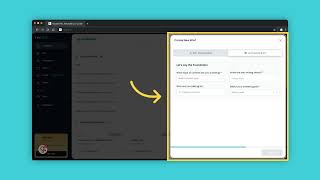
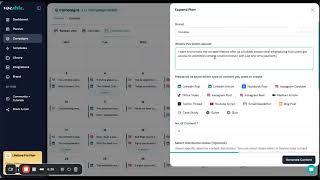
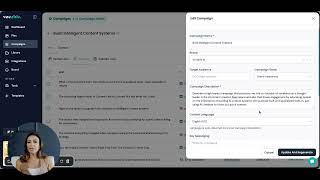
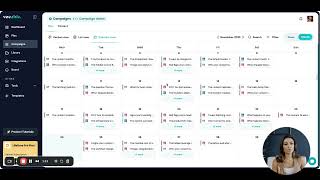
Welcome to Vocable AI, an easy to use AI platform to automate your content marketing. In this intro video, we'll give you a general tour of the Vocable AI platform and the features available to ideate, plan, draft and optimize your content. Let's start by taking a tour of your main dashboard. The first feature on your dashboard is Campaigns. The Campaigns feature lets you manage one off short term content initiatives and group multiple pieces of content under a single project umbrella. Whether you're launching a new product, running a seasonal promotion, or rolling out a content series, the Campaigns feature generates and keeps your content organized and aligned with a specific milestone or project. The next section in you dashboard is the Content Plan. The Content Plan feature, Invocable, is where your brand's ongoing month to month content strategy lives. Unlike short term campaigns, this is where you should be generating the evergreen content your brand needs to consistently post to maintain visibility and engage your audience. The last section on the dashboard is Recent Documents which allows you to easily access the recent drafts you've been actively working on. On the bottom right side you will see this plus sign which allows you to easily create content on demand. The first option is creating a document or or in other words, creating a content draft. This feature is great if you need to create additional copy or content on a whim in addition to the content you've already planned. You can either pick a template from our AI marketplace to kickstart your initial draft. You can import a draft or you can start an empty document and freestyle it using our AI assistant in our Entry editor. We will cover our entry editor in another guide. The second option is generating a content brief and adding it to your content plan. Briefs are one of Vocable's main differentiating features. Think of a brief as a detailed content idea with a set of guidelines and instructions to guarantee the best possible content output. Adding ideas to your content plan in the form of Briefs is our user's favorite feature. 1. It follows standard content marketing practices aka briefs before drafts. 2. They act as super detailed prompts for our AI so you get way better content output without becoming a prompt engineer. Just give it your high level thoughts and let AI generate the full brief and the full draft. The third option is creating a new campaign which we discussed at the beginning. We go deeper into each of these features in their respective guides, so make sure to check them out for more details. In the left sidebar you have an option called Plan. This is home to all your content briefs with their corresponding drafts. You have multiple views for your plan, namely Kanban View, List View and Calendar View. You also have two options on the right One is General Search so you can type certain keywords like AI and it will give you all briefs containing that word. The second option is Filter, which which helps you filter drafts by certain labels as you can see on the screen. The next item in the sidebar is the Library. This is where you can find every piece of content you've generated. You can also add and organize your content pieces into folders. Then you have the Teams option next, which allows you to create teams and add new members by email. Next element in the sidebar is Tools There are two tools available at the time of making this video, namely Ideate and Research. Ideate tool allows you to generate ideas around anything. Could be newsletter, subject lines, ad hooks, podcast names, or even business taglines. This tool is perfect to generate ideas on the fly. The Research tool and allows you to research keywords around a certain topic, input a short keyword and hit on Generate to get a list of keywords around the topic. As you can see, this tool gives you a list of URLs that rank for this keyword, along with keyword variations and top queries for the particular keyword. Lastly, the Templates button takes you to a list of AI templates available on Vocable. These templates are designed to make drafting content on the go easier for you. Just input your topics or thoughts and we will turn them into fully formed drafts. No prompting required. The templates are also sorted according to use case, as you can see. Hopefully this video helped you understand the basics of Vocable. Now that you are familiar with the platform's features, let's dive deeper into the use cases for each. Click on the Next guide to continue exploring.