A walkthrough of Vocable.ai's content planning tool. Paste your business URL, the system scrapes your brand details, you pick content types and topics, and it generates a monthly content plan in under five minutes. You can export to Trello or Kanban.
Chapters
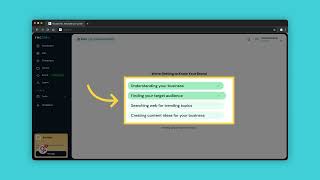
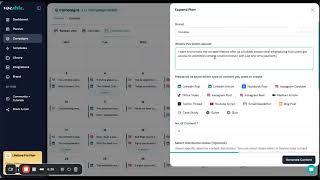
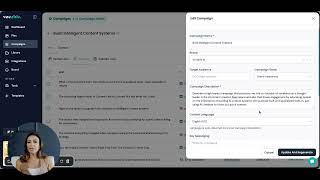
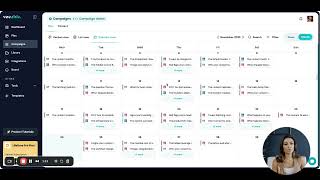
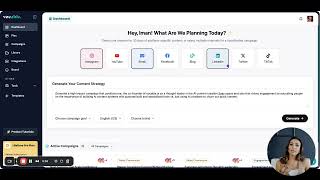
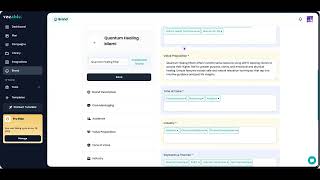
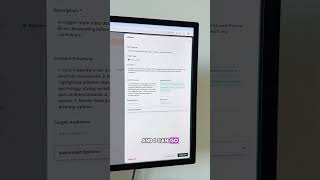
Welcome to Vocable AI. In this video, we will guide you through creating your monthly or weekly content plan. This plan is your brand's foundation for consistent, evergreen content that keeps your audience engaged. With Vocable, you can quickly generate a tailored content plan that aligns with your business. Whether you're planning for the month or breaking it down week by week, let's dive in and get your content strategy organized and ready to go. If this is your first time generating a content plan, go to your dashboard and scroll down to the Content Plan section, then click Generate your full content Plan. You will then be prompted to enter your business or brand website. If you don't have a website yet, you can click on don't have a website to enter your business information manually. If you input your website, Vocable will scrape all the info and automatically fill the brand details, keywords, etc. And create a content plan. You need to enter your complete website URL accurately in the right format as shown in the example, and then click on Save and Continue. If you enter your link with just the www, you will get an error. At this stage, our AI dives into your brand by analyzing the information on your website. This allows us to pull your brand's description, positioning audience, key messaging, and topics. It's important that you review and edit your brand summary accordingly because with this insight, we can tailor your content plan to align perfectly with your brand's unique identity. Once you've fully reviewed and set up your brand identity, click Save and continue. Nextvocable will automatically generate the content topics for your brand, which you can freely edit as you see fit. If you don't see your desired content topics, click on Add another content Topic and just type in your topic in four to five words. The more detailed and accurate these topics are, the better your content plan, so make sure you are thorough with this step. The last step is to then choose the content types your business needs, then click on Generate Plan. So now our AI has taken your brand identity, your topics, and the types of content you need into context to generate your first content plan. It may take up to 20 or 30 seconds to start seeing your content plan come into life. Your content plan is now ready for you with a fully packed set of ideas, each detailed in the form of briefs that you can easily view. Each plan by default comes with 10 briefs at a time, but you can choose to add more by scrolling to the bottom of your plan, then click Add More. Say you want to map out your content for the next month, then you can just add more briefs to your plan before accepting. Once you've generated enough briefs, click Accept My Plan. So not only have you generated weeks worth of content in less than five minutes, but everything is super organized, better than any spreadsheet, and can even be mapped out in a trello board using the Kanban view if you prefer. This means less time planning and more time executing, so now all you have to do is review and edit your briefs before AI starts drafting your content using the button Create draft associated with each brief. To dive into next steps, watch the following guides. We hope this helped getting you started with your first of many content plans. Thanks for watching and see you on the next guide.