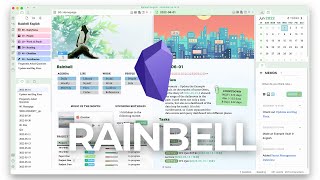
In this video, Jason Edward provides a first‑look walkthrough of a highly customized Obsidian vault called Rainbell (also referred to as Rainbows). He explains that the vault appears to be built with React.js and showcases a wide array of UI enhancements—animated GIF icons, custom background music, bespoke tags, and banner images. The demo highlights advanced task and project management features powered by the Dataview plugin, including progress bars that react to checklist completion, a Kanban board, a full‑calendar view, and a memo system that mimics social‑media posts. Jason also explores a Cardbox/Zettelkasten‑style library view for books, complete with cover images and metadata via YAML front‑matter. Throughout the walkthrough he notes how many of these elements can be edited by adjusting YAML fields (e.g., swapping banner URLs) and demonstrates the process of downloading the example vault, locating the English version, and using Advanced URI for deep linking. While acknowledging that the setup may be overkill for most users, he emphasizes the educational value of seeing how far Obsidian can be extended with coding knowledge and community plugins, encouraging viewers to experiment with custom builds.
Chapters
Hello, YouTube. It's Jason Edward here. Welcome to another video. Today we've got something really fascinating I want to look at, and this is a completely custom coded version of Obsidian. I believe it was created in React.js. And the person who created this is— I don't know who it was, but I feel that they deserve more credit for building this. I mean, just look at it. So what they've got is, you know, these pictures, icons, They've got custom music in here, custom task management system. So what I'm gonna do in this video is I've already downloaded this and set it up, and I'm gonna be going through it with you as a first-time user. I've never looked at it before and kind of like figure it out together. I'll also be sharing this link with you and show you how you can set this up for yourself to play around with it. And with that being said, let's dive into it. So you can see First glance, it looks really nice. I mean, you've got this GIF image with the icons over here. There is a Kanban board, which is quite fascinating. And then she's got music in here, upcoming birthdays. So first thing I'll mention is for a lot of people watching this, this might be just completely overkill. You might not want to make your Obsidian vault so complex and so in-depth. And I kind of feel the same way. Like I think for a lot of these things, I would just end up getting overwhelmed with too much stuff to look at. But I will just say in this case, um, it is interesting to see how far you can stretch this technology. And that's really what I love to look at. It's like, what is possible? What, what can you actually do with Obsidian? So just to, uh, take a quick look, we can see they've got this project tracking, and this is very fascinating because it's got a progress bar. So what you can actually do, I, I believe this is created with a data view. Let's take a look here. So yeah, that looks like a lot of code. So I think there is some data view, but either way, when you click on this, uh, it takes you to the notes and it actually measures your progress of, of your, uh, tick boxes, which is actually incredible. So you can see, I just removed some of them and now the progress has gone down. So yeah, this is really fascinating. If we go back here, we can see, let me just turn off the, the read-only view, and we can see this is the YAML. So alias, course introduction, plugin notes, et cetera. Yeah, really fascinating stuff. And I mean, for the most part, there isn't too many things in here that would be difficult to implement in your own vault. So if you're someone who's watching this right now and you would like to set up this version of Obsidian, you would need to understand a little bit of like technical knowledge. I mean, for example, like this, this is also like completely custom made. I don't even know how she created this. It's like highlights. And then, uh, we've got this like custom looking tags over here, really cool. And the image as well. So if you wanted to update this image, I believe you would just click on over here. You could go to the YAML and then you see where it says banner, you could just swap out the link and put in whatever link that you want. I'm gonna see if I can change that. So, wow. Yeah, just, I just changed the icon here and it changes up over here. So let's take a look over here. We've got a full calendar, which I think is, um, default in Obsidian actually, or it's a plugin, but let's say we create a new note. Okay. So this is a brand new note. It starts, it's all defaulted with this custom background over here. And if we just put it on read-only view, we can see it's got like a summary. I'm not sure what, what the, the birds log and stuff like that is, but all right, we can, we've got this calendar and then we've also got this, which is memos. Very interesting. So if we open memos, we'll just take a look at this. I will collapse that. I'm not exactly sure how this works. It kind of looks like a social media post. So if I just say, this is a test, and then note it. Now it's created this note, and if you click on it, oh wow, it literally just has it as its own custom note. So obviously whoever made this has created a full, you know, custom note aspect to it, which is very, very fascinating. I mean, you can even share the notes. Wow, someone— so they really try to like make Obsidian into its own type of real, like, uh, task management system, which before it's just a note management system. And I think it's really cool just to see these types of projects, to see what is possible. I haven't found anyone else who's actually created something like this before, but I've always wanted to, to see like, what else could you build in Obsidian? So just to wrap this up before I show you how you can create this, oh wow. We've also got a task tracker. So check that out. We've got 10 memos. It's actually tracking one memo was created on that day. And then you can create a filter. Wow. There's just so many things that they've added to this. Again, I personally, I mean, I don't think that I would end up changing my whole setup just to add some of this stuff. Maybe you're watching this and you thinking, wow, this is amazing. This is exactly what I've been looking for. Then great. With the, with the link that I share with you, you should be able to find the instructions to set that up for yourself. And yeah, I think, let me just see what else there is. We've got people, daughter, very interesting. So it's kind of like they've taken the best parts of like Notion and then used data view and put it in Obsidian and then custom, custom, uh, made the display all nice. So. I'm just seeing if there's anything else that I missed, but I'm pretty sure that we've covered it. This is definitely something that you don't see every day. Oh, I, I guess these are folders. Yeah. Okay. These are folders. And then it's like that. So we've got this Cardbox setup. I've never seen this before either. So if you do Zettelkasten, then I'm sure this is very fascinating to you. An address operator. Wow. So many things, so many things in here. I'm just looking. Oh, we've got a library with books. I mean, this is pretty cool. This is something I actually would technically use. I might end up actually taking this because if you click on that, that'll take you to the note. And I'm assuming if you just go to the YAML, great, we can kind of see all the different parts. All right, cool. So yeah, you could add like a cover, you could add the author's name, et cetera, and then you could have this super cool looking display library. I'm pretty sure there isn't that, that much complicated code in here. We just use dataview.js. So I'm actually going to just copy this right now and move it into my own Obsidian vault so that I can start using that. All right, cool. Now let's actually take a look at how you can set this up. So I'm going to share two links. Actually, I'll share one link, but just keep in mind when you click on this link, You want to download, I'm assuming if you're watching this, you want to download the English version. So right over here, you click this link, download the newest example vault. If this, if you click on this, it's going to open up to this page over here. And then right at the bottom, you'll find Rainbow English. So you just double-click on this and it's going to download to your desktop. So that's the way that you essentially do that. And if we just look up something else that's important to mention is there's quite a lot of you know, guides at the bottom over here. I think some of them are in Chinese. You could probably translate them, but see, yeah, to use this for your homepage, this is what you need to set up. If we take a look here, if you want to use this advanced URI, uh, to create a URL for— okay, wait, this is advanced URL to create a URL for anything, a big calendar. So all of this stuff, it's, it's, again, you need to be like really technical to, to really understand it and appreciate it. To understand the work that whoever's created this has put in. But yeah, I mean, that's the basic breakdown of Rainbows. So I hope that you enjoyed this video. I just wanted to make it to kind of bring some more exposure and bring some more light to really what you can do in Obsidian, what's possible if you have a good understanding of coding. And I'm hoping that more people will start to create these types of, you know, custom versions because Obsidian really is so cool in the sense that it can be built upon and expanded in so many ways with the plugins and the community. So with that being said, thanks for watching this video. And I look forward to making the next one. I'll see you. If you have any comments, feel free to leave them in the comment section below. Goodbye.