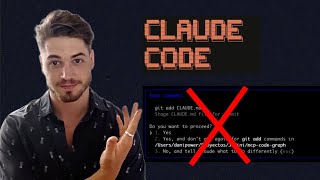
Claude Code shows permission prompts that slow down development. Edit your settings.json file to disable them by adding a JSON snippet that grants all permissions automatically. Anthropic built these checks for safety, so understand the risks before turning them off.
Chapters
Hey guys, just a quick video today. You've probably noticed when you first open up Claude Code that it asks you for your permission on literally everything. Like anytime you want to do anything, it's gonna say, hey, can you please confirm that you want to give me access to this? And this is super annoying. So it was one of the first things that I wanted to solve when I started using Claude Code. So I'm gonna show you in this video the easy way to actually solve this just by updating your settings.json. And I'll provide the exact JSON in the description of this video so that you can test it out for yourself. Um, if this saves you some time, please do like and subscribe. I'm gonna be making a lot more videos like this. Um, but before I get into it, just a quick disclaimer. There is a reason that Anthropic set it up this way with all of these permission checks. Uh, the reason is they don't want to take any responsibility if something does go wrong using these models. These Claude, uh, the AI models in general are getting so smart now that they can literally make huge damage to your computer if you are not careful. And I also want to just say, um, please don't, uh, if you do try this and somehow it manages to completely destroy your computer, don't come back to this video and blame me because I just want to show you how you can code faster and you have to make your own choices on this. Um, but that being said, like, if you follow the things that I'm sharing, other videos, just creating very detailed spec sheets, um, you can mitigate a lot of these risks. Like, committing to GitHub, et cetera. So yeah, let me show you how to do this. So first thing is you need to find the.claudmd folder or the.claud folder. And this is actually a hidden folder. So the easiest way to find it that I've just found out is you just ask Claude directly like, hey, could you please find me the Claude folder, which will be in the root of the system. Just go to the system, try ls, and then just give me the terminal command and reveal and find it. So yeah, I just say this because ultimately, if you're watching this and you're using Linux or Mac or Windows, it's going to be different, but you want to find it in the home folder. Um, so yeah, it basically went and it found the folder for me and it just looks like this. Now inside you've got the settings.json and I'm just going to open this up in Cursor. So you can see over here, this is all it is. It's not anything complicated. You just have to copy these allow allow commands into your settings.json. So with that said, um, yeah, I will provide this in the video description. Once you set this up, it will never ask you for your permission to do anything. And it is so much better for, yeah, I mean, I can't even imagine how I would've gotten anywhere if I had to just sign off on every single thing that it's been doing. So yeah, hopefully this helps you. Uh, let me know if you have any questions in the video description. And have a rest— a wonderful rest of your day. Thanks for watching.