In this tutorial, Jason Edward showcases the Highlighter community plugin for Obsidian, demonstrating how to quickly change text colors by highlighting text and selecting a color from a right‑click menu. He walks through the plugin’s installation process via the Community Plugins browser, highlights customization options such as highlight styles and user‑defined colors, and expresses interest in adding support for custom snippets directly from the menu. Jason also introduces his personally designed Obsidian theme, emphasizing its gradient sidebar, clean look, and especially strong mobile presentation. He offers a sample vault on Patreon that bundles the theme, a collection of HTML snippets, a Dataview cheat sheet, and additional libraries to improve workflow. The video ends with a call to action for viewers to comment, suggest future video ideas, and support him via Patreon.
Chapters
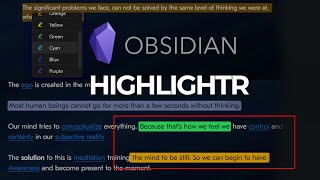
How's it going guys? It's Jason Edward here. Today I wanted to share with you a new plugin that I've been using for a while and it allows you to style your notes with different colors and it makes it really, really simple to do that. So for example, if I wanted to make this text a different color, I could just highlight it and then I go to right-click, click on this highlight plugin, plugin, and then there it's gonna show a menu item. So here I would just highlight it and then you see how it just makes it green. Uh, so it's really, really intuitive and it's very similar to what I did and what I showed in the last video where you can essentially just, you know, type in a shortcode and then it pops up with the right HTML and it will change the color of your text so that it looks really cool. And, um, I would love, I'm actually gonna try and speak to the plugin owner to see if I can figure out a way where I can add my own snippets. Because for example, um, as I showed in the last video, I created a whole bunch of snippets that I'm continuously adding to. And it would just be amazing to be able to just, you know, right-click, go to a menu item, and then just be able to use custom snippets within the file. So if you want to get access to the plugin, the Highlighter plugin, all you have to do is go to your Community Plugins over here, click on Browse, type in Highlighter, just like that. And this is pretty much it. So in the options, there's also some customizations you can make. You can change the highlight style as well as add your own colors. And so I, I think that they, the plugin developer did a great job with this plugin. And so that's pretty much it. Now I also wanted to mention I've recently changed my theme for Obsidian and this is something that I custom created. So I've got like these nice accents, um, and this, you know, on the sidebar it's got a gradient and I think it just looks really clean, um, especially on mobile. I, I like how it looks on mobile even better. I'll just show you what it looks like quickly. And so if you want to get access to this new theme, you can actually download it with the sample vault that I have inside of my Patreon. And that also gives you access to all of the different HTML snippets that I've created over here, as well as some helpful files like the Dataview cheat sheet and different libraries and things that can just help you to improve your overall workflow. So if you want to get access to that, you can just click the link below, and that also helps to support me to make more of these videos. So that's it for this video. If you have any questions, feel free to leave them in the comment section below. And if you have any ideas for future videos, I would love to hear what you, what you have to say. So thanks for watching this video, and I'll see you in the next one.