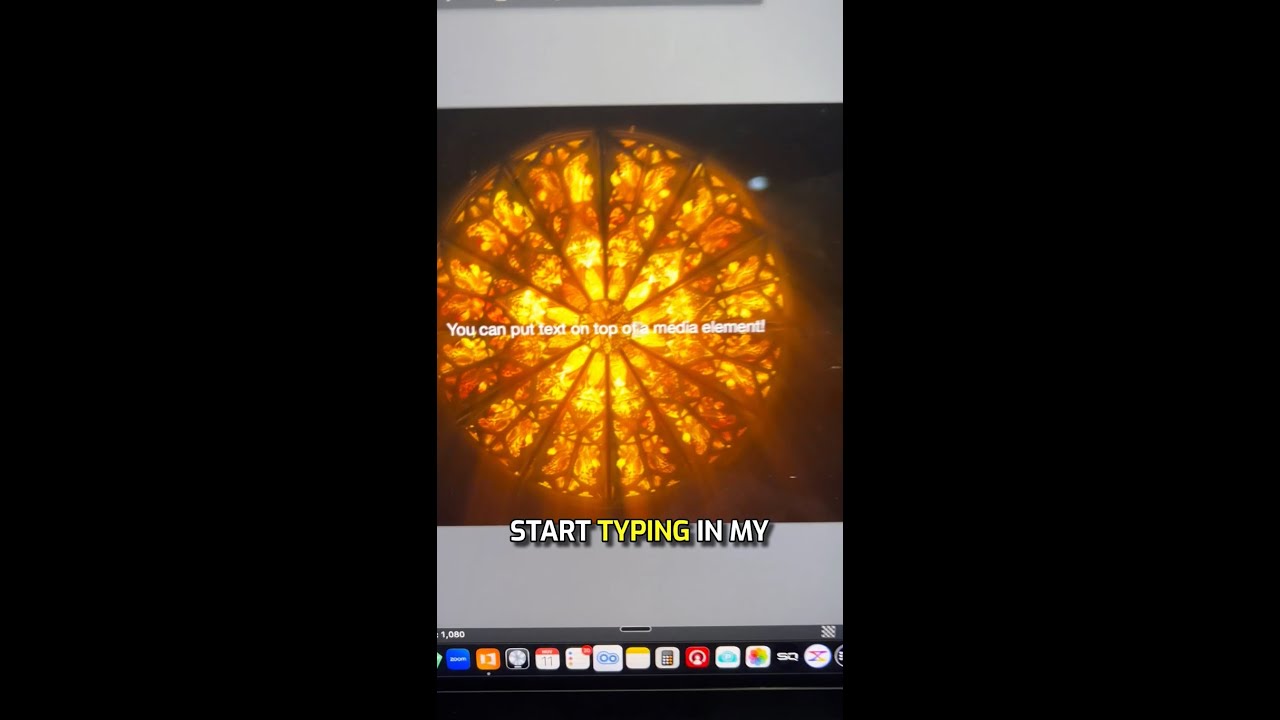
Joshua Riggs shows that every object in ProPresenter, including shapes and media files, can hold editable text. He demonstrates adding a media file to a slide and typing text directly over it, then mentions an upcoming training course.
Chapters
Hey, here's another ProPresenter training tip for you. This is about how any element inside of a slide actually you can add text to. Let me show you how it works. So anytime you add a new slide, by default it's going to have one shape in it, and that will be a text block. And of course you can add more text blocks here, you can add shapes, you can draw your own shape, you can add a media element, a video element. But did you know that all of these up here actually are text blocks in and of themselves. So if you add a shape, you can click on the shape, you can double-click inside that, and you can start typing your text inside of that shape. You can even do the same for a media element. So if I click on this media element, let's go ahead and add in this file here. I'll click Open. It's going to import that file. Now you'll notice there's no other layers, just that one layer. If I double-click here, I can actually start typing in my text, and then I can change that text, and it will be right on top of my media element. Hey, follow for more. That's your ProPresenter training tip for today, and stay tuned for our brand new ProPresenter training course.