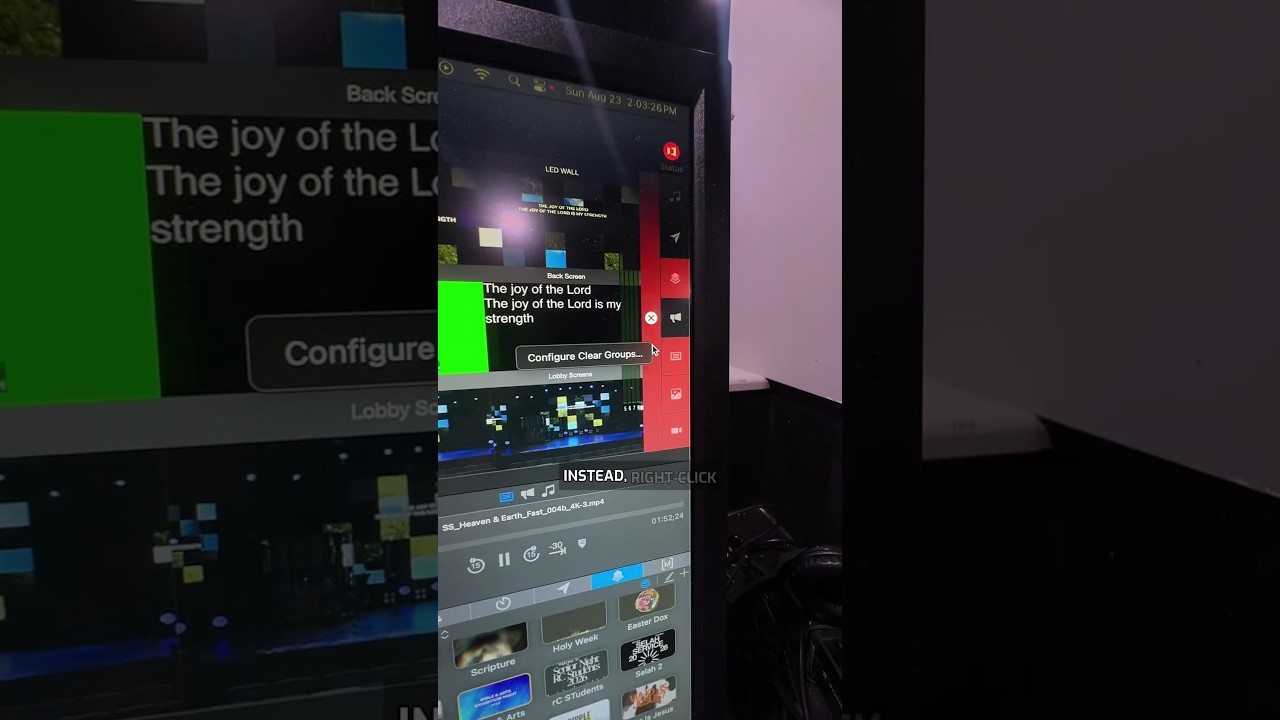
Joshua Riggs shows how to set up Clear Groups in ProPresenter to prevent accidentally wiping your video layer. Create a new group called "No Video," select which layers clear, leave video input untouched, then assign an icon and test it.
Chapters
Hey, what if you want to clear all of your layers except for your video input layer at the same time? If you press Clear All, it's going to clear everything. Instead, right-click on this area, go to Configure Clear Groups, and then you'll have the option to create a new clear group. So I'll press plus, plus, and let's say No Video. We'll call this No Video, and then you'll choose which layer you want to clear with this Clear Group. So I'm going to choose all of my layers except for my video input. You can also give it an icon if you want, and you can give it a tint, change the color. So now I can see my Clear Action Group here. So when I press this Clear Group, notice it's going to highlight the media, slide, and props layer, but it's not going to turn off the video layer. Hey, that's how you can use Clear Groups to clear just specific layers that you want. If you want more training like this, follow the link in the comments. I've got a free ProPresenter training coming up on September the 1st.