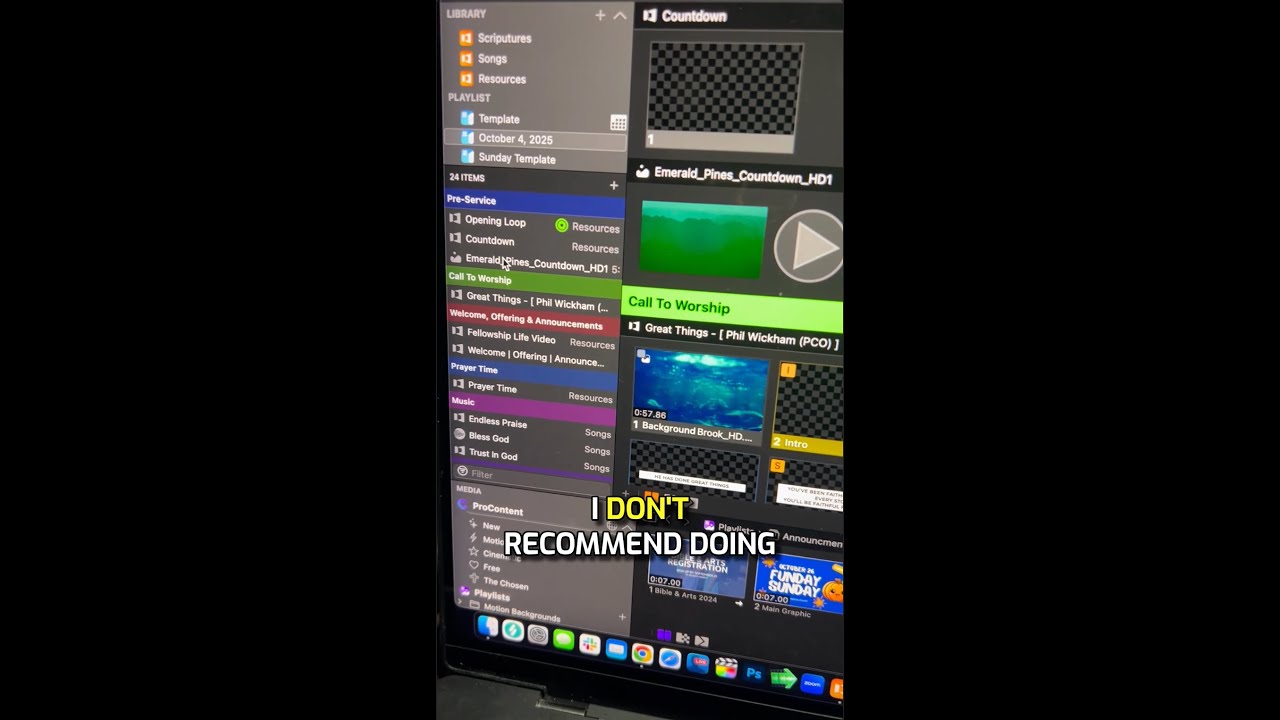
ProPresenter lets you add videos to playlists, but you lose editing control. Instead, drag videos from Finder onto slides so you can set playback behavior to stop looping and adjust duration and color.
Chapters
Hey, so we've been looking at a bunch of ProPresenter tips. Here's another one, and this one is one that I recommend that you don't do. You probably know that you can drag a video from your Finder window and put it after a slide or on a slide. You also can put it directly into a playlist, but I don't recommend doing that because the only thing you can do with that file is to play it. You can't change the color, you can't change the duration, you can't do anything with it. You can only play it. So instead of putting it into your playlist, you should put it directly onto a slide. So I'll go back to Finder. I'm going to drag this. Instead of putting it on top of a slide, this will cause it to loop. I want to put it after the slide so that it will only play one time and then it will stop. So if I right-click on here, I can go to Edit Action, Playback Behavior, and you can see it's set to Stop. Hey, if you like that tip, be sure to subscribe, follow for more. Also stay tuned for our brand new ProPresenter training course coming very soon. ¡Hola!