In this tutorial, Luke Loescher walks nonprofit staff through the process of creating a free AccountCloud Unity account, a cloud‑based accounting and management platform designed to consolidate financial data for nonprofits. He demonstrates navigating to accountcloudinc.com, clicking “Start Free Trial,” and completing the sign‑up form by entering personal details (name, job title), organization information (nonprofit name, number of employees, country/region), and contact credentials (phone, email, password) before agreeing to the services agreement. After a brief provisioning period, he shows the first‑time login, where the system requires mandatory two‑factor authentication (2FA) using an authenticator app (Google or Microsoft Authenticator). He explains scanning the QR code, entering the generated code, and saving backup recovery codes for future access, emphasizing that 2FA is required because the platform handles sensitive financial information. The video concludes with a successful login to AccountCloud Unity.
Chapters
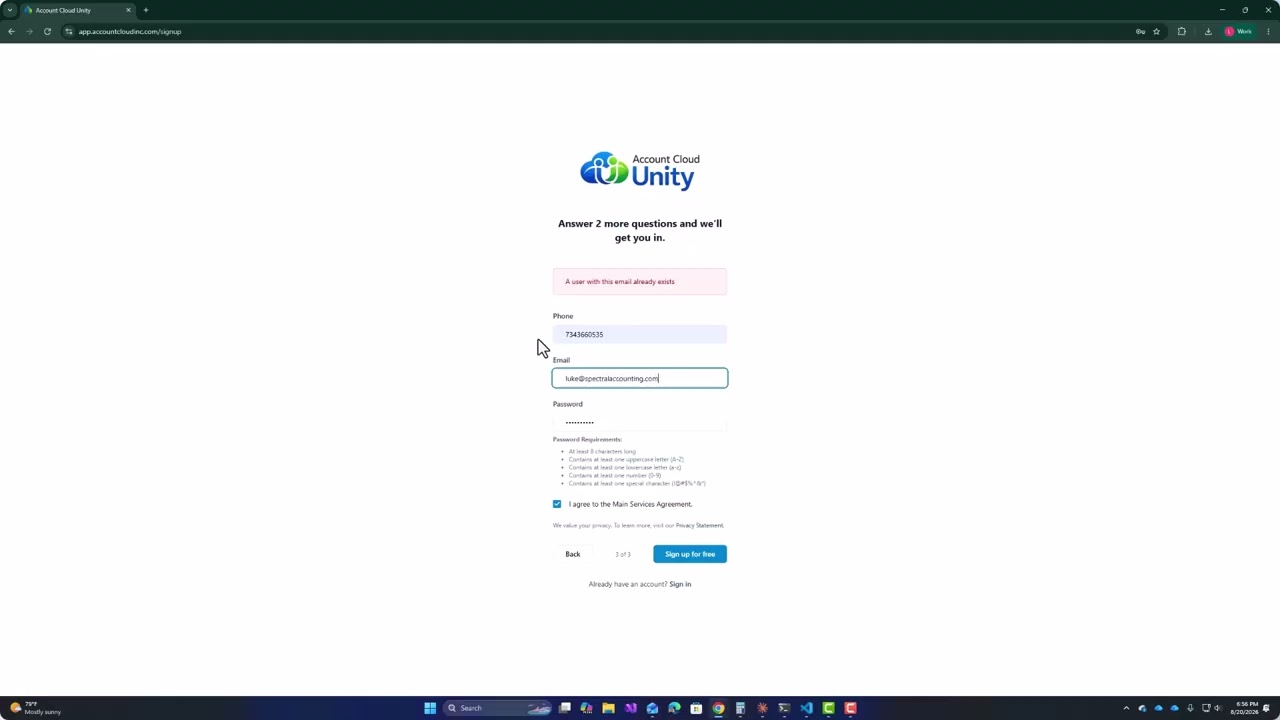
All right, so today we're going to talk about how to get started with AccountCloud Unity. AccountCloud Unity is an accounting and management software for nonprofits to help them better make decisions with the data that they have and to help eliminate multiple data— multiple systems that you need to enter data into for your nonprofit. So we'll go ahead and go to accountcloudinc.com. And then we'll go ahead and click on Start Free Trial. And this will take you to our signup page. We're going to go ahead and put in a name and last name— if I can type— the job title of the person who is signing up for the account. And then go ahead and click Next. We select Employees. What is the name of the nonprofit? And then what country or region you're in. Most of the time you'll be in— it'll be United States. Then go ahead and click Next, and then it's going to ask you for a phone number. It'll ask you for an email address, and you can put your email address For your nonprofit, and then a password, and then just agree to the main services agreement. Click sign up for free. Oh, and I have already got a user with that email, and that one too. And it'll take a minute for it to spin and set up your account, so we'll wait for that to finish working. Welcome to AccountCloud, and our account's been created, so we can go to the login page. And now the first time you log in, you would log in with your email that you just did, and then the password, and then you can say sign in, and it's going to ask you to set up 2-factor authentication. So this is— it will only do 2-factor authentication with an authenticator app, and that is because we are trying to be more secure than just like with a text message or an email. So you would open up your authenticator app on your phone, and if you need one, you'll go to the App Store on your phone and just download like the Google Authenticator or the Microsoft Authenticator. Either one of those are good options. So I'm going to go ahead and add this, scan this barcode with my authenticator app, and then it will add a Set of keys, and then I can say I've added the account. Continue, and then I'm going to type in the key that it generates. And we require two-factor authentication to be secure because we are dealing with finances and financial information. So you can copy these these codes down and save them to like a notepad or an Excel file or some some other file. on your system because these are codes in case you lose your authenticator app. You can use one of these codes to be able to log back in again. So go ahead and click Finish, and now we are logged into Account Cloud Unity.