Luke from AccountCloud walks through QuickBooks Online's redesigned Bills tab, which now splits bills into three sections: For Review for uploads, Unpaid for outstanding bills from the past 12 months, and Paid for settled bills. You can mark bills as paid directly or edit them before importing.
Chapters
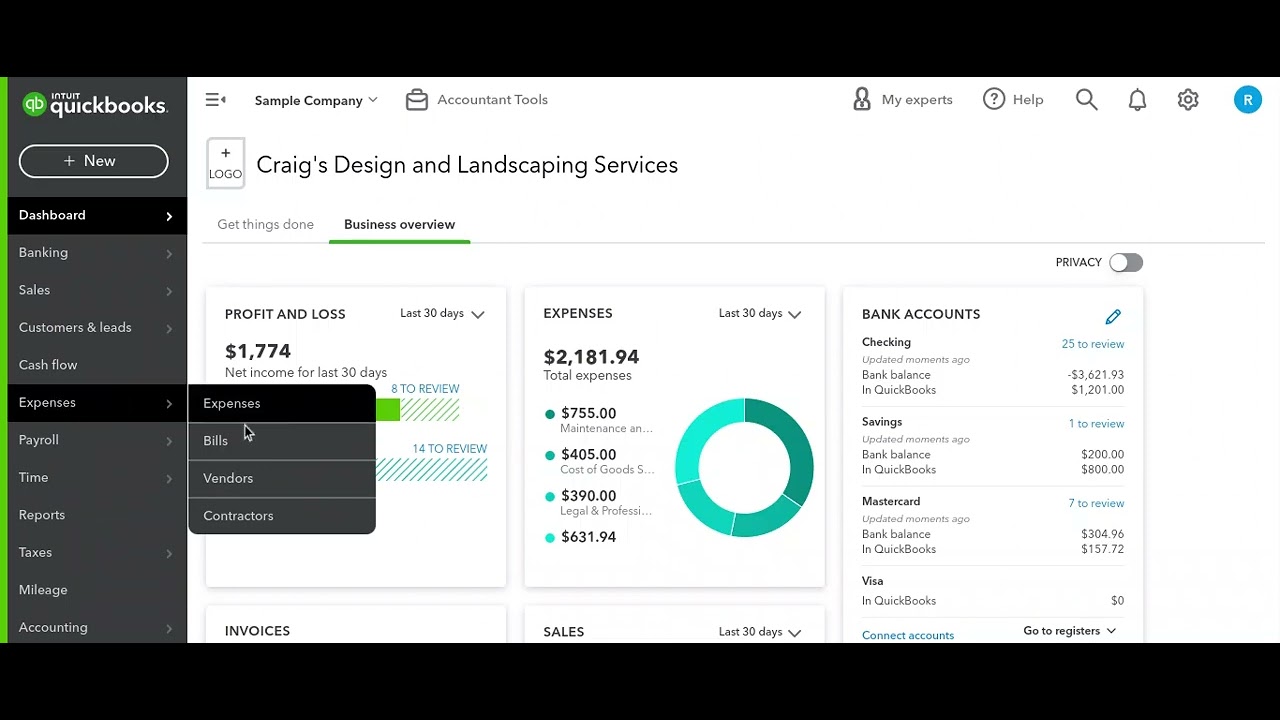
Hey everyone, it's Luke here with AccountCloud, and I am going to be showing you the new layout of the Bills tab under Expenses. So in QuickBooks Online, if you go under Expenses and go to Bills, you'll now see this tab where it has a For Review section, an Unpaid section, and a Paid section. So the Unpaid section will show you all of the bills that you haven't paid yet. That are due for the last 12 months. It'll show you if they're overdue, or— and it will show you if they're due soon. And you can also mark them as paid right from this screen. This is a quick and easy way to make sure that you pay your bills quickly. The Paid tab allows you to see all the bills that you have paid over the last 12 months and gives you the vendor, the bill date, the due date. And you can actually view and edit the bill right from here as well. The For Review tab— this is a special tab that allows you to see the bills that you may have uploaded from your computer. So once you upload a bill from your computer, it'll show up in here and will allow you to make some modifications before adding it to your QuickBooks. So this is a Quick and easy overview of the bills, of the new bills dashboard, to make it easy for you to see what's been unpaid and what has been paid over the last 12 months. If you would like help with your accounting, feel free to reach out to us at www.accountcloudcpa.com. That's www.accountcloudcpa.com. Thank you and have a great day. Bye.