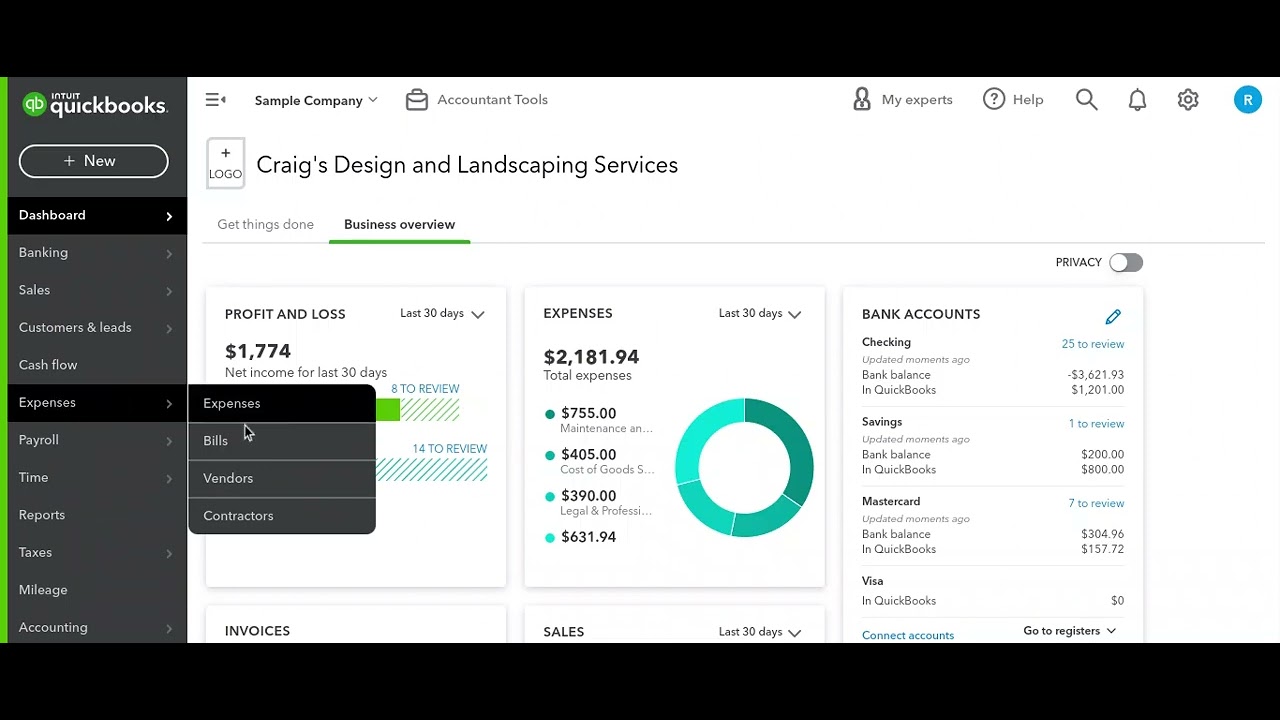
Luke from AccountCloud shows how to upload receipt images and PDFs directly into QuickBooks Online's Banking tab. The system automatically extracts key data like vendor and amount, then creates bills or expenses without manual typing. You can upload from your computer, Google Drive, or email receipts to a dedicated address.
Chapters
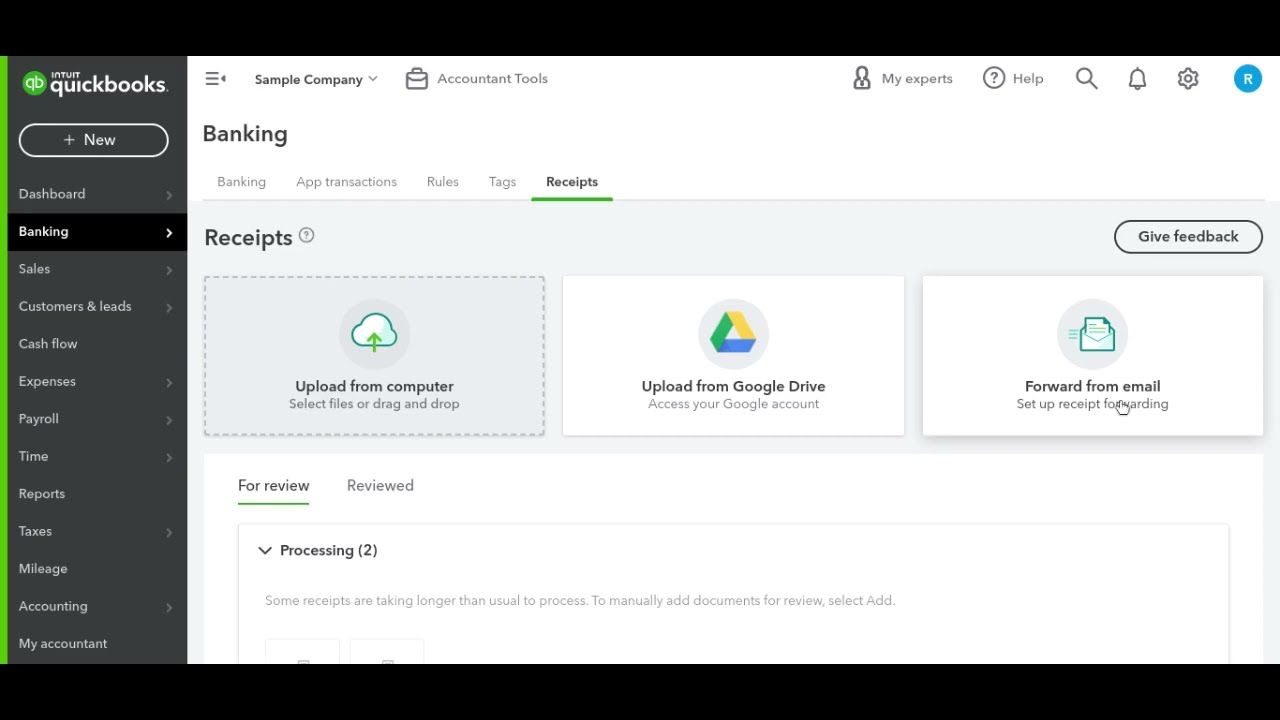
Hey everyone, it's Luke here with AccountCloud, and I want to show you a cool new feature of QuickBooks Online that I'm sure not a lot of you have seen. So what is this new feature? It is the receipts section under the banking tab. So if we come under banking and go to receipts, we'll see this little screen here that will allow you to upload a PDF or an image of a receipt from your computer or from your Google Drive or even forward it from your email. So, if you have vendors that email you receipts or subcontractors that email you invoices, you can have them send it to a particular email address and that PDF that they send will dump automatically into this receipt section and then we'll start processing. So, once a receipt comes in here, It comes into this processing queue, and this processing queue will read out the details of the, of the PDF or of the image and will output some information for you so that you can easily create a bill or expense from this receipt that was uploaded or forwarded via email. And so this is a really quick way of getting data into QuickBooks Online without having to manually key in this information. Once the receipt is finished processing, it will show up down here, and like I said, you can edit any of these columns to include more information or change, like for example, the payment account that it goes against. If you would like some more tips like this, please feel free to follow us at AccountCloud, and if you would like some help implementing this in your own business, Feel free to reach out to us at AccountCloud, and we can definitely set up a VIP session for you to help you implement this receipts feature into your own contracting business or construction business. This is a great time saver, and go ahead and follow me for more tips like this on using QuickBooks Online in construction. Thank you, and I hope you have a wonderful rest of your day.