Short tutorial for EMA Providers: Orders and Invoicing. Explains how businesses view guardian-submitted service orders, mark services as rendered or canceled (green check vs red X), complete invoicing, and access account reporting (transaction history, exports). Clarifies that invoicing is initiated by parents/guardians, amounts billed cannot exceed the ordered amount, and status labels (In process, Approved, Paid) track order/invoice progress; providers receive a remittance email and payment typically clears in two to three business days.
Questions this video answers
The parent or guardian must initiate the service order and invoicing.
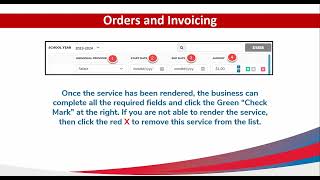
Click the red X to remove/cancel a line item; click the green check mark to mark a service as rendered/complete.
No. Dollar amounts can be lower but never higher than what was ordered.
The parent has placed an order and is waiting for services to be rendered.
The business has invoiced and is waiting to receive payment.
Chapters
Welcome to EMA Providers Orders and Invoicing. On this page, businesses can view any service orders submitted by parents or guardians. The Service Invoicing page allows businesses to complete the invoicing process and bill the parents. Account Reporting provides access to all transactional history. The line items listed under Service Orders in your billing menu option are services requested by guardians. The parent guardian should contact the business to schedule the service. Please note that all invoicing is Parent guardian initiated. Parent and guardians must initiate the service order with their available scholarship funds. Orders should remain here until the services have been rendered. Additionally, if changes need to be made to the information previously entered, the the provider can simply click on the red X. Once you select the item, scroll to the right to see the red X. Once the service has been rendered, the business can complete all the required fields and click the green check mark at the right. If you are not able to render the service, then click the red X to remove this service from the list. A few things to keep in mind for this screen to be visible, an order must be placed. Then the screen will populate. Dollar amounts can be lower but never higher than what was ordered. Now that the provider of business has saved the service order and entered the appropriate information, the order will appear under Service Invoicing. Here the provider will have one last chance to review the information before invoicing. The parent's order should remain here until the services have been rendered. Additionally, if changes need to be made to the information previously entered, the provider can simply click on the red X. Once you select the item, you can scroll to the right to see that red X. If the information is correct, the provider may select the line item and click Invoice. Once you select Invoice, it will a pop up will appear. This is the last chance you have to correct or change any information. If you need to change anything, simply click on no and remove the line item accordingly. Reporting allows the business access to view transactional history such as payments that have gone out, are pending or were declined. In process means the parent has placed an order and is waiting for services to be rendered. Once services are rendered, the business will need to submit the invoice. Approved means the business has invoiced and is waiting to receive payment. Paid the business has been paid and deleted. A purchase order previously in an in process status is removed by the business clicking the X and canceling the order from this tab. You may also export a report with this information. For the business records or auditing purposes, the business will receive an email of a printed remittance for proof of payment, which typically clears the bank in two to three business days from processing.