A short instructional transcript demonstrating how parents log into the Step Up for Students portal to access the Family Empowerment Scholarship for Unique Abilities (My Scholarship/MyScholarShop), confirm address, navigate the My Scholarship homepage, search for and add approved items to cart, validate funds, submit purchase requests for approval, and track request status. It also includes contact information for support.
Chapters
Hi and welcome to Step up for Students. Thanks for your interest in the Family Empowerment Scholarship for Unique Abilities. Today we will learn how to log into your account so that you may access my scholarship or the Family Empowerment Scholarship for Unique Abilities. First, let's navigate to www.stu stepupforstudents.org from our homepage, select the white button with red text that reads Login. At the top of the next page, please locate the red text that reads Unique Abilities and click that text. The page will shift down to black text that reads Family Empowerment Scholarship for Students with Unique Abilities. From there, please select the red text that says Login to your account below the Intent to Continue section. You should then land on a grey welcome screen. Please use your user ID and password to log into your account. Once you have logged into your parent portal, locate and select the black tab across the top of the home screen that reads MY Scholarship. Please note that if the student has not received funding, the tab will not appear or be present.
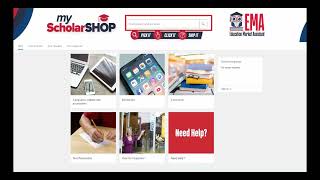
When the page loads, you will be asked to confirm your physical address since this is where your MY Scholarship purchases will be shipped. Once your address is confirmed, you may select the black button at the bottom of the page that reads Enter My Scholarship. You will then be redirected to the My Scholarship homepage where you may be asked to read and acknowledge the privacy statement. Please review, then select OK to continue. You are now ready to shop for a whole host of pre approved items for your scholarship student. There are a few ways you can search for items you need, the first of which is to use the search box and manually type in the item you need like computer or mouse. Next we have guided buying tiles with images displayed of types of products that are grouped into categories. An example of this would be Computers, Electronics, Curriculum and Instructional Material. Those are broken down further into subtitles like iPads and tablets. Lastly, you can access items from your purchase history from the homepage. Once you have located an item, you can refine your search results on the left side of the screen by supplier, manufacturer, category, keyword, and even price. When you are ready to purchase, hover over the item and select Add to Cart. When you are ready to check out and to complete your purchase, please select the cart icon in the upper right corner of the screen and select the blue checkout button to continue. The checkout screen allows you to review all of the items in your cart. You will also see a few buttons at the bottom of the page. You have the option of saving the items in your cart for later completion. Continue shopping. If you aren't done. You can select Validate to ensure you have enough funds available for your purchase and lastly you can select to send the request to complete your purchase. Upon selecting Send Request, the purchase details go to an approver within Step up for Students. Not to worry, this process allows the approver to review or confirm any restrictions or limitations on the items in your purchase. There are time specific rules or limitations that apply to the purchase of some digital devices as well as items purchased in duplicate. It is easy to track your approval process from the left side of the homepage. You can select your request and approved request. You can view the specific item requested and the detailed status such as Approved or denied along with summary reason.
Should you have questions, you may contact us using the chat feature on our website or by calling our Service center at 877-735-7837. Thank you for your time today and for choosing Step up for Students.