A walkthrough of MyScholarShop, the marketplace inside the EMA portal where parents buy items for students. Your home address must be confirmed in EMMA first (takes up to 48 hours), and purchases over your balance get blocked. Log out after shopping to prevent unauthorized purchases and to switch students.
Questions this video answers
Up to 48 hours.
1-877-735-7837.
Chapters
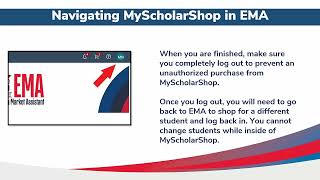
Welcome to Navigating My Scholarship in emma. Before we begin, parents and guardians will not see the Marketplace tab appear until their students have been initially funded. To access my Scholarship for newly funded students, click Marketplace in your EMA Profile Renewal FBSUA students can continue to access my Scholarship through the Legacy site. On this page you will select my Scholarship. A pop up will prompt you to select a student and program you are shopping for. This is great if you have another student on a different ESA as my Scholarship will only load the pre approved store associated with the student selected. The first time you access my scholarship, you will be asked to acknowledge and agree to the privacy statement. This is the landing page of my Scholarship. Here you will see updates about the program and be able to shop for your student. You can search for items like a regular online store and find items for your student. There are two ways to add items to your cart. First, in the search results there is a quick add button for each item in the results or secondly, you may also open the details for the item and add it to your cart. From there, as you shop, items will appear in your shopping cart for checkout later. Before you check out, please double check that the address is your home address which is found in emma. If you have changed addresses, you will need to go to EMMA and update your address there. Now note it may take up to 48 hours for your address to update in my Scholarship. After you're updated in emma. Once you are all finished shopping, you may save the cart or go ahead and submit it for purchase. If your purchase exceeds your available balance, this error will populate preventing you from completing the order. In this instance, you may adjust your cart or save it for the next quarter when your next deposit arrives. When you are finished, make sure you completely log out to prevent an unauthorized purchase from my Scholarship. Once you log out, you will need to go back to EMMA to shop for a different student and log back in. You cannot change students while inside of my Scholarship. If you need assistance with anything in my Scholarship, scroll to the bottom of the page to find these helpful links. Now let's go over the steps on how to view your order. You're going to first access my Scholarship from your EMA portal. Then you'll open your request by selecting the your Request tab or see all under Recent Requests. If you do not see the desired request, update the filters at the top of the screen and click on the magnifying glass icon to find the desired request. Then click on the purchase order number to view details for that order. There will be a separate purchase order listed for each vendor included in the request. The top of the screen will display the status of the order, including whether the vendor has confirmed the order and, if provided, whether the item has shipped. Note that not all vendors provide shipping information. Further down on the page you will see a section for related Documents. You can click on the applicable document ID to open and view additional information related to the order. Confirmation and Shipping Information the confirmation notice will display the number of items in the order that the vendor has confirmed or rejected. When included, the ship notice includes information such as the expected shipment date, carrier and tracking number if it is available. If you need assistance, you may contact us by email, chat, or call us at 1-877-735-7837.