Walkthrough of the new Speaker Presentation Timer App created specifically for Professional Speakers
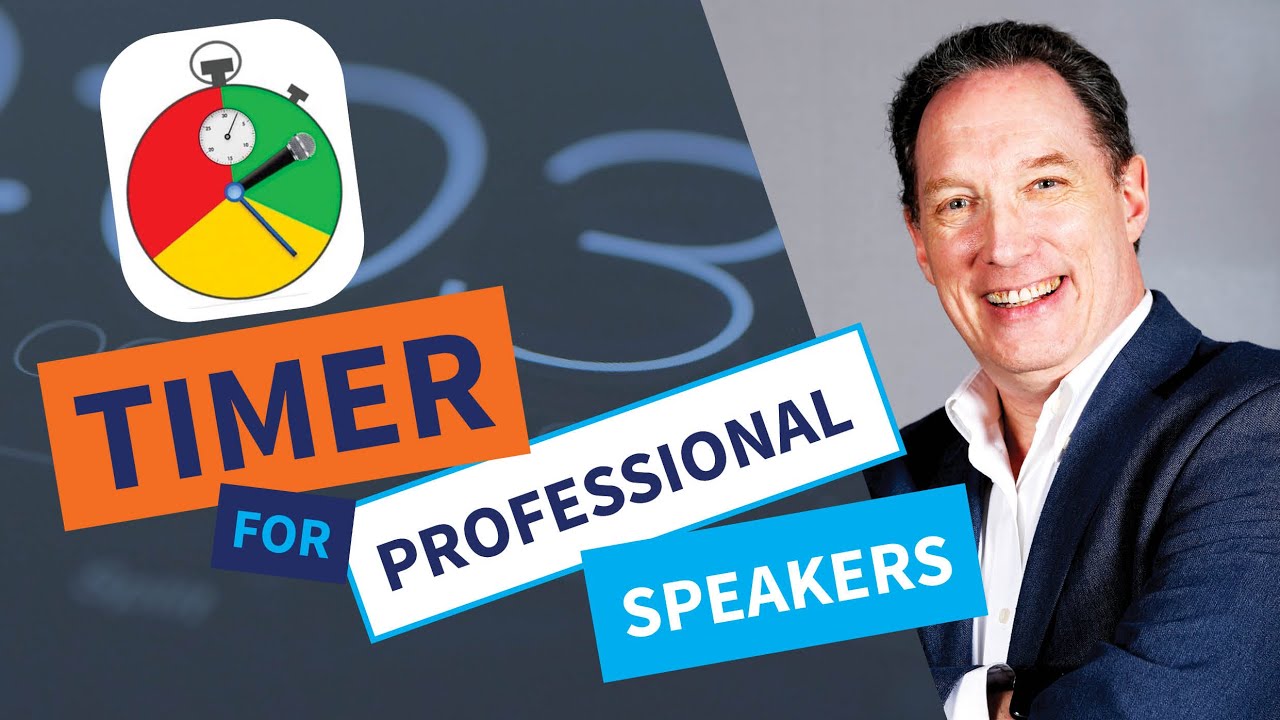
Marc Haine demos his Speaker Presentation Timer app, built to help speakers stay on time without breaking eye contact with the audience. The free version lets you divide speeches into timed sections with color cues and alarms; the Pro version ($14.99 iOS, $12.99 Android) adds Apple Watch sync. Download from the App Store or Google Play.
Chapters
Hello! Good afternoon! My name is Marc Haine and I am coming— decided to do a Facebook Live. And I did it, decided to do a Facebook Live specifically because I've been getting a lot of calls about my brand new speaker presentation app that I created for professional speakers, or for people who want to do professional presentations. You see, one of the challenges that I had when I would watch a conference is I would watch this really dynamic speaker on the stage doing a wonderful job of serving the audience. And then, at some point about 2/3 of the way through the presentation, they'd say, hey, how much time do I have left? Oh good! Or they'd say, you know, I don't know if I have enough time to do this. But do I? Oh, oh, thank you so much! And what happens, I feel, is that this breaks the momentum with the audience. I believe that when I get up to speak in front of a group, I am there to serve them. My job is to be of service to them. And then, what I find out is that when somebody pulls themselves out of that service mode by saying, oh, I'd love to show you this but I don't think I'll have time. Or, oh, I better hurry up because I'm running out of time. Every time they do that, or they call out and they say, hey, how much time do I have left? You might as well take a punch clock and say, oh, I got 5 minutes left. Then, I punch out and then I'm done. When we act on stage in live performances, there's this theory called a fourth wall. When you're on a stage, you have a wall on this side. You have a wall on that side. And you have the wall behind you. Those are the 3 walls. The 4th wall is the imaginary wall between you and your audience. And I find that whenever we step up and say, how much time do I have? We're breaking that wall because we're no longer being of service to the audience. We are now telling the audience, I'm here to do a job and my time is almost over. And so, I looked at some of the reasons why this happened. And one of the reasons is because we have so many. And thank you, Patricia. Yeah, Patricia says, yes, be in service to the audience. That's why we do what we do. Thank you very much for sharing that. And when we do that, when we break that wall, I think we do a disservice to the audience. And so, I decided that I would do something about that. And I kept watching, trying to figure out why this is happening. I would see that they would occasionally break the wall by leaning over to the lectern to look at their clock. Or they're staring at a confidence monitor. Or they just lost all timing for their presentation. And so, when I talked to some speakers, I tried to figure out why this was happening, trying to look at the behavior behind it. And so, that was the impetus for me to create this new app. So, I created this new speaker presentation timer specifically designed to alleviate some of the challenges that we have as speakers. And that is that sometimes we have our set time is defined for us. So, we might get up and have to do a 60-minute keynote. But then somebody comes to us. The event planner comes to us and says, oh, you know what? The politician went 15 minutes too long. Can you please shrink your presentation? And sometimes that throws us. Sometimes we get carried away in a story. And because we got carried away with the story, we now have lost time. Sometimes we will say, hey, any questions from the audience? And we will take more time than what was allotted. And so, the The Speaker Timer was designed to create and conquer some of these issues. Now, I have created a website and it's so it's going to come out. It's on the bottom of the ticker. I created a website that you could go to. I have both Android and an Apple version of this app. And they're both free, just so you know. There is a professional version and I will tell you what, when we do the walkthrough, I'll tell you what is the professional-level perks to the app. But for $14.99, you get the professional-level app for $14.99 on Apple and $12.99 on Android. The difference between the 2 versions is on the Apple version, your Apple Watch will work and it'll sync to your Apple Watch. So, you can use it to help time you out that way. So, why don't we get into it? I will share my iPhone. That is my daughter and me getting— being silly. I will open up the Speech Timer app. So, when you open up the Speech Timer app, you will get a splash screen and then you get the presentation screen. So, as you can see, I have 4 different speeches timed out. Now, on the free app, I believe you can only have 2 speeches Sorry, you only have one speech that you can save at a time. So, every time you want to redo it, you can modify the same speech or you can go in and delete it and create a new one. One of the things with the screen here is if you swipe to the left on any of the titles, you have the ability to delete it. You can copy it or you can lock it in place. So, if I decide to lock it, Now, I cannot delete it. The delete button goes away. This is not— I'm not going to lose this. So yes, and it does work on the iWatch. So, it syncs with the Apple version. Syncs with the iWatch so you can have your watch vibrate or ding. Well, when you're doing a live presentation, it vibrates and that's what makes it so different. So, we go into it. And so, as we go into one, so I'm going to go into the Power of Acting Silly just to show you how I define stuff. And so, part of the challenge with putting together a speech is sometimes you're not necessarily going to rehearse the whole speech all at one time. Sometimes, you just want to work on a story. You want to hone the story. I have an elephant story that I tell in one of my speeches. And I can make it go 3 minutes. I can make it go 15 minutes. Part of what I want to do is when I'm getting ready for my audience, I want to make sure that I allot the time to it. And be able to stay tough to it. And so, this section I can now divide my speech into all the different sections that I want. Being able to divide your sections helps stay organized. And I'll show you a cute little thing that happens because you have it segregated that if you do want to use the visual component of the alarm system here, you can do that. And it works swimmingly well because it turns colors and does all sorts of funky things. So, being able to test out certain stories, test out certain segments of your speech, and practice that, the sections allow you to do that. So for instance, if I just wanted to do out the test case, I can press the test case. I can hit play and I can time out my test case. Nice and simple. So, but I'm jumping ahead because what I want to do with you is I want to actually take you through creating a whole new speech. So, what I'm going to do is I'm going to hit the plus button. Now, you see if you have the Apple version, you will have the watch on the top icon there. And that is to sync. And that tells you it syncs to your iWatch. Okay? So, it syncs all your speeches. If you hit the plus button, you create a new presentation. So here, I'm going to name your speech. We're going to talk it Let's see. Patricia's on. Let's call it— oh, here we go. I'm going to call it Ode to Patricia, a beautiful— oops, I misspelled ode. There we go. My thumb's getting away. Okay, so I'm calling it Ode to Patricia. Now, you'll see that it defaults automatically. All the speeches set up defaults to 30 minutes. And then, it also defaults to the different alarm settings. So, every one of the speeches can have a 5-minute alarm. So, 5 minutes out. So, if you say it's a 60-minute speech, at 55 minutes, I'm going to get a green display. I'm going to get at 2 minutes out, I'm going to get yellow. And then, I'm going to get a red screen at zero. So, if I click the 30 minutes, it'll open up a window on its own. And I can reconfigure this speech. I can take it and I could say, you know what? This is going to be a 15-minute speech. Because as wonderful as Patricia is, I'm afraid that I cannot do her justice because she is one of a kind. Anyway, so there we go. So, I can do 15 minutes. Now, the other thing I can do is I can define the kinds of alarms I want. So on this, I have an audio alarm and I have a vibrate alarm. And then, I have the color codes. And so, the audio alarms are really good for when you're practicing. Because as you get into it, it'll ting out for you. And as you practice it, it'll ding out and you get to choose the alarm that you want. So, you have a blip. You have a chime. And you have a system. And you could choose any one of those. I would not use the audio alarm when I'm speaking. When I'm actually giving the presentation because that's the last thing I want the audience to hear. So, I would turn this off. The other thing that it has is it has a vibrate alarm. So, as a user, you can have your phone inside your pocket and it will vibrate for every section that you go to. Now, they're not different. They don't— they're not defined differently, the vibrations. But once you practice your speech and you feel it go off, you know, okay, it's time for me to move on to my next section. So, I like to leave the vibration on. And just for the heck of it, I keep the color on. I can have it on a lectern. I can have it in my pocket. It won't make a difference because I'm really counting on the vibration alert in my pocket. So, that is the section right there. And so now, I've defined my Ode to Patricia speech right there. And now, I can come in and I can say, you know what? Now, I want to add sections. And so, I want to put in a section. I want to say in my section, I want to do an intro. And my intro is going to be my power opening statement. Of course, as professional speakers, we hit the stage. First thing out of our mouth is going to be that power opening phrase and story, whatever. So, let's say that is a 2-minute section. Oops, 2 minutes, right? And again, I want to turn the audio alarm off because I want to deliver my speech. And I can change my visual color to anything that I want to do. So, I want to turn it. I'm going to do purple and change it to purple. And then, I can add another section. I can go ahead, add another section. So, this one is going to be how we met. I met Patricia when I was in Toastmasters and I was at a conference. And I was so excited about learning how to speak in public that I went up to Patricia, who was one of our speakers talking about adding humor to our speeches. And I went up to her very shyly. And this is— I've never done anything like this before in my life. And I said, Patricia, could I record your presentation? I'm really interested in learning to get better. Can I please record it? And she was so awesome. Right away, she knew where I was at. And she said, no problem as long as you promise me that I get a copy. And so, that's how I met Patricia. It was awesome. And so, I'm going to turn off the audio alarm on that. And so, as you can— oops, sorry. I pressed the wrong button. So, as you can see, now we have 2 sections and we can keep on going. We're now timed out at 7 minutes. If I want to, I can hit the Rehearse Section button and it will just time me out from one section to the next. That's all it's going to do. It won't take me through the full 15 minutes. So now, what's interesting about this is as you go back, you can see that you have Ode to Patricia on the second line. And again, if you click on it or sorry, if you hold it, Sorry, I was on a different tangent. Sorry about that. So, we open. We see that it's a 15-minute speech. We have 2 sections defined. We could talk. We could add another section. Go back into it. I'm just going to add a couple more sections here just to do up my 15 minutes. I want to do another one on Patricia was nice enough to billet me when I came and visited Fast Track Calgary Caps. And she was wonderful. And she hosted me in her house. So, I can talk about that. Again, I'm going to turn off my audio alarm because I'm not really into getting the audio alarm. I can say this, change my color on this one to green. I would probably caution green, yellow, red. Keep those for the end. But what the heck? And then, I'm going to put in my very last section here. And I'm going to say, this is going to be my conclusion. And I'm going to put this in for the remainder of the time, which by my math should be 3 minutes if I'm correct. I guess we will see in a second. So, you'll see on the very bottom, it says Presentation Time. And if we go over, if I put in 4 minutes, it will turn that red to say, hey, you're over. By a certain number of minutes. So, we have right under where it says Rehearse Sections, we have 15 minutes all sectioned out. It's wonderful and great. The speaking time's on the very bottom. And now, I can go ahead and I can say, go ahead and let's time it. So now, I could start my presentation. I come out. I do my power thing. You'll notice that the small one on the bottom is timing out. That is my section timer. And so, it says, my very next speech or section is how we met. So, it's just a little inkling, just a little tone there of being able to give you a hint on where you are in your speech. Because I'm going to be having this on my watch and not have the phone in front of me, the vibration is really where it's going to help me the most. You'll notice on your main speech, you got the black notches taken out of the circle. Those are each of the sections predefined. And thank you so much, Patricia. The world knows how much I love you, Patricia. And the one thing I appreciate about Patricia, you Patricia as well, is the fact that you model everything that's best in the professional speaking environment. Thank you. So, the level of generosity and everything that you do, your humor, Everything, the sharing, everything. And I just love it. Love you to death. So, as I go through this now, you see the sections coming down to 51 seconds, 49, right? And so, it's telling me and it'll vibrate when I'm out of time. And so now, I can keep on track. If I get a little bit off track, the vibration tells me, okay, it's time to hurry up a little bit. And so, by using this, we can make sure that we stay on track and on time with what we hope to deliver. And if we do get off track, it's then simple to say, you know what? Maybe I need to skip over this next story. Or maybe I need to skip over this other point in order to stay on track. As opposed to turning around and going, oh, I have one more. Oh, you know what? I wish I had a little more time because I had something else to tell you. Which is like the craziest thing you could tell an audience, I think anyway. So now, my phone is happily vibrating. It's turned purple, you see. And it's going down to 2 seconds. And now, my next section, Living with Patricia pops in. So, it's designed specifically for us to be able to stay on top. Now, something happens every once in a while. Every once in a while. It's probably so rare that people never notice it. But just in case it ever happens, somewhere along the way, you're in your presentation And the event planner comes and says, I know I had you for 60 minutes. Can you please take it down to 30? And of course, your heart starts palpitating and you start sweating going, oh my God! What am I going to do? Well, both on the watch and on the iPhone, if you click the bottom speaking time at the very bottom, let me get out of the way. At the very bottom, you can click that speaking time, the edit button. And you can say, you know what? I'm going to bring my speech down to a certain time. And I'm going to confirm it. And what it will automatically do, it will automatically adjust all your times except for the 5, 2, and 0 time alarm. It will adjust all your timing down by the percentage. So sometimes, it'll knock you. For instance, if you had 2-minute intro, it'll knock that down by the percentage of time. So in this case, because I knocked it down by half, it'll knock my intro down to from 2 minutes down to 1 minute. Again, this is to allow us to stay on time. It allows us. It gives us the opportunity to turn around and say, okay, I need to make adjustments. So, my intro is going to buzz in my pocket or on my watch at 1 minute. I know I have a couple more things I can do. But I can adjust. And you don't have to sweat it. You don't have to go back into the app and reprogram everything. You can if you want, if you have time. But you don't have to. And it'll retime everything for you. And again, that was done as a service to the speakers because I know as rare as it is that somebody would ever come to tell you, oh, we have to cut your time short because I'm sure it absolutely never hardly ever happens. I wanted to be able to provide that for you as well. So, that's a very quick walkthrough of the Speaker Timer app. Again, it is a free download from both the Android and from the Apple Store. If you want to get more functionality for it, so Some of the functionalities between the Lite and the Pro version is that in the Lite version, you can only have 3. You have the 3, 5, 2, and 0. You can only define 2 other sections in it. With the Pro, you can put as many sections as you want, as many times as you want. With the Pro, you can sync it to your Apple Watch. With the Lite one, unfortunately, you can't. And then, the number of presentations you can have is limited to 1 or 2. I cannot remember for the life of me. It's one of those things like writing a book. You start so far along and then at some point, you turn around and go, I can't remember that I even wrote that. So, there are some limitations to it. And the idea here is that you can test it out. You can see if you like it. And then, for like under $15, you can have an app that you can use not only to help you write your speeches, to segment your speeches, but practice sections within your speech. And then, take whatever prompts you want whether you're going to have your phone on the lectern with the visual cues, whether you have it on your watch or in your pocket to do vibration cues, or if you want the ding-dings and whatnot, you can have that as well. So, that is the walkthrough for my Presentation app. Again, you can go to the website which is— oh, I have to dodge my thing— which is Speaker Presentation App. I can show you the website. I thought I could show you the website. Oh, I didn't have it ready. Anyway, it's speakerpresentationtimer.com. There's a link there. It talks a little bit more about the fourth wall concept. And it allows you to scroll through it, see why I designed it the way I did. And then, clicking either the Android or the Apple link will take you to the respective stores so you can download it for free and give it a try. I hope that helps. I hope it's of service to you. I hope you find it to be a benefit. If you have any questions or comments about it, please feel free to reach out to me. You can reach out through info@presentation-speaker.com, speaker-presentation-timer.com, or you can email me directly, marc@marchaine.com. It's my absolute pleasure to do this. And thank you so much for tuning in. Patricia, thank you for being on my call. It's so nice to have you here. And I adore you. And thank you very much. And please, Feel free to share this post with everybody that you know. Do I want to sell something? Yeah, you know, it'd be nice to be able to do some sort of cost recovery on the development of this sucker. Talk to you soon. Thank you very much. And again, dare to be the exception.