How to verify your website domain in Facebook Business Settings so you can run ads. Navigate to Brand Safety, add your domain, use DNS verification by adding a TXT record through your domain host, then connect it to your Facebook Page.
Chapters
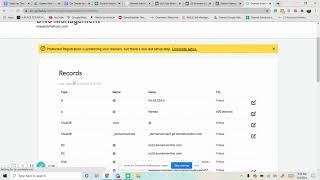
Hey there everyone. I know it's been really weird with now that Facebook and Apple gone at it. And so they make it so you have to verify your domain every single time you want to use the pixel. And so I just wanted to go through all this and kind of make it easier for you to understand this. And so I am right now in business settings and we got our domain brand safety. If you scroll down to the bottom domains here, you could add all the domains. Add it. All you have to do is just put in there whatever domain it is, press that and they'll look like this. There's instructions to do it. I think the easiest one is the first one, DNS verification. And so this will require you to go into where you have it. Here person has Uncle Daddy, so this is their domain and we want to go to their DNS. And of course this will be a little different for every single platform. But got this. And now we want to set up a record. So this was pretty simple already. Set it up. You add, select this one. We want text. The host is the sign, the text value you want to copy to clipboard this exact thing, put it in there, save, and then from there you just come back and press the verify button. I refresh it every single time. After I put it in there, I come back. It probably won't work. The first time I refresh it, come back, verify. I come in here and once you have it, it's going to look like this. You want to make sure you actually connect it to the right page. You add the asset and put it to the right Facebook page. So you can do that. And that's it for verifying the domain.