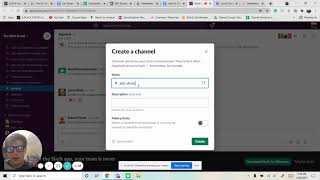
A brief spoken YouTube tutorial (by Nate Tilley) that demonstrates how to create a private Slack channel: navigate to the correct Slack workspace, click "Add channels" to create a new channel, name it using a pattern (example: "Ads - Steve - Immaculate"), set the channel to private, then create it and add members.
Chapters
We have a document right here, how to create a private Slack channel. Make sure you go to the Slack channel Slack account or ship Social Slack account. Click on that. It's going to redirect you launching there. And then we are going to create the private channel for them. You're going to scroll down until you hit this. Add channels. Click on that and create a new channel. From there we are going to name it Ads. We do a spacebar. It's automatically going to do that little hyphen. And then we're going to do the client's name. So say his name is Steve. And then his business name. We already have this of immaculate. It's one of those used cards is the name we're going to always make private. And then we're going to hit the Create button. And then from there you would add. And that'd be perfect.