A practical, step-by-step YouTube tutorial showing how to build a personal booking page (a "calendar funnel") by importing a template, customizing the page, selecting a Google-linked calendar, optionally attaching a qualification form, and connecting post-booking actions to a CRM. The presenter emphasizes this as an inexpensive alternative to services like Calendly and demonstrates domain setup (custom domain, Facebook pixel) and calendar/redirect settings.
Chapters
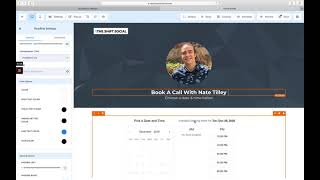
Hey guys, what's up? So I'm going to be showing you how to create yourself a little calendar funnel. This is going to be pretty sweet here. Super easy. Boom. Boom. Alright, so we're going to import the funnel template into our account here and then we're just going to click edit page. And this is completely customized by the way, completely customizable. I'm just going to go over this quick, but show exactly how I set this up. Get me. Boom. Get my logo. This is really nice. So you don't have to use Calendly and then you can link it with the same domain name that you're already using for, for your other business stuff. And then that opens up just a lot of different opportunities to be able to skip out on software costs that you might pay from calendar booking sites like Calendly. Or there's. What's the other one? Ical. There's. There's a lot that like chiropractors and stuff use. But if you're just starting out, if you're a solopreneur or something like that, you just need to be able to throw up a quick little book a call page. The software is super inexpensive to use. As you see, it's shiftsocial.com. so yeah, super, super, super easy. Then I'm just going to edit the stuff and I'm going to make sure that this is the right calendar that I want. See, I've got several calendars here. I'm gonna make sure it's the book a call with me one because this is like my general calendar and it ties in with my Google calendar and everything like that. And that's just for an extra little flare. Put a little bubble or box or something around me circle and you can adjust all this, change the colors and all that jazz. Another thing you can do is you can attach a form to the calendar that will ask them some qualifying questions once they click on the button. But for now this is all I'm going to need. You save this. This is what's going to come up in the search. And then I could put a picture right here if I wanted, but I don't need to. Actually. We better put a picture. Pause this while it loads. Alright. And I just added an image of an arrow. Super simple. Save this and add a description and all that. I'm not gonna do that right now. Then I'm gonna go back and I'm gonna just do the thank you page real quick. Actually, you know what, we're not even gonna do a thank you page, because when they book in the calendar, I can just have the calendar send them a message. So I'm gonna hop back in here real quick, and then as I click here, it says, redirect action, use calendar. Use action from Calendar Builder. So in my calendar builder, I get to set a. I get to set the message that comes in after they book. And so it'll just send them the message and then it'll feed into my CRM and start my appointment reminders and all of that. So the only other thing that I need to make sure is that now I have my domain set up. So I'm just going to go to Settings, select a domain, and just pick one of the domains I want to use here, Shift social, book with me. And this is where you put your Facebook pixel. And that is all I need there. So now I've got my. Okay, wait for this to load. Okay, now I've got my domain name here. Settings, book a call. Let's see if that'll work. Okay, nice. So now I have this link and I'll take it and I'll put it right here. And now when people want to book appointments with me, I'll send them right here. Boom.