This content was created by Nate Tilley. This content was uploaded by Nate Tilley. This is a YouTube video titled "How To Send Ad Drafts To The Client" created on November 30, 2021. It provides a step-by-step guide on how to send ad drafts to a client using Facebook and Google Drive, including taking screenshots of ads and sharing them via Slack.
Chapters
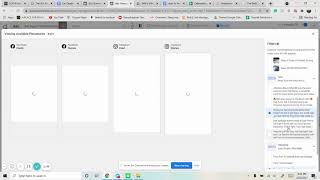
Okay, this is going to show how to send address to the client. So first we're going to go to business.facebook.com and we're going to make sure that we go to the correct ad account. So usually going to be in shift digital and we're going to go to the account that we want that we're saying this to. We're going to click on it and we want to go to the ads level. We're going to go to click edit. And now you're going to be at the ad level with the ads. We want to take pictures of all of the copy. So we take pictures and I do it through all. If we have all five, we're going to do that. And then we take pictures of all the headlines and descriptions. You get them in one. Perfect. Then we're going to go to view more variations. And now this is where you're going to pretty much go in order right there. Take a screenshot. I do the first one of all of it and then the second one come down. I go for the second one, second one. And then I just do Facebook feed. Third one, third one, third one. We have any call to actions down here. We'll do that. And then we'll just take. Don't ever press that. See more button. We'll just take pictures of that. So you do 4, 4, 4 screenshot. 5, 5, 5 screenshot. And then the sixth one is just random. I just want to show like we'll do a two, maybe four, and then we'll just choose eight or nine. And then you take one more. Okay, all those screenshots. Now you have all the screenshots. Next step, going to the Google Drive. I have a Google Drive pulled up here. Okay, we want to go to the right Google Drive client. Go to the address and we just want to drag and drop them depending on what you have. Copy them in there. I know this is not the exact same, but get that. Just give me that trash. Once they're all in there, go to address, get link. Make sure to copy the link. Make sure this is on viewer. Anyone with the link is a viewer copy link. Done. Once you copy it, you're going to go to the slack channel. We're just going down. Go to the slack channel right here. As it reloads, you're going to take this exact message. Copy that, put it in there. Fill out the actual first name of the client. So we'll say Steve. Same here, Steve. Address are complete. Attached is a Google Drive. And then here's where go to go drive. I just copied that. So we'll copy it one more time, paste it, send that, and then like we do, we wait until they approve them, and then that is all you have to do.