In this tutorial, Nathan Miller demonstrates a step‑by‑step workflow for building e‑commerce landing pages—specifically comparables, advertorials, or listicles—in under 30 minutes using AI. He starts by setting up a blank page in a page‑builder (GenPages, Replo, or PageFly) and adds a custom HTML section. He then connects Claude to the TrendTrack MCP, uses TrendTrack to locate high‑performing reference landing pages, and copies the URL of the chosen page. Nathan crafts a prompt for Claude that instructs it to generate full HTML for a comparable page, swapping in the target product (a magnesium supplement for women), preserving brand typography, colors, and linking all CTA buttons to the product page. Claude returns the HTML, which initially lacks images. Nathan uploads the required hero and product images to Shopify Files, copies their URLs, and feeds them back to Claude to embed in the code. After pasting the completed HTML into the page builder, he checks desktop and mobile rendering, uses the GoFullPage extension to capture screenshots, and prompts Claude to fix mobile layout issues. He also removes default header/footer elements, verifies that CTA links work, and adds an FDA disclaimer. The video emphasizes iterative prompting, the importance of accurate image linking, and how the same Claude setup can be reused to spin up additional landing pages quickly.
Chapters
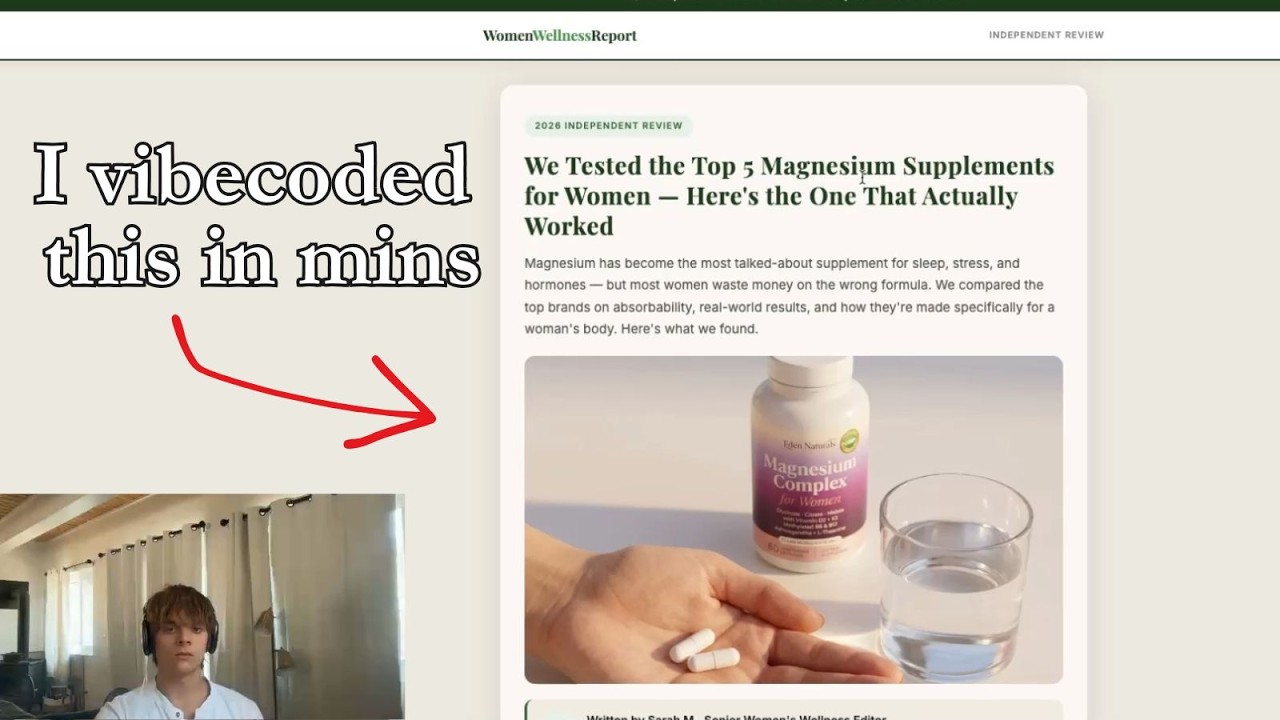
What's going on, guys? So today we're going to be talking about how to vibe code a landing page in minutes, right? So this should take literally no time. It's not going to be a long video for you guys, but it's a very important video. And obviously the involvement of AI and the involvement of Claude and these MCPs and everything has gotten to a crazy, crazy point, and it's going to continue to grow. So it's important for you guys to keep up. And to understand the methods on how to do things even quicker, more efficient, and more successful, right? So I'm going to be showing you guys how to literally go from no landing page, which when I say landing page, I'm talking about a comparacle, an advertorial, or a listicle. Those are the three I'm going to be focusing on today. And I'm not going to be talking about which ones you should pick, but just how to create it. It's simply just how to create it with AI. So first things first, you need to have Claude TrendTrack and probably GenPages open. This is going to be what I use. You can use other things to set up GenPages, like you can use PageFly. I'm sure you can use Replo and stuff, anything that basically lets you go in and has a section or an element that's just HTML, right? Because that's how we're going to be— these custom code things down here. That's pretty much all you need. So we're going to be taking this magnesium complex product, right? And we're going to try to find and try to build a really sick and dope landing page for you guys. So let's get into it. So first things first is we actually need to create a new page on whatever it is that you're going to be using. So Replo, PageFly, GenPages, whatever. I've just used— I'm a GenPage advocate. I've heard Replo's a little faster, but you know, I'm just— I'm a GenPages guy. Like, I'm just— I'm a GenPages guy. So first things first we need to create a new page. So we're going to start from scratch and just click a landing page and then create a blank landing page. I want to make sure it's blank. And then the only section you need to add into it is this. Okay, boom. Then we got our custom code and we're ready to go. So now is where we actually have to get the code to build a page, right? So for this product specifically, um, we were doing, I think, the Magnesium product, right? This is the product we were, we were testing. From here, basically the only other thing we need to put in this document is a link to a landing page that you want to replicate. So the way we're going to find this is actually by using something that is the TrendTrack MCP. So I use this very often. It's very easy to do. You just go into TrendTrack. I believe you go down into API in here, and then you kind of, you have your API key and everything in here and you connect to the cloud. It's pretty easy. Um, as you guys can see, I've had it connected since June. So very, very important, very easy to use. And then basically once you have this connected to your Claude account, Claude can now use all of the data from TrendTrack. So it can go through and find the top landing pages, right? The top whatever you need basically for your brand. So usually what I'm going to do is I'm just going to put in the product link. Now we got 5 pages here, so I'm going to go through and open up every single one of these. Right. And then we're going to look at them, see if they make sense, because obviously ours is for women. So we want to make sure that actually applies to women. Right. Okay. So I look through all 3 of these. This is the one I like by far the most. Magnesium itself is a very sophisticated market. And so this where it's a basically a— it's not even a listicle really. It's a kind of like a comparable., that compares, right, all of these products versus their hero product, which is going to be this one, right? And so this one I think would work really well. I looked through these other ones, didn't really like them. Like this one is all text as well. I don't think that's really that great either. So we are going to be going with this one, obviously. Um, and that's basically it. So first things you got to do is just copy and paste it. Um, simple thing you got to do here is copy and paste it in, and then we can just create a prompt like this. And I could make a super fancy 20-page prompt for you guys. It's really not that complicated. Um, the thing is with these listicles, it's going to take some back and forth. So I don't really like doing one prompt because then it makes you expect that the outcome it's going to have is going to be perfect. It's probably never going to be perfect, so you're going to have to iterate a little bit on it. So let's go through and give Claude our prompt. Okay, so I just put in this prompt and I basically said, okay, Claude, I want you to create this full comparable. Uh, I want you to replace our product with the one that has a 9.8 rating, obviously. And then kind of gave it some context about who's buying our product, which is women, you know, looking for magnesium. If you have like a specific angle or avatar that's working, even better. Make sure that's on there. And then I basically just told it to reference our product page for typography, for colors and design. Now it's actually going out building out the HTML for this that we can directly put in. And then also one thing that you need to put in is make sure that all the buttons that it's going to be creating on this page link to your actual product page. Okay guys, so we just got the first iteration of our actual page. So let's go through and look here. And as you guys can see, it looks pretty clean and it has all these sliders, right? The pros and cons. I'm not going to go through the copy one by one and make sure it's perfect because for the sake of the video, we're just kind of looking through here, um, and then it has this link to shop, you know, Eda Naturals, right? So the only thing that you guys see is going to be missing here are going to be these images, right? So, okay guys, so if you guys notice on this landing page, there's not any images, right? So we need to fix that because there's supposed to be a hero image right here. There's supposed to be obviously product images for all of these, um, and it's just not there. And so what you do is you have to go through and find the links to all these images. And so basically what I did is I went through and I looked up you know, all the different products we had in the editorial or the comparable and basically put them into Shopify. And then you go to File, you go to Content, then you go to Files and you can go over here, copy the link. And this is the link that it can put into the code. So when you actually populate this page into whatever it is, what Gen Pages, whatever, and then, you know, publish it live, the photos will actually show up instead of there not being any, right? And so that's simply how you do it. You just gotta go to files, either find the photos in here or add them, and then copy the links and give them to Claude. So if you go to Claude, I put in all the links. So I gave it my hero image, our product image, the second, third, fourth, et cetera. Right. And then I just kind of told it, use the Shopify links for what we need to actually use and, um, complete the landing page. So we're going to give it to it now. Okay. So now it's finished. So we're ready to actually go ahead. And copy what's in here, and we're going to simply just paste it into our Gen Pages, right? And then apply. And then as you guys can see here, right, you have a pretty solid looking page. Got all of the things you need in here. It's got the images now. So yeah, this is basically all you guys really need to do. Um, if you want to verify that it's always good on mobile as well, you know, it looks on a mobile. So for example, what I would do here is I'd probably go back and Show it, actually give it a screenshot of mobile view. Okay. So there's a few things we need to fix here. So obviously the formatting looks a bit weird on this view. Like it's just super, super wide, right? So what I'm going to do is I'm going to take a screenshot with GoFullPage. It's a very easy to use and a very useful tool for e-com. It's just like a Google extension. Go look at it, download the PDF, right? And so now we have a whole PDF file of our GoFullPage. I'm just going to give that to Claude real quick and I'm going to go back. And I'm gonna do the same thing, um, but for mobile view here. So mobile view looks a bit better, but there's a few things that I want to actually, um, make sure is good. Okay, so now I just kind of gave Claude a little prompt and just gonna put it in and Claude's gonna make an iteration. It's gonna fix some things and then we're gonna spit out a good copy. So while it's doing this, I actually want to fix one more thing. As you guys know, these pages are not supposed to have— footers are okay, but they're not supposed to have all this up top because then it doesn't look like, like an actual page. Like it look like a, a real article. So how do we fix that? Super easy. Click on the option that says header and footer and uncheck both of these. So now there won't be a header, there won't be a footer on it. So it actually looks like a real article. So if we hit a quick refresh just to show you guys, now it got rid of all of that. And then one more thing we need to check is does this link actually work? And if you guys click on it, it does. Like, it goes straight to my product page, which is perfect. And that's because we gave it our actual product page link earlier and made sure that it actually used it. Okay, so finally just fixed it. For some reason, Claude, you know, whatever, you're going to have to do a couple iterations usually. And I fixed the first time I thought, and it wasn't fixed. So now we actually fixed it. I simply just told Claude what was wrong, gave it the landing page, like the actual link to this page, and then it fixed it. And now you guys can see you have a solid pre or solid landing page here. Goes to our product page. That's perfect. Um, even has like a disclaimer down here. And also it's always good to put like FDA disclaimers in your stuff just so you're not liable for certain things. Um, but yeah, that's how you can create a landing page. This took me like about probably like 30 minutes just to create this one. But the thing is, once you guys have whatever this Claude Chat, now you guys can use it to replicate this. It's gonna be way faster. It's not gonna run into as many issues, right? And it's going to know, you know, your products. It's going to know the product images you already have. So if I wanted to create another one that was like maybe a top 3 or like a similar landing page, I could make it literally within like minutes, which is super cool. This is how we do it. So hopefully you guys learned something, and that's how you can make landing pages with AI. Pretty cool stuff.