A live demo by Pete Ericson showing two example digital publications (T Journey and Berkeley Science Review). He demonstrates a metered paywall (free articles until the meter is exhausted, then a subscription pitch), native mobile app behavior (issue and article listing, device pairing via subscription token, offline downloads, font size, push notifications), subscription device limits (typical default ≈ five devices), and WordPress-based content/ad/menu management. The web-issue example emphasizes discoverability (Google/social) and flexible WordPress themes.
Chapters
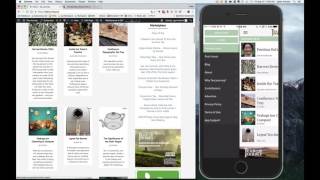
So let's now let's go to the live portion here. We'll look at a couple of publications. We'll look at T Journey, which is a new publication that goes after the high end, the top 7% of the tea drinking market. They have everything going. They have a metered paywall running, they have issues running and they have apps running. And then we'll take a little closer look at web issues with the Berkeley Science Review. Okay, so let me, let me do this. Okay, so here's T Journey. This is their current issue, 2016 Harvest Review issue. And when I click into an article, let's say I'm a first time visitor and I click into an article, it's going to give that entire article to me for free. So these are pretty long articles, they have lots of pictures, they're really beautiful pieces. And I think they're giving away three or four articles. And once I've exhausted the meter and I click the article, that takes me past my free meter, I get the pitch to subscribe. So I get this box here and it says subscriber login. You can put all sorts of nice sales copy in here. They decided to put a video in and now I have to make a decision, do I subscribe or do I not? And if I decide to subscribe, then I get options. And of course the options will depend on what you're going to offer people. Monthly subscription, annual subscription or whatnot. That's the metered paywall. Now let's take a look at how to access my apps. And let's say that I'm a new subscriber. What I'm going to do here is I'm just going to quickly log in, go to my account page. If there's no login, then you have to, I mean, if there's no. If you're not logged in, you go to my account, you're told to log in. I'm going to log in as an administrator here. So I'll pull up the account page, but I'm going to show you what happens with the apps and let me bring up the app on my screen here. How about that? Do some magic here. And let's see. And can you see my phone?
I can.
Okay, so let's bring that over here. I'm going to just take us back to the homepage and you'll see that the articles that show up in the current issue on the phone are the articles that are on the site. And this is, this is the way it works. Once the issue goes live the articles just show up. And I'll show you really quick in the app here. So when I load up an article, it's what we're used to as far as reading. You know, you just. It's nice big text. And the data has shown now that we have gotten so used to navigating on mobile devices through thumbing that this is our preferred method of reading an article. So let's go back. If I want to look at past issues, I tap this little hamburger icon in the top left here. It brings up the menu for the site, which, by the way, is also controlled right in. In your WordPress dashboard. And how do I login? Well, I tap the little login button there that says login, and I'm presented with a field that says subscription Subscription token. Now, when I go back to the My Account page, all I have to do to connect a device once I'm logged in on the web is click this Add new mobile device link. What that does is it generates a token, and then I put that token into the subscribe field.
This is true of both iOS Apple devices and Android devices. The app is the same on both.
Correct. So I highlighted. I clicked it twice by mistake, but I highlighted the last one here. And. And all I need to do is type that number into the subscription token field on the app, and then I've connected it and I have free access to read all the articles. And that's how simple it is.
Okay, so what is to prevent somebody from sharing their subscription with seven of their buddies?
That's a good question. There's actually a setting in the back end which lets you set the maximum number of devices allowed for a subscription. Okay. That's actually one of the easy things to control. Five is a very.
So we want to allow subscribers to read it on their iPad and their iPhone and whatever, their wife's devices too, if they want. But.
Right.
Yeah, we have to limit it somehow.
I definitely understand that we're seeing five as a pretty typical number as far as number of devices allowed per subscription. Okay. And then past issues. Let's just take a quick look. So here, past issues are right in the navigation on the. If I tap that, it'll bring up your issue covers and I can load up the spring issue. Now, they've only published two issues so far because they're new, but here comes the spring issue, and I can load it up and read it.
All right.
Yep.
We should mention, Pete, that issues download to the app for offline reading, too. So if you're in a Train tunnel or you're out in the mountains. You can bring these with you.
That's correct.
Doesn't require a connection.
Right. There is a settings tab in the top right. Little mechanical wheel there. You can bump the font size. If you're like me and like big fonts, you can bump up the font size and you'll see that the font enlarged nicely.
Okay.
And you should talk about a little bit the push notifications here. Yep.
So I'm going to show you in the back end shortly that you can literally log in right into the WordPress dashboard and schedule or send a push notification and it'll just show up right here. You can also manage the ad. You see there's a little ad at the bottom. They're just advertising themselves, but those ads get Uploaded right in WordPress, right in the dashboard and they can rotate. So you can have three or four running if you, if you want. And that's pretty premium ad space. You might be able to sell that as a premium spot. And as I mentioned before, this menu is controlled completely in your WordPress dashboard in real time. So if you have an event that you want to add to the menu or really anything, you can just log in and change up the menu anytime.
Okay.
Okay. What I want to do is actually go back to the web view for issues just to show you what I think is a nice example. Did I cover it all? I think I covered the app and the paywall. So yeah. So let's go to Berkeley Science Review. So this is an issue publisher Web issues. You can see the COVID here. What issue am I reading? I'm reading the Spring 2016 issue. These are all the articles in the issue if I want to gain. And you can see the articles, you know, they, they look like, you know, they're just web articles, like a, like a blog post. It's. And this is what we want to be found in Google Search and to be able to be shared in social media. So it's, we're just organizing it better. And then let's say we're going to go to read the magazine and we, we want to go to the past issues or your archive. I click on all issues and what that'll do is bring up all your previous issues that were published because as soon as you take a current issue live, it sits here in the upper left hand corner is the latest issue. But you can go back and load up. I'll go back to the previous issue and once I click that, it'll load up all the articles for that previous issue.
Okay.
Pretty simple.
All right. So, Pete, like, the way this is organized on the page, I guess they call them themes. Are there. How much flexibility do we have to manipulate our theme? Or is it basically a certain template that's used?
So the quick answer is, and I.
Don'T want to really drag this out, I know you guys are busy, but, yeah, I'm interested in it.
Yeah. So essentially, the wonderful world of WordPress offers thousands of news and magazine themes. Templates are out there. If you find one you like, we'll build it out for you. And that's. It's a wonderful way to go, because if you find a theme that you like and like as a starting point, by the time all your content and branding is loaded up and it's laid out the way you want it, you're gonna love it, and it works every time.
Well, what I've seen, like, with T Journey, I like. It's simple, it's clean, you know, and that's, you know, like, you showed me the app. I honestly didn't even notice that that was an ad at the bottom of the phone. But that's not true with a lot of them, you know, so. Okay. I just. The easier it is for my people, the happier everybody's gonna be.