This content was created by Pete Ericson. This content was uploaded by Pete Ericson. This is a YouTube video titled "Anvil: The Dashboard" created on November 1, 2016, featuring a demonstration by Pete Ericson and Jesse, along with another speaker, discussing the functionalities of the Anvil dashboard, including push notifications, ad management, and hosting services on Amazon S3.
Chapters
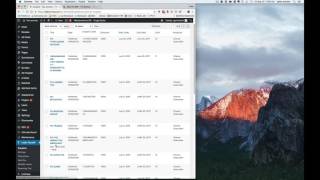
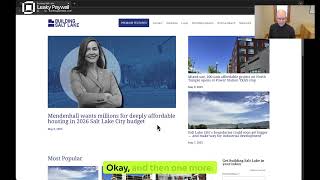
So as a final point here, I just wanted to show you the dashboard, the actual back end of the system, so you can see where everything lives. There's a lot to talk about, so I'll just scan through it. I'm not gonna. I won't dig into it too, too far, but I'll show you the high point. So now we're already logged into T Journey, so I'm gonna. I'm gonna load up the dashboard here. And Jesse said I should start with the apps because that's the pow pow. I'll do that. All right. So essentially, for the apps, we call our apps Unipress, you have some options here. Push notifications is probably the thing you're going to use the most. If you want to send a push notification, you have a history here and you hit add new and you can title it whatever you want. And then you type in your push notification that you want to go out here. The really cool thing is you can schedule these push notifications. So if you want a push notification to go out Tomorrow morning at 6am you can just set the time and the date, hit. Ok, hit publish and then go out. Ads are managed here as well. So if you need to add a new banner ad in the app or remove one or whatnot, this is where you handle, handle that.
Okay.
All right, so here's the. Here's some ads here. Let's add a new ad and I'll show you the way it works. What you'll do is you'll want to add different sizes of ads because you have phones and you have tablets. You have lots of different screen resolutions. So we've boiled it down to just a handful here. That will satisfy most everything.
Okay, that sounds good.
Yep. There's actually a new feature called push categories, which, depending on how you structure your content, your articles, if you have very specific categories for your readers, they could actually, in the app choose which categories to automatically get push notifications for. So if an article, let's say agility is a category someone's absolutely crazy about, and they want to make sure they get a notification for every new agility article. You can set that so that. And they opt in on the app to get the automatic push notifications. So when you publish that agility article, they get a push right away. Right above Unipress says leaky paywall, that's our metered paywall. And this is where all your subscribers live, your plans live. You manage coupons and things like that here. So it's all managed here, and then your Issues are, well, your blog posts live in the default WordPress blog post section, which you're familiar with already. And the new issue post type is called articles. So this article shows up, you go to issues, you literally just create a new issue under Issues and then you assign the article to the issue. So let me bring that up. So here's the current issues. Really all you have to do is give it a name. And then what happens is once you give it a name, by default, the issue status is draft. And I'll show you how to add an article to an issue. And when you're ready to go live, you just change it to live and you hit update and that's it. So as far as workflow goes, I say, okay, let's add a new article. And you add your content just like you would with any post. And then you check off, okay, the issue this article belongs to is fall 2016. And off you go. Yeah, and then I'll even show you the menu. So you go to appearance menus, which is the standard menu controller function in WordPress, and you get a menu called the Unipress Device menu. And let's load it up here. Here it is. You choose Unipress Device menu, you select that menu and then this is standard WordPress functionality. You choose what pages or categories you want to live here. And when you update, and these are all drag and drop, you just move them around and then you hit Save menu and you've updated the menu in the app or in both apps, I should say.
All right, looks good.
And what did I miss? Jesse? Anything? Oh, let's think that's really the core functionality.
I mean, there are other things that we've added in here, like advertiser management. With addropper, there's the new Live market add on, which we're calling.
What was it?
I guess we're still calling it Access Ads, but that's a neat new community marketing system where you sell access to advertisers in your community to the home page and it allows for better content to be posted to your site, better advertising content, better access for advertisers, and it's just a great hands off recurring revenue stream for any publication. So that's cool to see. And one thing we should mention with Anvil is we do all the hosting, all the technical stuff.
That's one of my questions.
Yep, you sign up for Anvil and we set up the server, we do the security monitoring, we do the optimization, we do the hosting server setup.
So is it like hosted on your private server or is it a commercial service that.
So we run everything on Amazon S3, which is the biggest host provider in.
The world, with distribution globally. So if your readers are in Taiwan or in Australia or Africa, they have a server near them that's providing the.
Data, and they obviously have a regular backup protocol and all that.
Yeah, you'll have backups, you'll have security, and you'll have us. So if you. If. When there's an update to any of the software, we update it. If there's a bug fix, something goes a little wacky, we fix it. Essentially, you have the technology handled for you.
So, like, if there's an Upgrade to the WordPress platform, you guys would manage, we do it.