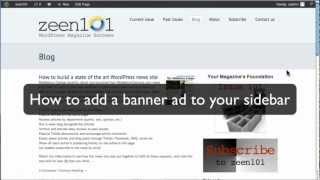
Pete Ericson shows how to add a banner ad to a WordPress sidebar by building it in a draft page, uploading an image, copying the HTML, and pasting it into a Text widget. Store ads as pages so you can reuse them later.
Chapters
Today I'm going to show you how to create an ad banner in your sidebar very easily. There's a neat trick in WordPress that you can do to make these ads and you make them right in WordPress and I'm going to show you how now. So here we are looking at zine 101 and what we're going to do first is we're going to create a page and this page is going to be a page that we're just going to use for creating ads. So I'm going to call this add page do not delete. And what we're going to do is we're going to leave this page in draft status. Draft status, draft status. Let's bring the visual editor up. Make sure you have that tab going. And then what do we do? Well, the first thing I'm going to do is I'm going to bring in the image that we want to create the ad widths. So I'm going to click on the image, the media editor here and that will bring up all our media. But what we're going to do is we're going to, I'm going to add the add image that I want. So I'm just going to drag it in and it's going to upload. And what we're going to do is I'm going to make a two parts to this ad. It's going to be text on the left and this little image issue m on the right. So, so what I'm going to do is I'm actually going to right justify this ad so that my text sits to the left of it. Now we want a link to the advertiser. So let's give the link URL to it. In this case it's going to go to issuem.com which is the plugin that we sell and then we're going to. I think we're all ready to go. So we link the image, we're going to write, justify it in this case and I'm going to hit use this image. And what this will do is this will pop the image right into the WordPress page that we're working in. Now I want some text, okay to go to the left of this. So I'm going to simply use our little Tagline here, turn WordPress into an image issue based publisher and we're going to do a little formatting. So what I actually want is something that's a little bigger. So I'm going to, let's go with heading three, heading two let's try heading two and if we do a little preview on this, you'll see that on a big page we're going to get this, the entire body here, let's close this. But in a sidebar this is all going to wrap down very nicely. So let's, let's do this. In order to get the ad into the sidebar all you have to do is go from the visual editor to the HTML editor and copy the code. So, so we're going to copy this code and then what I'm going to do is I'm going to put the code in a text widget. Alright so we're going to go find widgets under appearance here. And the page we're looking at by the way is let's go to the blog page and have a, have a look at the page we're going to adjust. So this is the sidebar here, we have cover widget here, subscribe image, some categories and text. What I'm going to do is I'm going to drop in and add right at the bottom of this here and we'll see how it shows up. So in order to do that we're going to go to the widgets and we're going to create a new text widget. Alright so I'm going to my blog page sidebar and all I have to do is grab a text widget. So you grab that text widget, you drag it right into your sidebar, put it where you want it in your sidebar and then all you have to do in the body is paste in the HTML code you have you had just pasted. Now you can give it a title if you want. In this case I'm not, I'm just going to leave it blank. I'm going to hit save and we're done. Now let's go back, we'll refresh this page and we'll take a look and we'll see how our ad did. And there it is. Turn WordPress into an issue based publisher. Now I can do a lot more things to this. You know, if I click, if I click on the picture we'll see that it's linked and it's going to take us to the issuem plugin site. So let's go back in the editor. I can do anything I please. I can change the font size, I can link anything that I, that I want and link out to it. But feel free to format your images in that way. So to sum up what you have to do to get a nice ad looking in the sidebar is to drag an image into the media center, add it into a page, format the page the way you want it, and then all you have to do is copy the HTML from that page into the sidebar, the sidebar text widget, and voila, you have yourself an ad banner in the sidebar. It's pretty cool. And what it does is it lets you keep all your all your ads in separate pages or on one big page, however you want to manage it. So you'll be able to dip back into old pages to retrieve old ads if advertisers decide to to resub and advertise on your site.