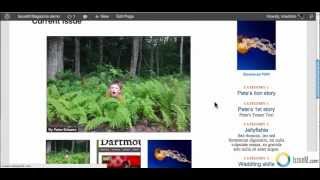
Pete Ericson walks through adding a featured image to a WordPress article. You'll upload the image, check the feature rotator and featured thumbnail boxes, add author credit and teaser text, then publish so Issue Manager auto-sizes it for the slideshow.
Chapters
Now we're going to learn how to add a featured image to the big slideshow rotator on the current issue, or a featured image thumbnail to the current issue. And here we have the demo site. This is the home page. We have the current issue here under current issue. And if we scroll down, we see the nice big rotator, which you can size any way you want, along with the thumbnails, which again, you can size as well. So how do we add a new big picture to this rotator that links to the article? It's very easy to do. So what I'm going to do is I'm going to add a new story to the June 2012 issue here that's live. And we can do it a couple ways. We can go to new article and bring that up, or go into the dashboard and go into articles and then add new article. So we're going to call this Pete's lion story, and we're going to have copy here. And what we're going to do is scroll down and choose a couple things. Let's say we're going to put this in a category and it's going to go in the June issue. We're going to want to have a feature rotator or featured thumbnail. So let's check off feature rotator. We can do one or the other or both for a story, and it'll show up in both places. In this case, I'm just going to choose both that image and teaser shows up both in the big slideshow, the big rotator, and also in the thumbnail, the feature thumbnail. Now, here's the key. If you scroll down a little bit more, you're going to find a featured image. This is a standard WordPress function set featured image. So let's grab a featured image. I have one that I'm going to drag right off my desktop and put into WordPress here. And we're crunching, and there it is. Okay, this is the line in the woods. And I can go ahead and edit all this information, of course, but I'm going to do here is I'm going to use this as the featured image. And that's it. I'm done. And once I'm done with that, I'm going to close this. You'll see that this shows up in the featured image and what I'm going to do, because I know what issue it's going to be in. Oh, of course. I need to give somebody credit for writing this. So we'll give P. Erickson credit. That's me. And then the excerpt will be a lion in the woods. How does that sound? Great. Okay. And we're going to publish. Okay, the story is published. Why don't we go back to the magazine? We'll go to the current issue and we'll scroll down and look at this. We have ourselves not only one major slideshow feature here, but also the thumbnail. And notice that how Issue Manager auto sizes the image for you. And then here's Pete's Lion Story by Pete Erickson. Now, I made a great mistake that you might make, too. And that's the teaser text. So I'm going back to the story to edit it here. And the key is to use this field here, which says teaser text. This is the issue Manager teaser text. What I did is I put this in the excerpt box, which is the WordPress excerpt box, and we want it here. And we'll call this one Pete's Lion Story. Okay, and then that's it. We'll update that. We're going to go back to the home page, back to the current issue, scroll down, and there is Pete's Lion Story teaser.