A short YouTube tutorial by Pete Ericson showing how to use WordPress’s built-in "Press This" tool to quickly curate and publish articles. The video demonstrates installing the Press This bookmarklet, using it to pull title, excerpt, image and link from a source article, and adding a short personal commentary before publishing or saving as a draft.
Chapters
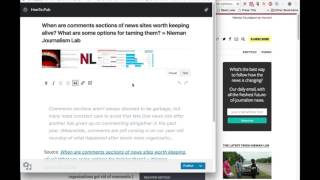
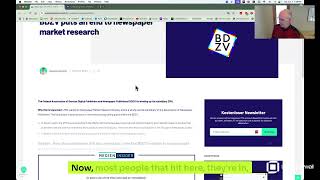
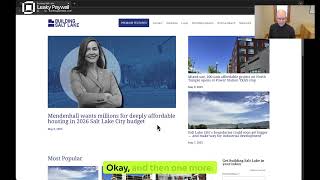
In this video, I'm going to show you how to curate articles super fast in WordPress. WordPress has a built in function called Press this that lets you curate an article. Load it up into WordPress in less than five minutes and I'm going to show you how it works. The first thing you want to do is go to your dashboard. You'll login to your publication, go to Tools and you'll find this Press this button. Grab the Press this button, drag it into your bookmarks bar and it will add the button for you. When you find an article that you want to share, all you do is load up the article, read it of course, and click the Press this button. What that will do is load up a new browser and it'll pull a lot of the important information out of that article. So you'll see that you'll get the title of the article, you'll get an excerpt from the article, you get an image from the article, and most importantly, you'll get the link to that article. What I typically do is after I've read a good article, I have some thoughts about it. I'll express my thoughts quickly in a short paragraph, just a few sentences to give the reader the digest of what it's about and the helpful information. And then if the reader decides to link off to the article, they can do so. I can publish this right now, or I can save it as a draft for later.