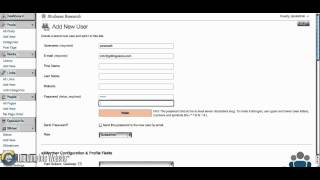
Short tutorial by Pete Ericson demonstrating how to manually add a premium (paid) member using the s2Member WordPress module. Steps covered: open Dashboard → S2 Member → Add a member, enter required fields (username, unique email, password), choose member access level (Level 1), optionally send password via email, and click Add New User.
Chapters
In this video, I'm going to show you how to add a premium or paid level member to your website. Now here we're logged in and we're going to go to the dashboard. And on the dashboard we want to scroll down in the sidebar to where it says S2 Member, which is the membership module here, S2 Member. And there's a link here that says Add a member. So you want to click the Add a member link and that will bring up the Add new user screen. And there are some things that are required here and some things that are optional. So what I'll do is I'll go through a sample of how to add a new member. So the username is required. And I'm going to say Pete Test 5. The email is required, and it has to be a unique email. You can't use a duplicate email in the database. So I'm going to use email address here that I've used. You don't need a first name, you don't need a last name, you don't need a website. You do need a password. So I'm going to type in a password here, and this little bar on the bottom tells you how strong your password is. I would make sure that you choose a password that's strong. Usually if it has letters and numbers, that makes it strong. And then you'll probably want to check off the box to send the password to the new user. So when you add a new user manually, they're going to get an email with their username, the link to your site, as well as the password. And they can login and change their password at any time. So make sure you tell them to do that. And then here's the secret to making sure that the member has the right level of access to your content. You check the drop down here, and in this case, we're going to choose Level 1 Member Level 1, which will give this site a premium level of access to all the content. Once that's done, that's all you have to do. You'll scroll down and you'll hit the Add new User button and that's it, you're done. So when the user checks his email or her email, she'll see the invitation and login credentials to log into your site.